01
Pan across a board of device frames
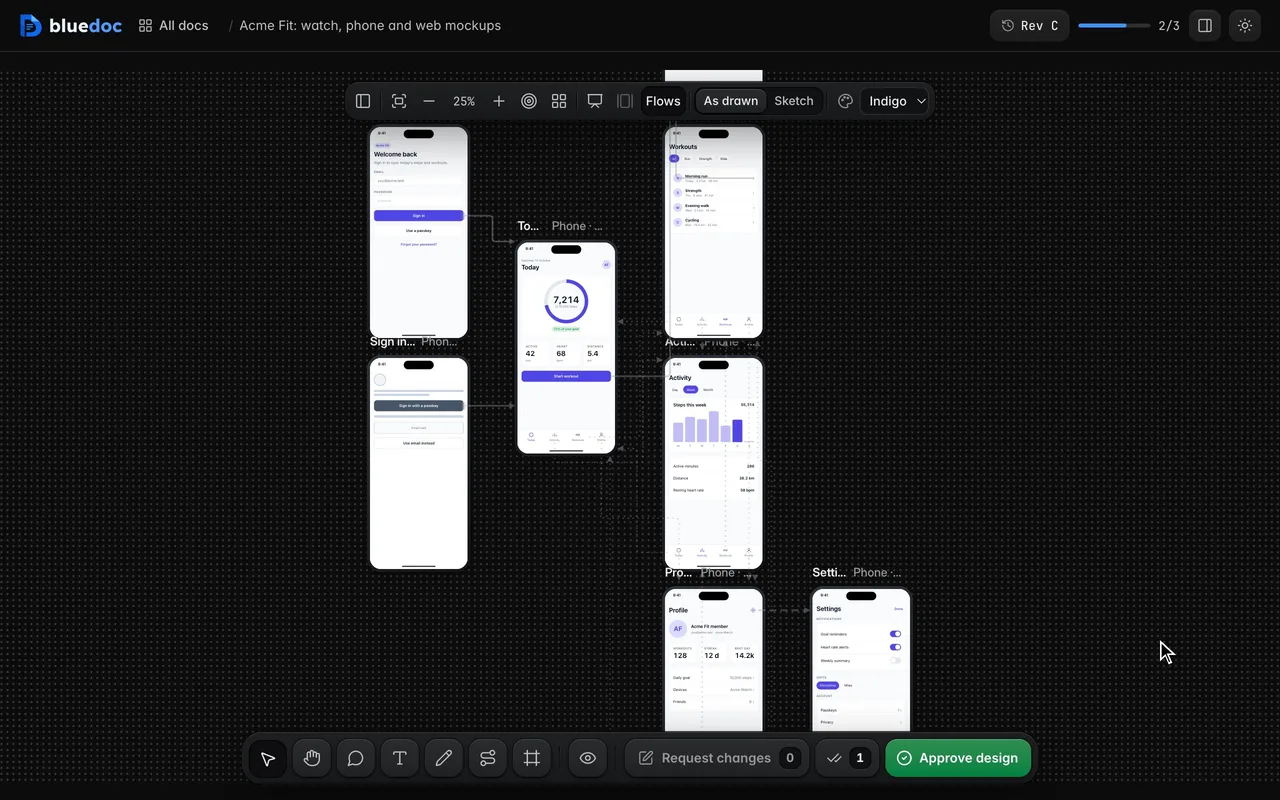
Each screen sits in its device frame, side by side on a board you pan and zoom.
Doc type"type": "design"
App screens on a board you can tap through.
A design is a board of UI screens in device frames, from a round watch to a browser. Screens link to each other, Present plays them as an app, and each comment names the element it is about.
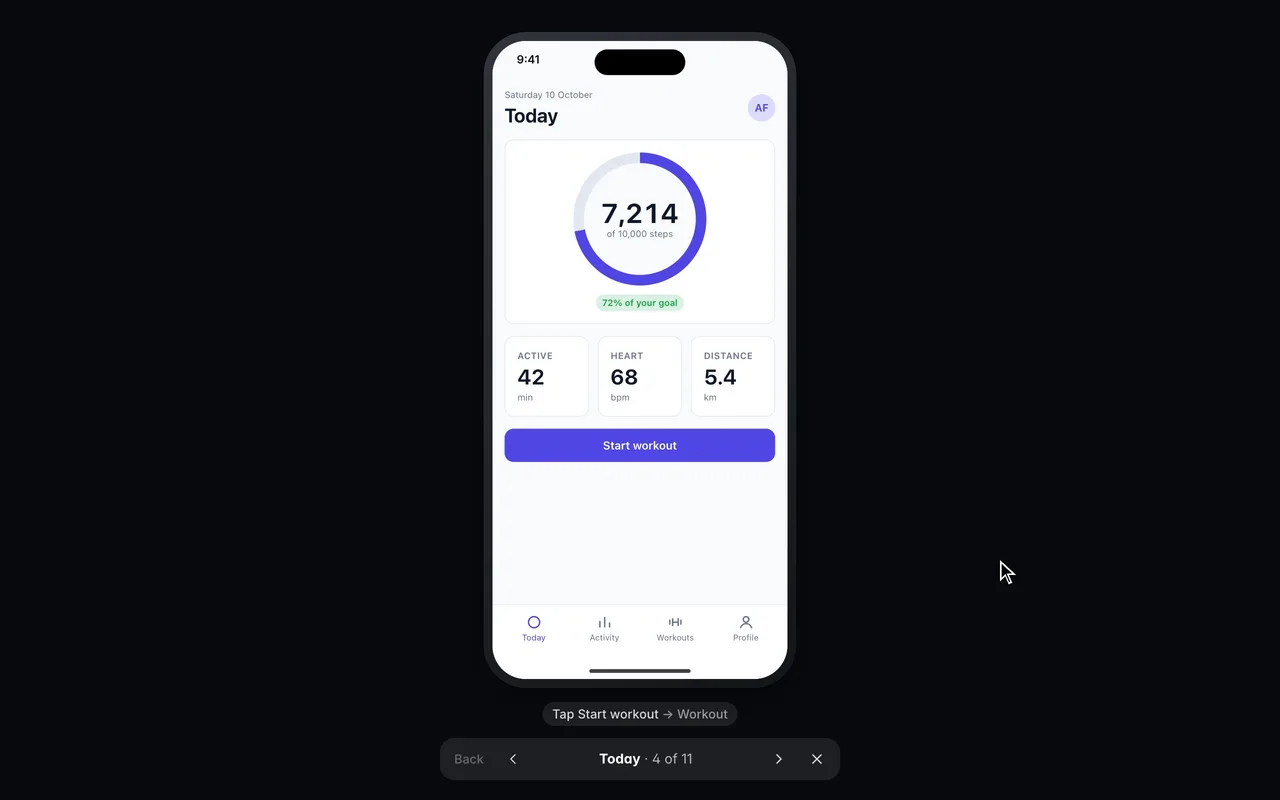
Tap through the app in Present. Present plays the screens full-window and follows the taps, with a back stack and each link’s transition.
What it’s for
The agent starts the board with its targets; each screen is a small HTML file in a device frame.
Round and square watch faces.
Phone screens linked into a flow, with tabs, pushes and modals.
Tablet screens at their own size.
App windows for desktop software.
Pages and dashboards in a browser frame.
An icon sheet for iOS and Android, with PNG export.
Features
01
Each screen sits in its device frame, side by side on a board you pan and zoom.
02
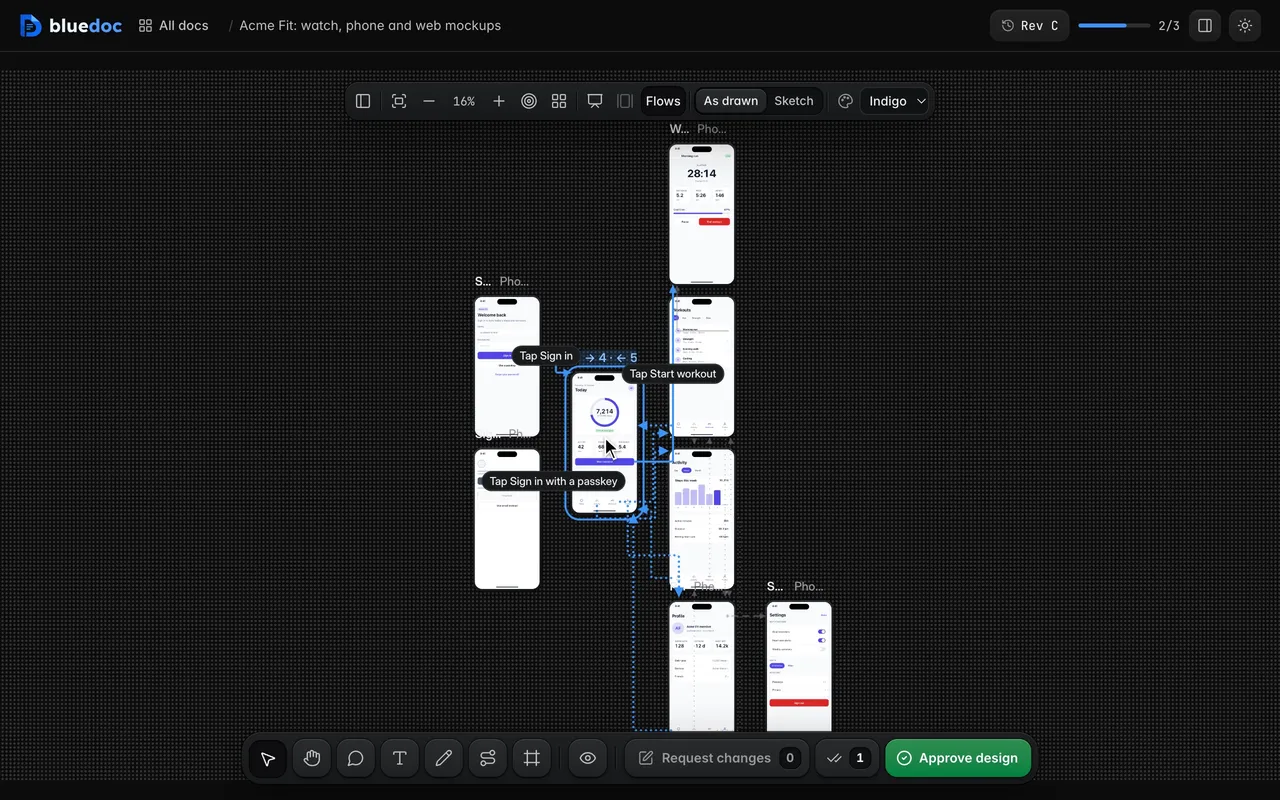
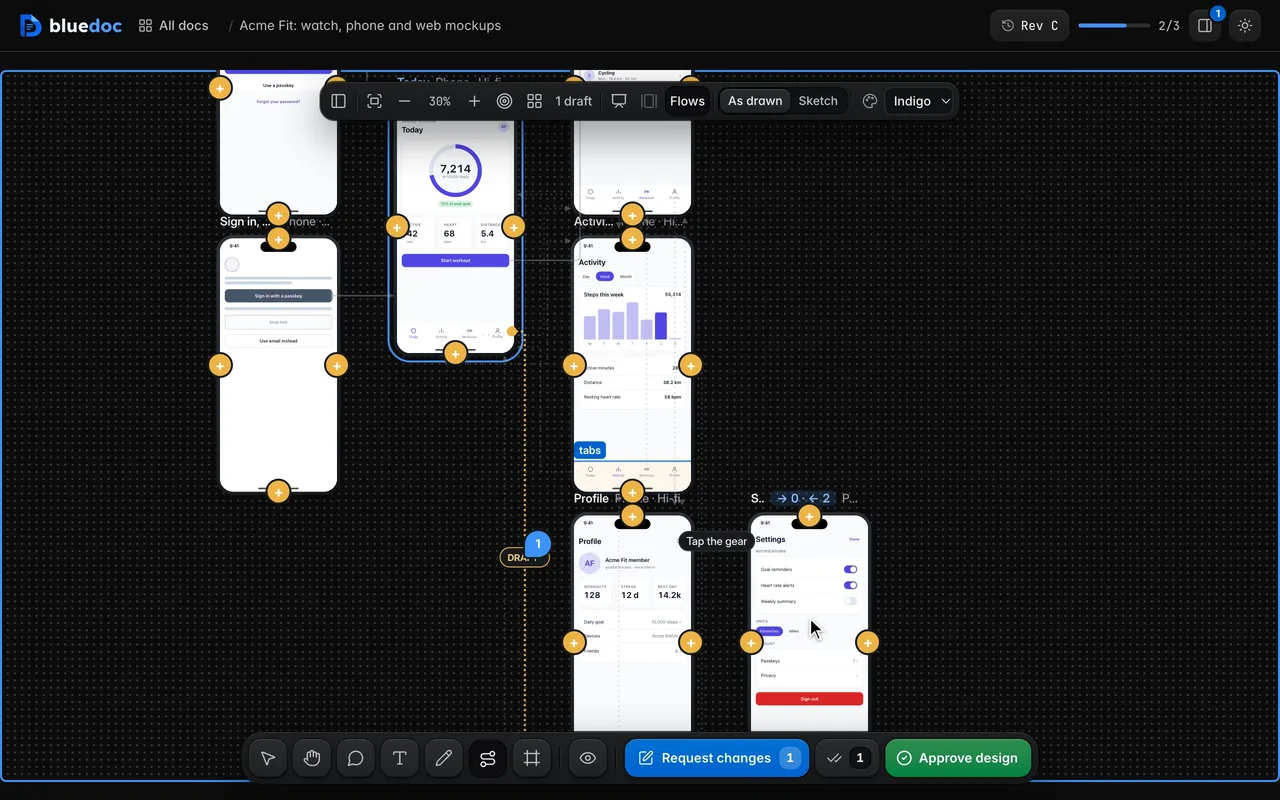
Links between screens are drawn as right-angle connectors. Select a screen to brighten its arrows in and out and count them; Flows shows every link.
03
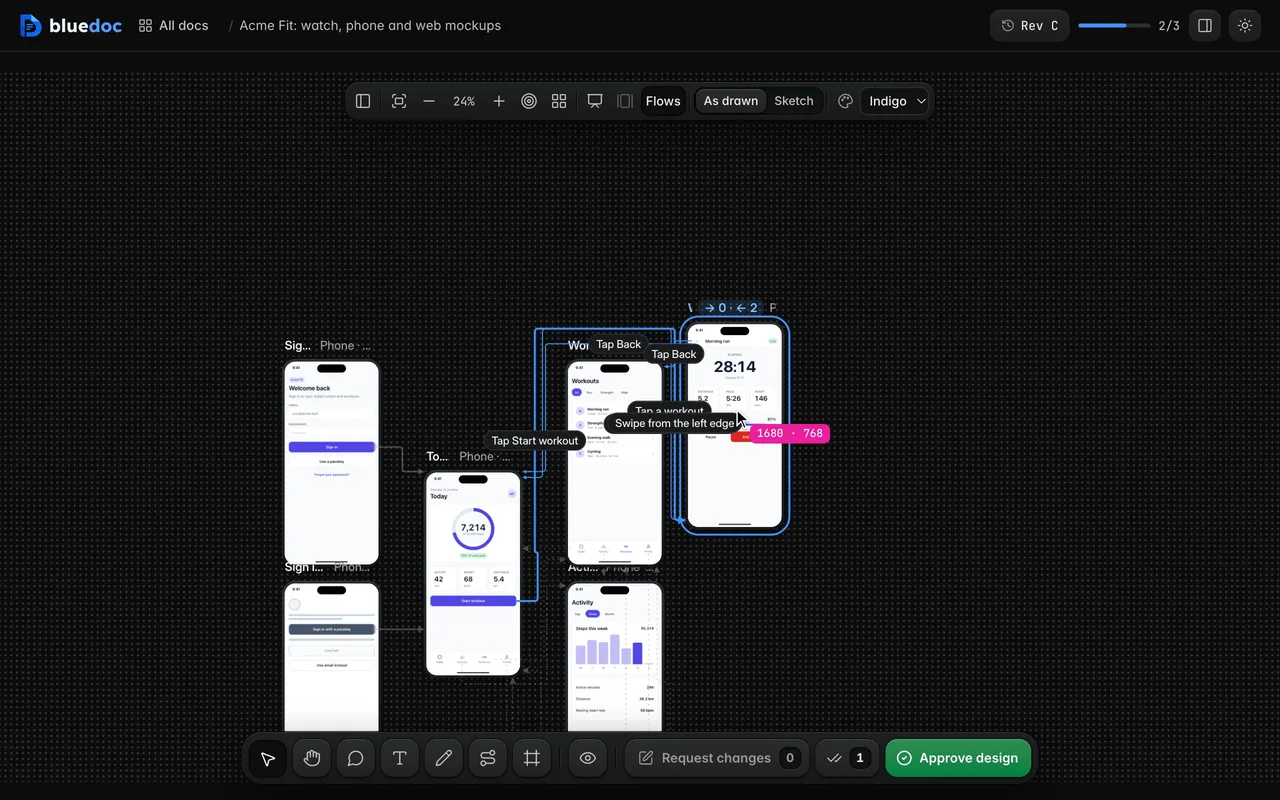
Drag a screen and it snaps to the others’ edges; its connectors reroute around the screens. The move is a draft the agent gets with your changes.
04
In Link mode (L), drag an arrow’s end onto another screen. The board and Present follow the draft at once.
05
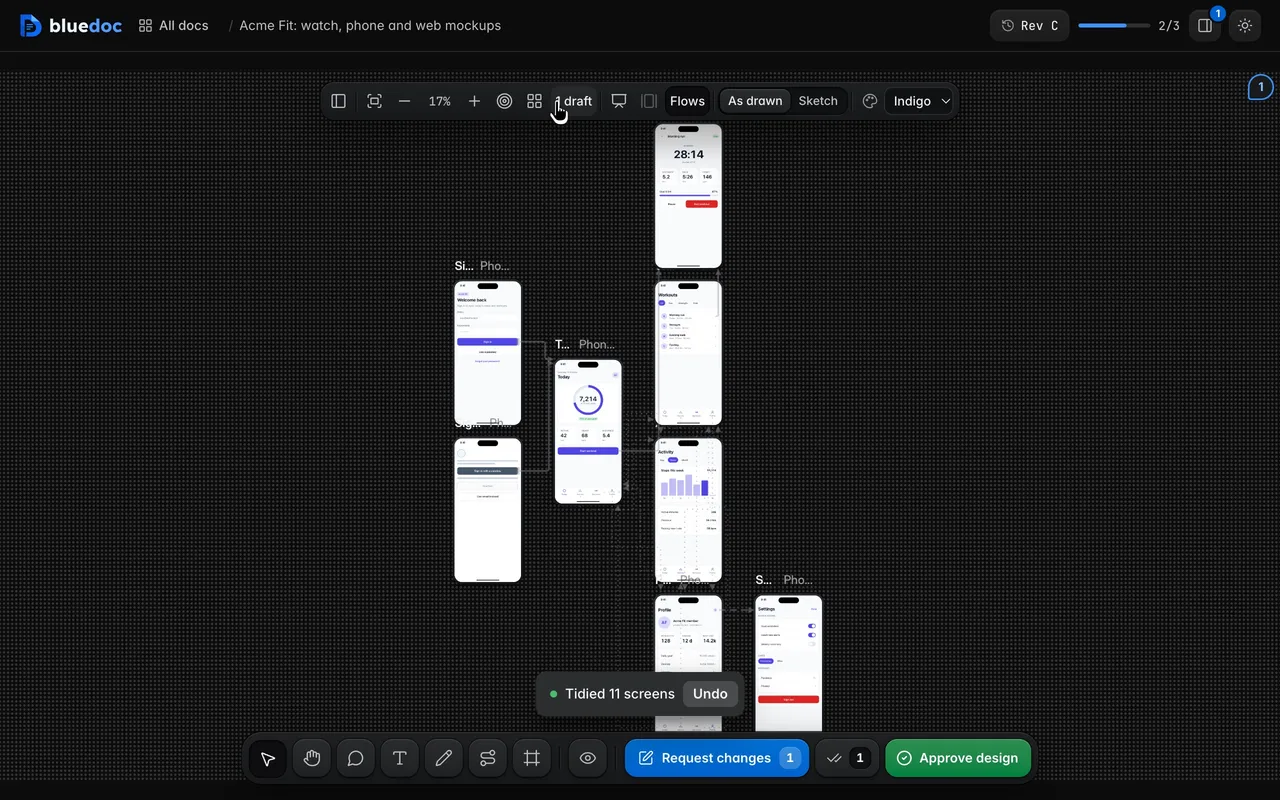
Tidy up lays the screens out in layers with no overlaps and no crossings. Request changes sends the layout with the command that writes it into the doc.
06
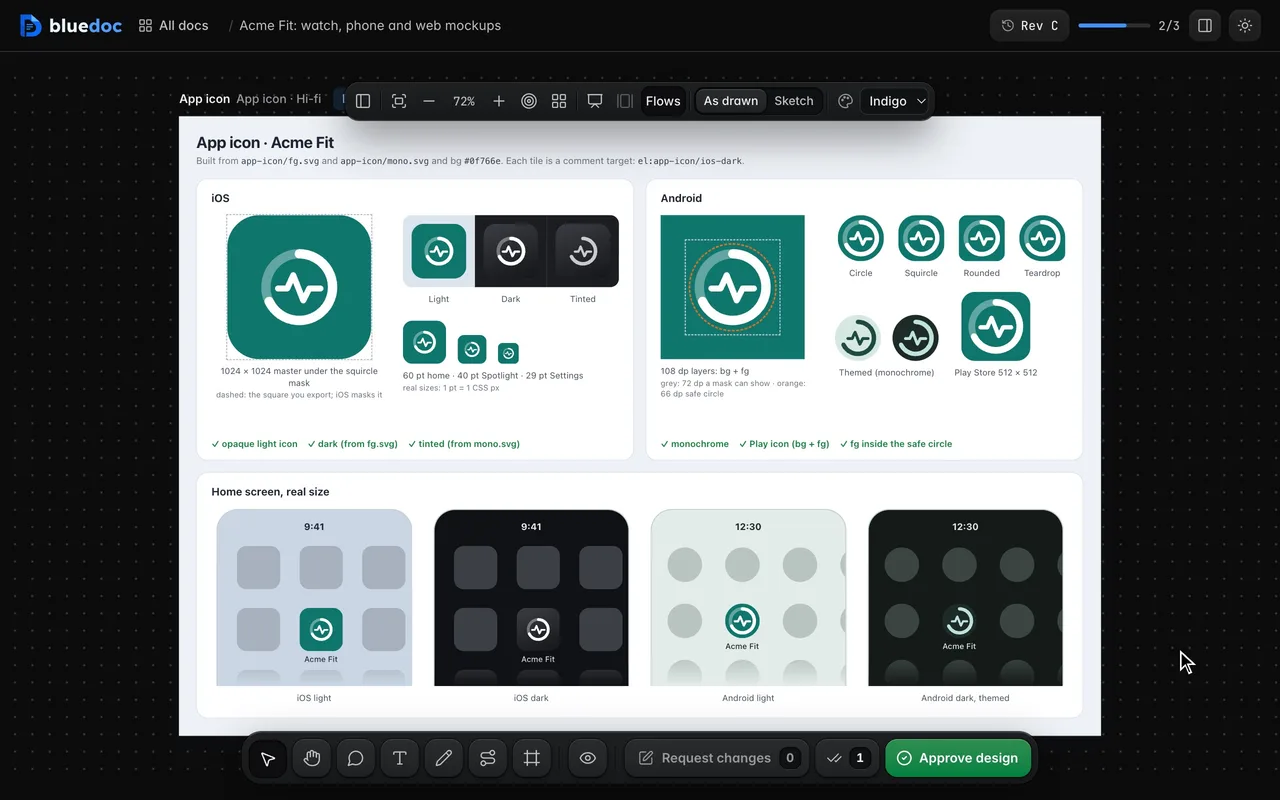
One sheet shows the icon as iOS light, dark and tinted, Android’s masks and themed icon, the store icons and four home screens.
07
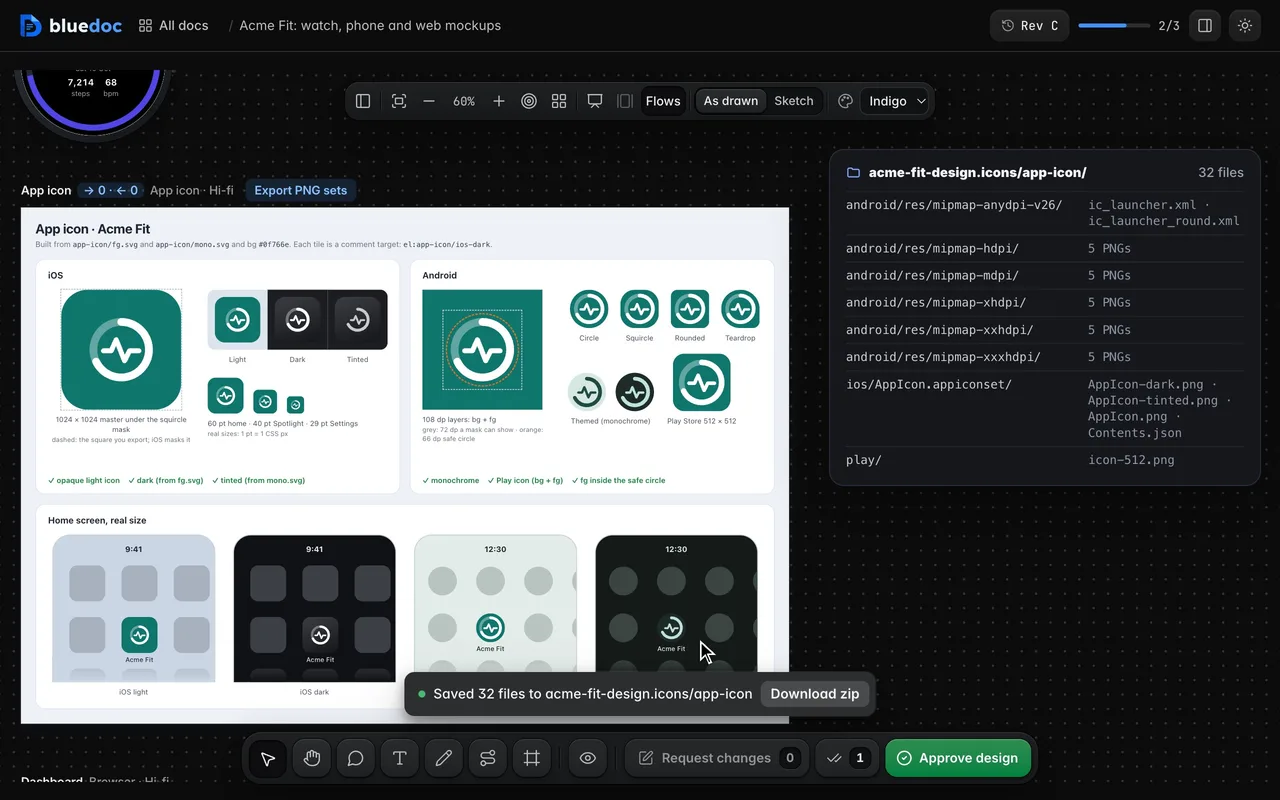
Export PNG sets renders every PNG size with Contents.json and the adaptive-icon XML, and saves them beside the doc.
08
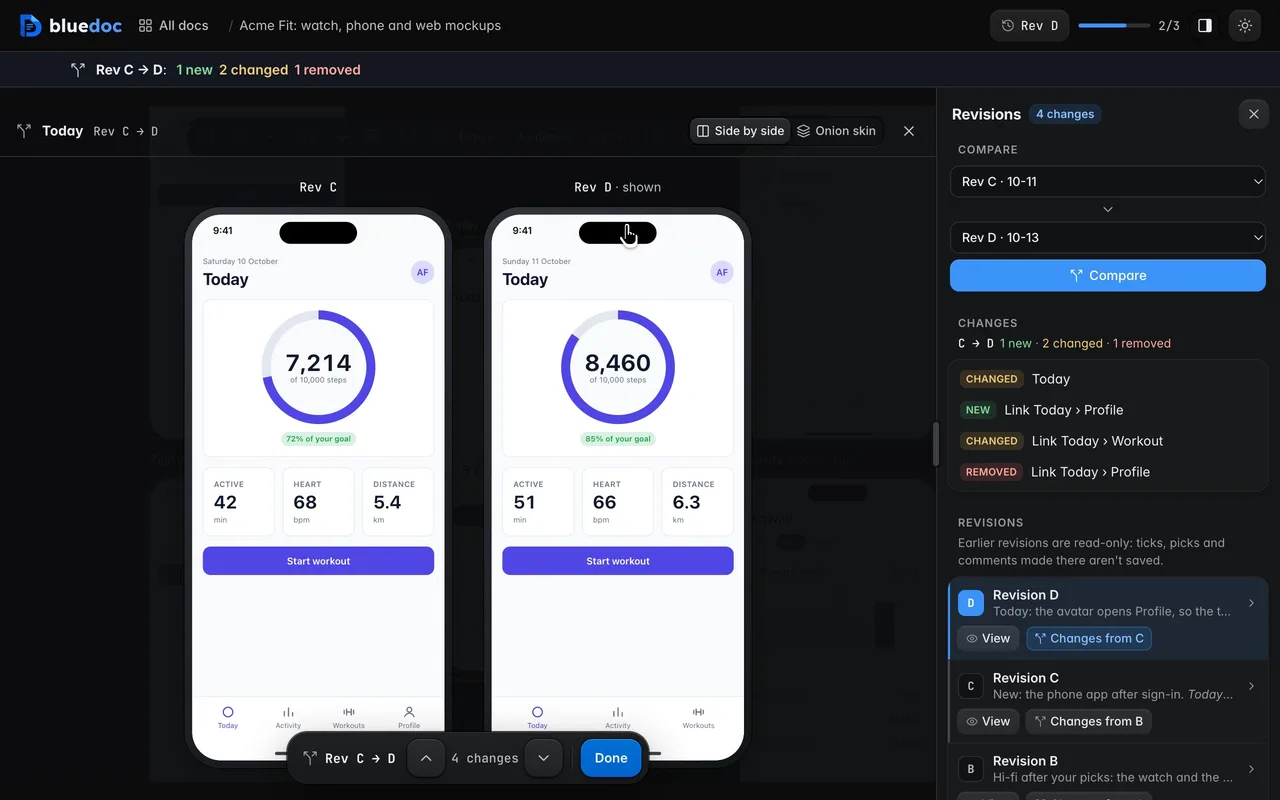
The Revisions tab puts a screen at two revisions side by side and marks its links New, Removed or Changed.
09
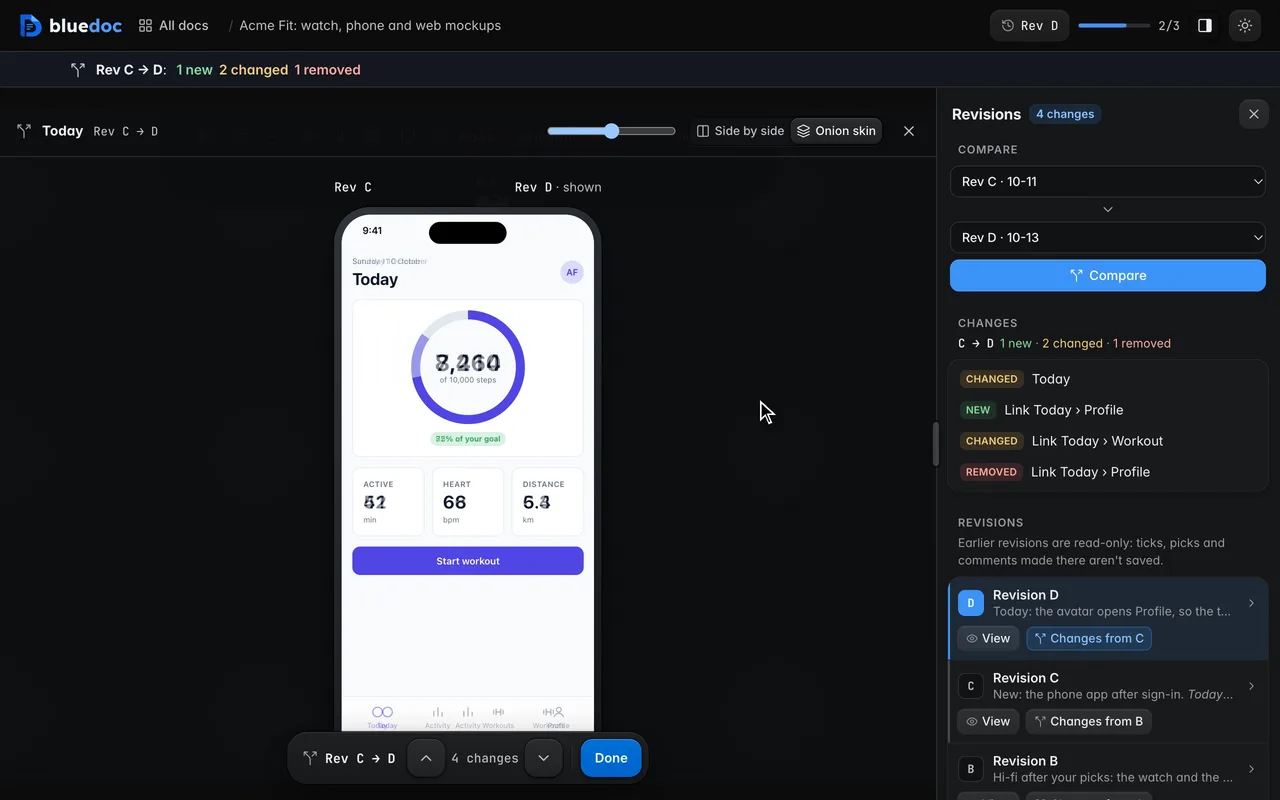
Or lay the newer screen over the older one and slide the opacity between them.
10
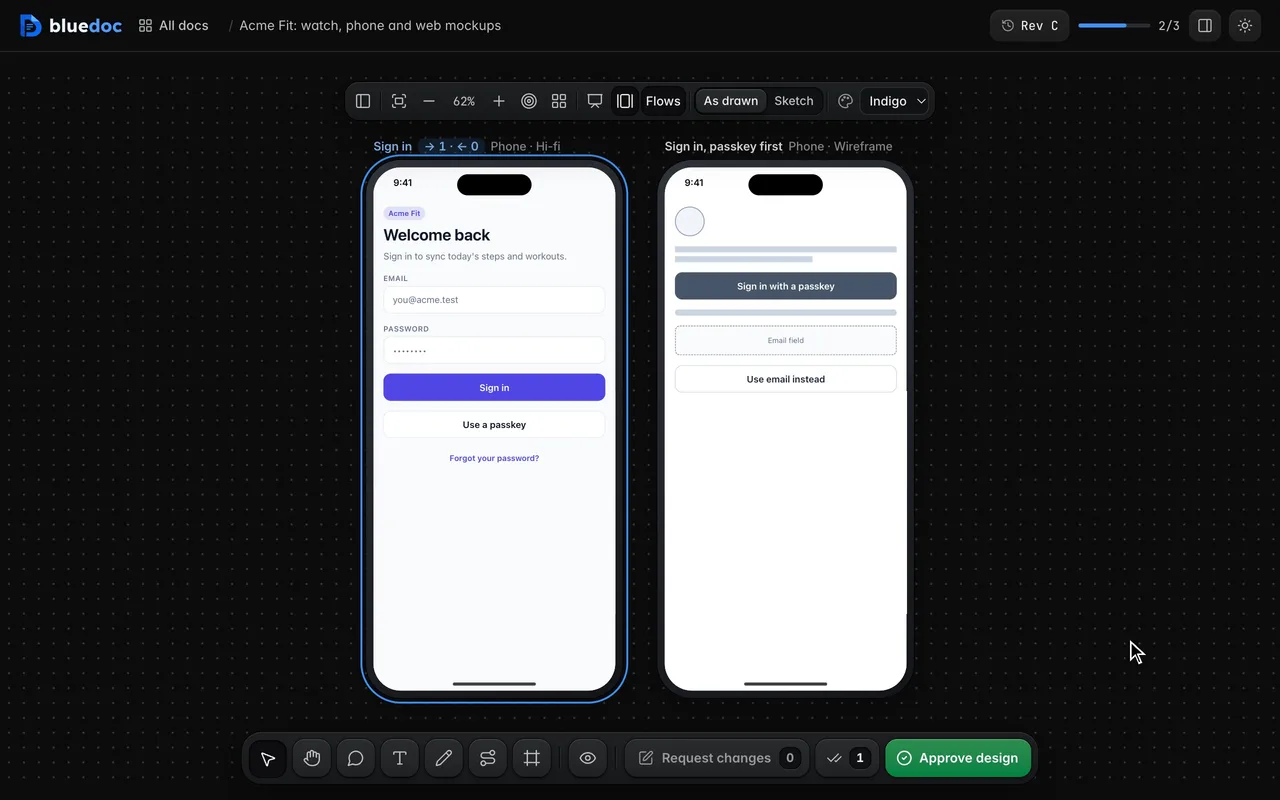
A variant is another take on a screen. Variants puts a screen and its variants side by side at one zoom.
11
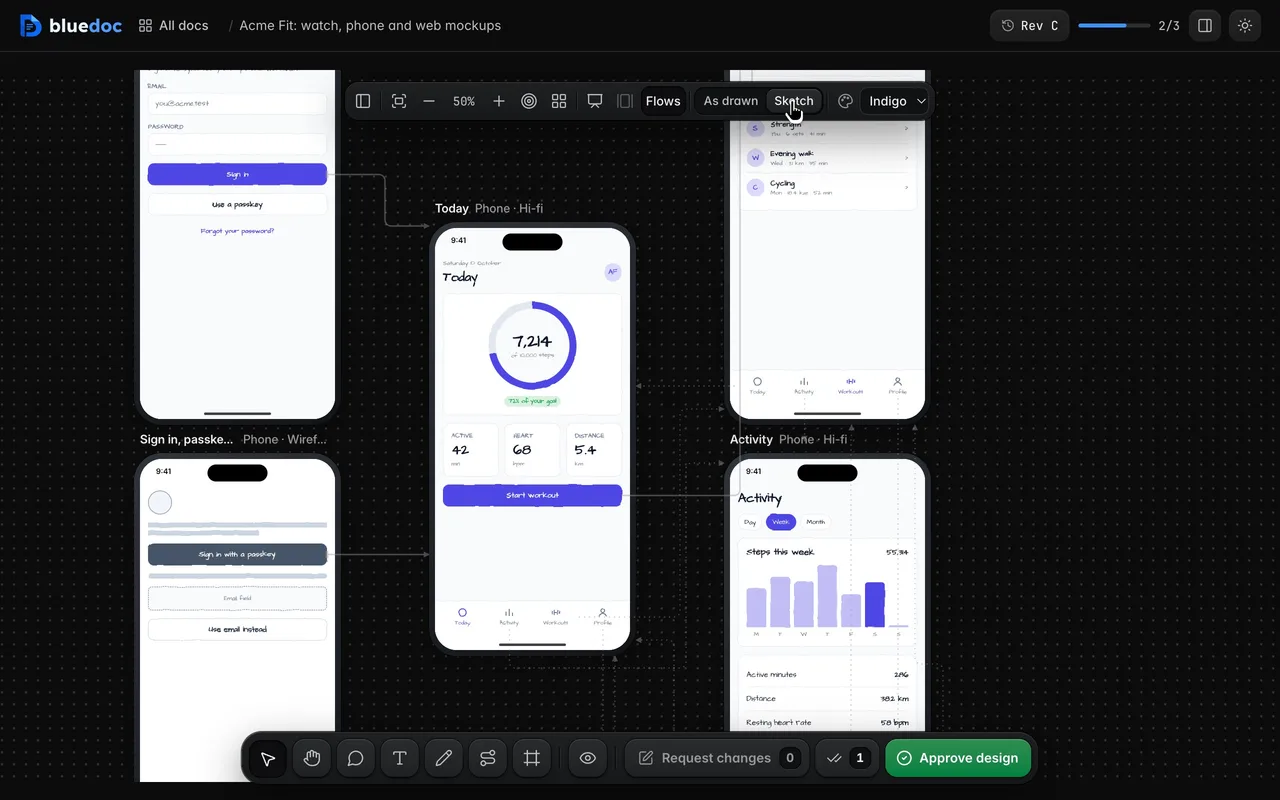
Sketch redraws every screen hand-drawn, with wobbly lines and a hand font. As drawn shows each at its own fidelity again.
12
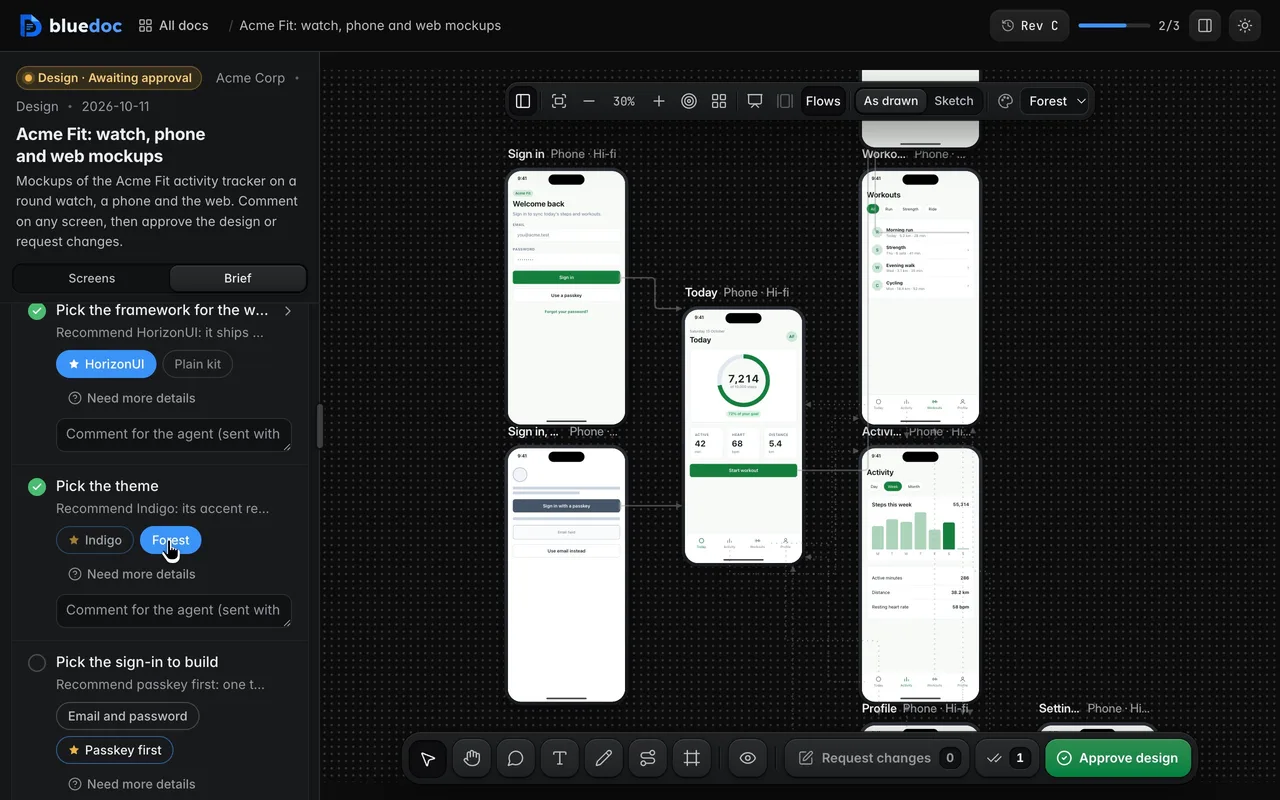
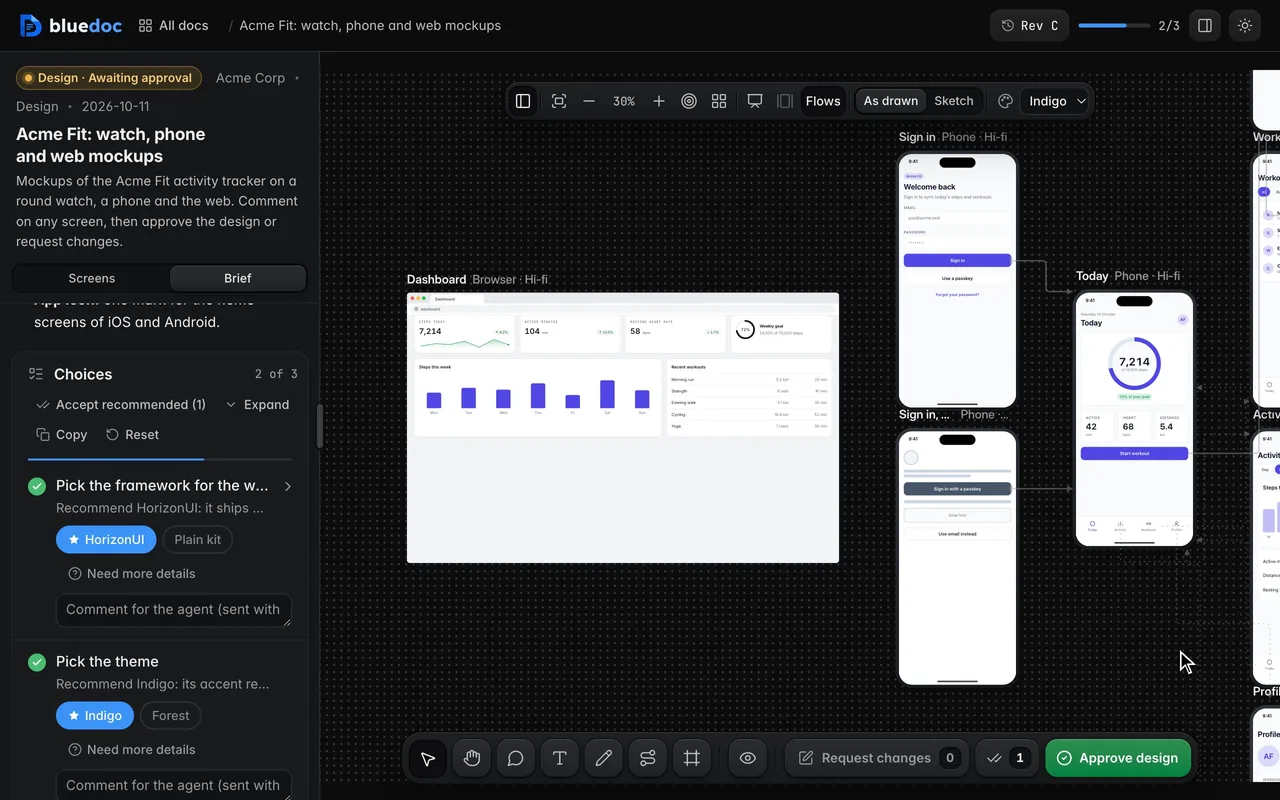
The brief lists themes as sets of tokens. Pick one and every screen re-skins at once.
13
Screens use the plain kit, its wireframe boxes, HorizonUI, HeroUI or Tailwind, all built in and offline, or your project’s own CSS. One board can mix them.
14
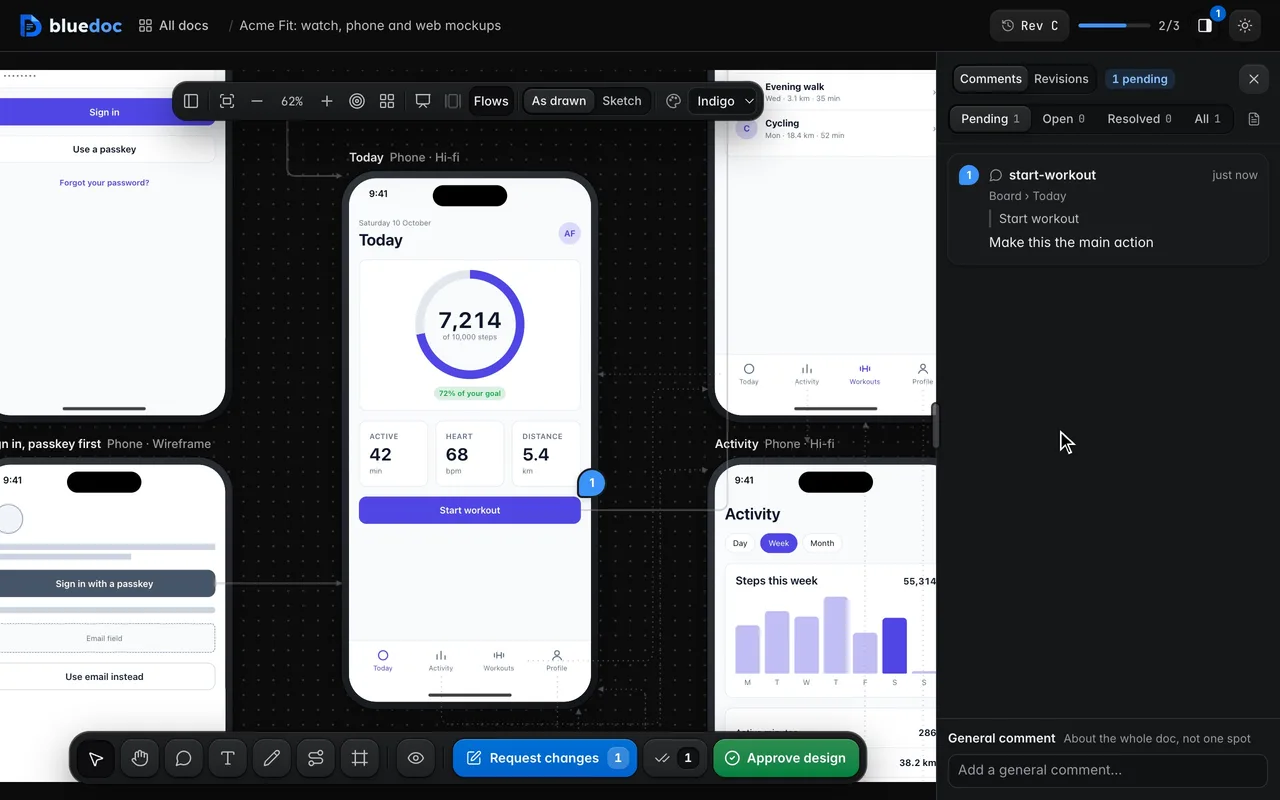
Point at an element in a screen. The comment’s key names the screen and the element, so the agent edits that element in that file.
15
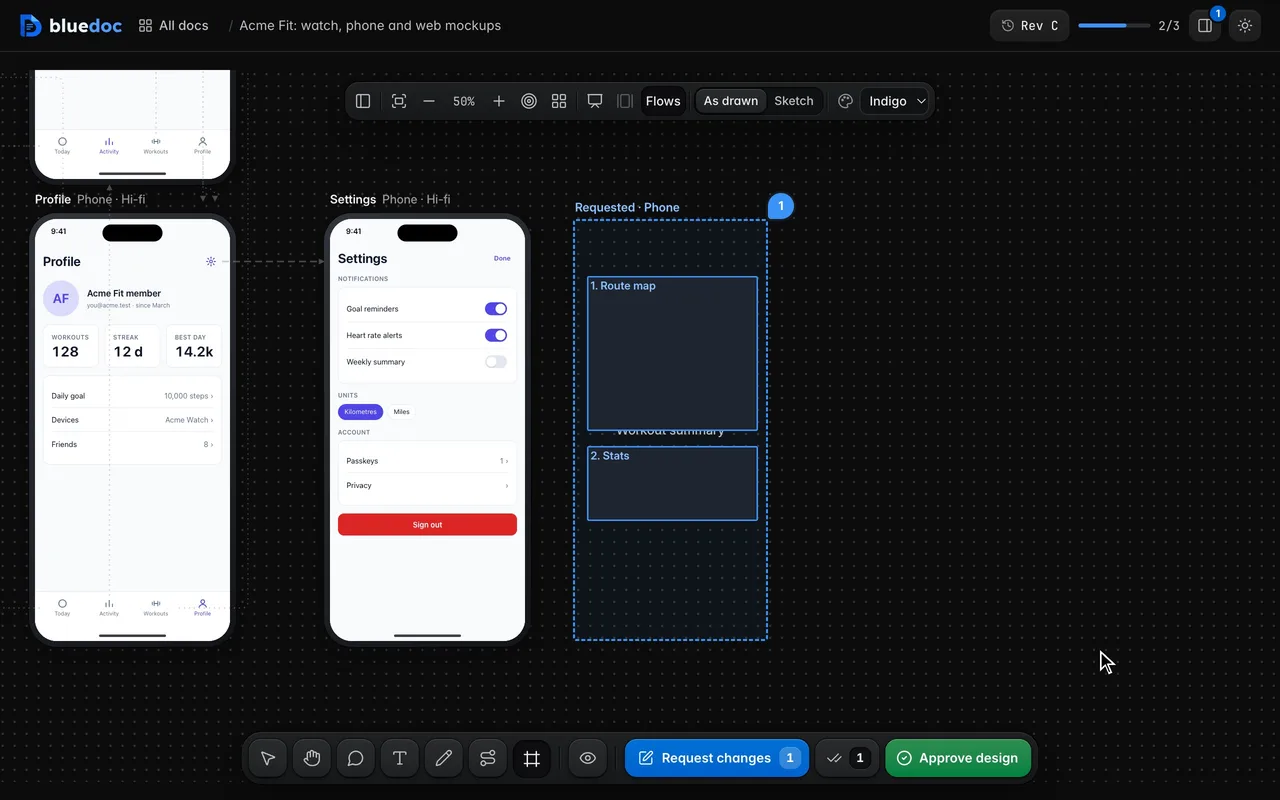
In Frame mode (R), drag a frame onto the board and label boxes inside it. It goes to the agent as a request for a new screen.
Works on every doc
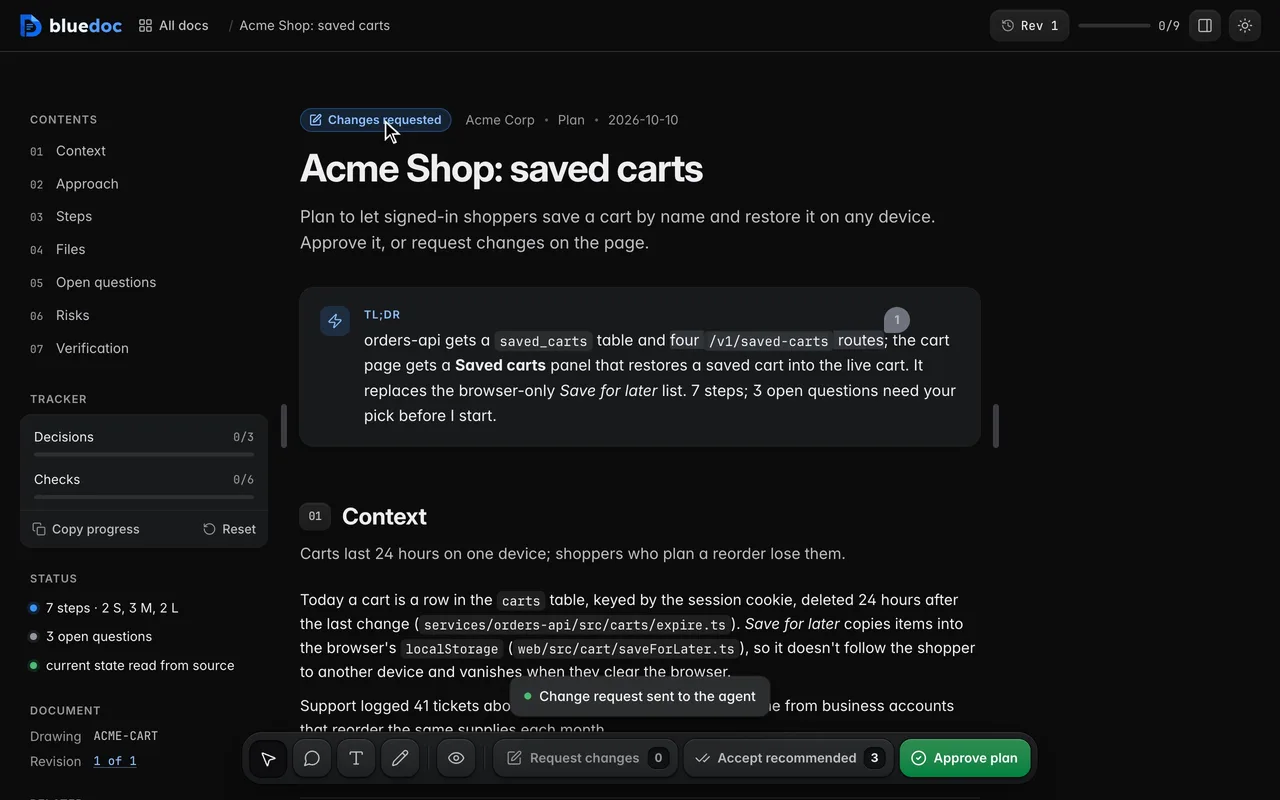
Request changes previews your notes as Markdown, then sends them in one go.
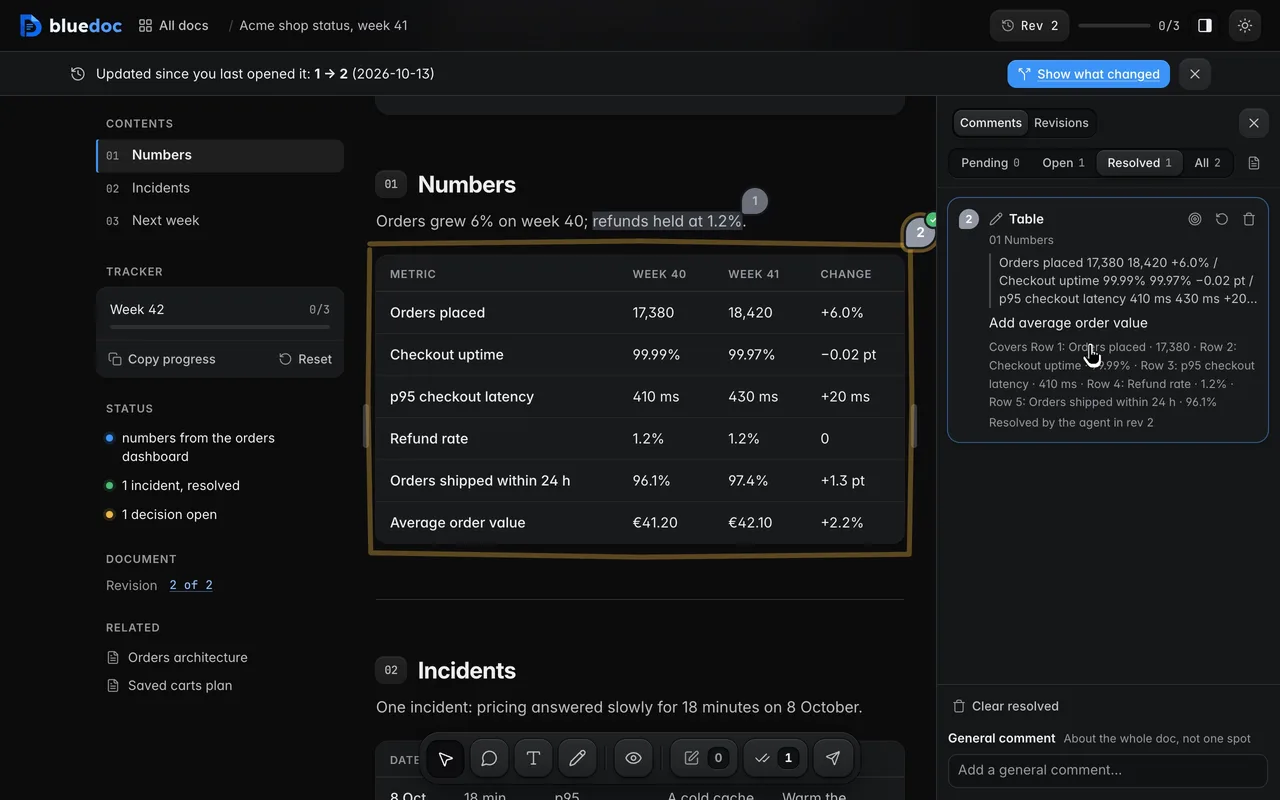
Notes go from Pending to Open when sent, and to Resolved when the agent’s revision says it dealt with them.
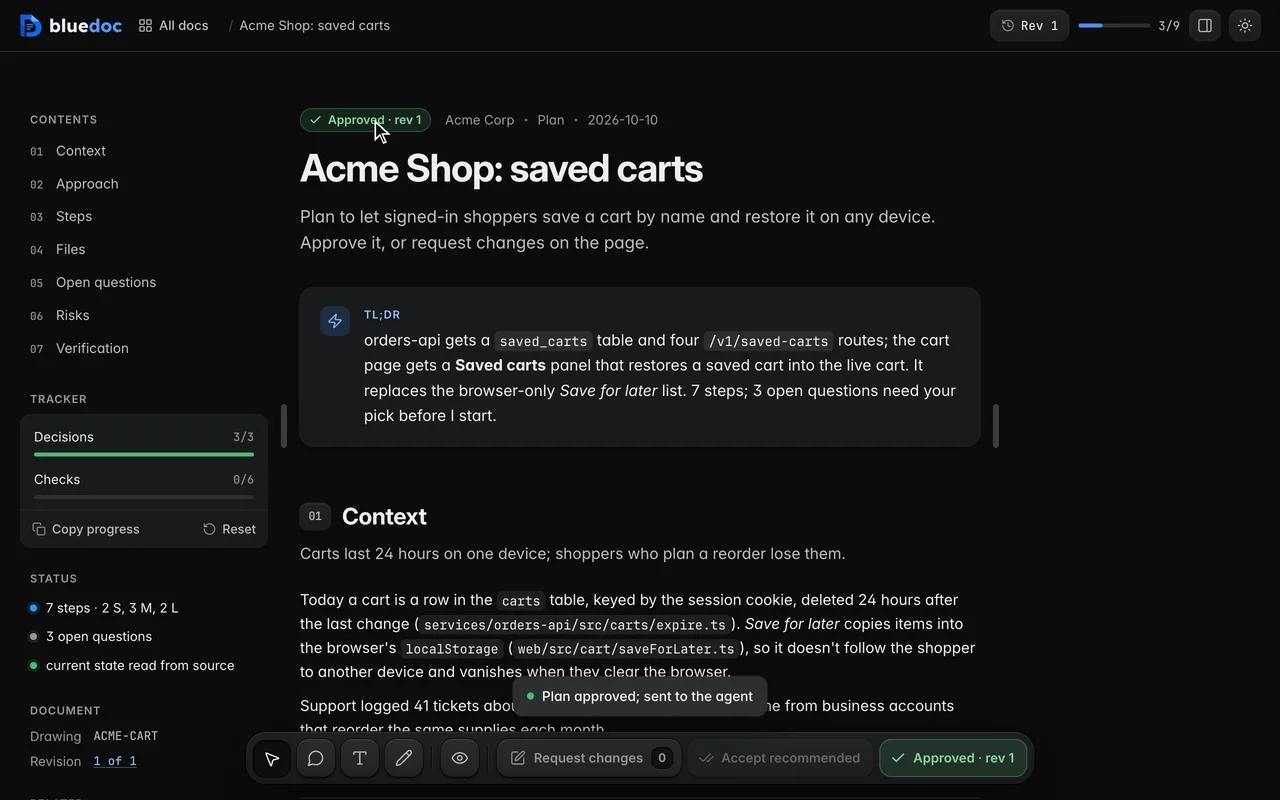
Approve lists your picks and records the approval against this revision. The agent waits for it.
How the agent uses it
The agent lists the artboards in the doc and writes each screen as an HTML fragment. data-nav on an element links it to another screen.
python3 <skill>/scripts/build.py new design docs/design/acme-fit.bluedoc.json --title "Acme Fit" --target watch,mobile,web --iconspython3 <skill>/scripts/build.py docs/design/acme-fit.bluedoc.jsonpython3 <skill>/scripts/serve.py open docs/design/acme-fit.bluedoc.json{ "type": "board", "id": "main", "targets": ["watch", "mobile", "web"], "framework": "plain", "entry": ["login"], "artboards": [ { "id": "today", "title": "Today", "device": "phone", "fidelity": "hifi" }, { "id": "workout", "title": "Workout", "device": "phone", "fidelity": "hifi" } ]}<main class="screen safe stack gap-4" data-bd="today"> <h1 class="title">Today</h1> <button class="btn primary block" data-bd="start-workout" data-nav="workout" data-nav-label="Tap Start workout">Start workout</button> <nav class="tabbar" data-bd="tabs"> <a class="tab" data-bd="tab-activity" data-nav="tab:activity">Activity</a> </nav></main>The server wraps each fragment in its kit, so the agent never writes <head>, framework links or tokens. Each screen runs sandboxed, with no network.
Install
Each one installs the same skill from the GitHub repository.
claude plugin marketplace add andreiverdes/bluedocclaude plugin install bluedoc@bluedocInside a session the same commands are /plugin marketplace add andreiverdes/bluedoc and /plugin install bluedoc@bluedoc. Start a new session to load the skill.
codex plugin marketplace add andreiverdes/bluedoccodex plugin add bluedoc@bluedocRestart Codex. Mention the skill with $bluedoc or let Codex pick it from your request. Plan mode (/plan) opens the plan as a page; the README has the sandbox lines that skip the approval prompts.
pi install git:github.com/andreiverdes/bluedocRestart pi. /bluedoc-plan-mode turns on plan mode, and the plan opens as a page for your approval.
omp plugin marketplace add andreiverdes/bluedocomp plugin install bluedoc@bluedocRun /reload-plugins in an open session, or start a new one. omp’s plan reviews open as pages: Approve runs the plan, Request changes refines it.
copilot plugin install andreiverdes/bluedocStart a new session. When Copilot leaves plan mode, its plan opens as a page and waits for your approval.
git clone https://github.com/andreiverdes/bluedoc.gitagy plugin install bluedoc/antigravityRestart agy. In plan mode (agy --mode plan or /plan), the implementation plan opens as a page for your approval.
npx skills add andreiverdes/bluedocFor any other agent that reads skills. Or clone the repository and link skills/bluedoc into your agent’s skills folder.
Other doc types

Architecture pages, walkthroughs, runbooks, setup guides and change proposals.

A plan you approve or send back before the agent writes code.

Review findings pinned to their lines from git, one decision per finding.

Slide decks with speaker notes, played in Present.

A site’s pages on a board, live from its dev server.

An app’s Google Play and App Store listing, checked against the stores’ rules.

Status pages, incident reports, inventories, meeting notes and comparisons.