Every doc type
Features
Comment, decide and approve, on every page.
Docs, plans, reviews, designs, decks, websites, store listings and status pages all answer the same way: you comment on any part, pick options, send your notes and approve.
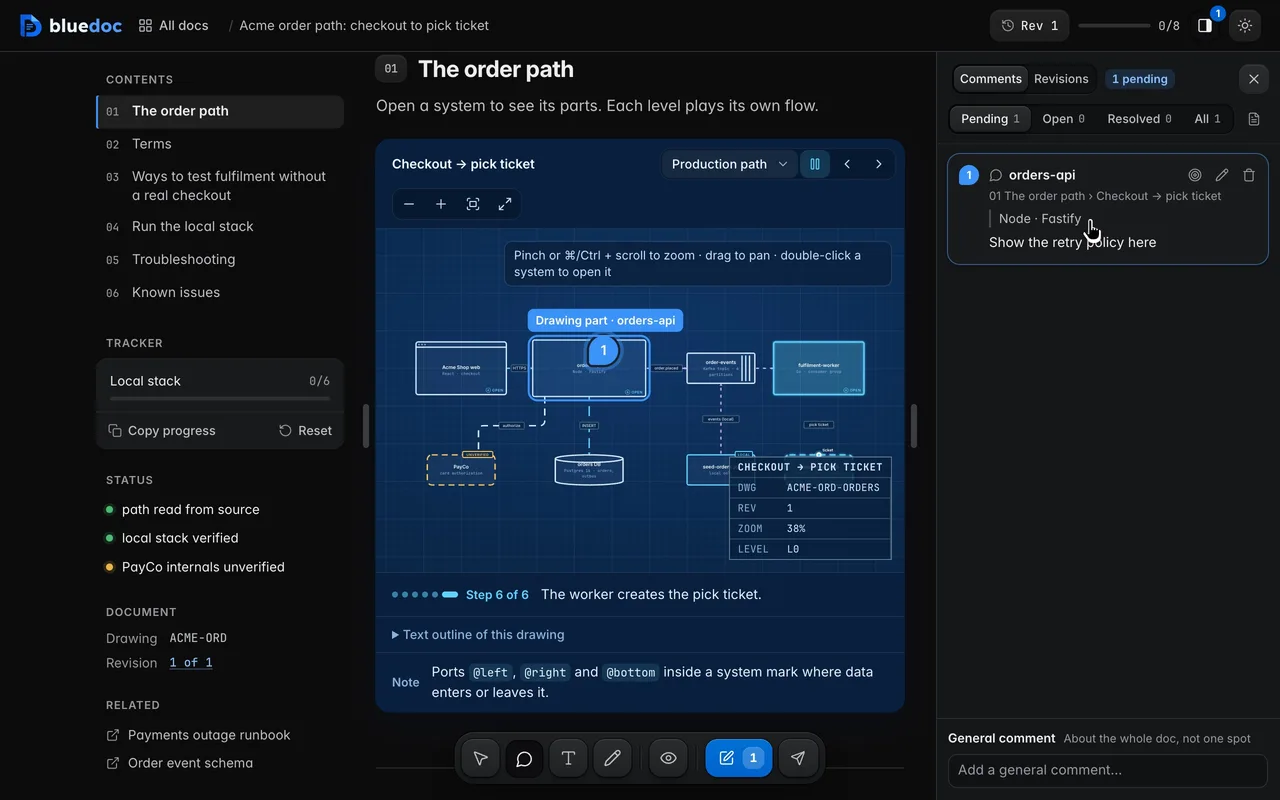
Pin a comment on any element. Point at a node, a row or a button and write a note. The pin stays on the element.
Commenting
Comment on any part of the page.
Point, select or draw. Each note is filed under the part it is about, so the agent knows what to edit. Pinning is the clip at the top of the page.
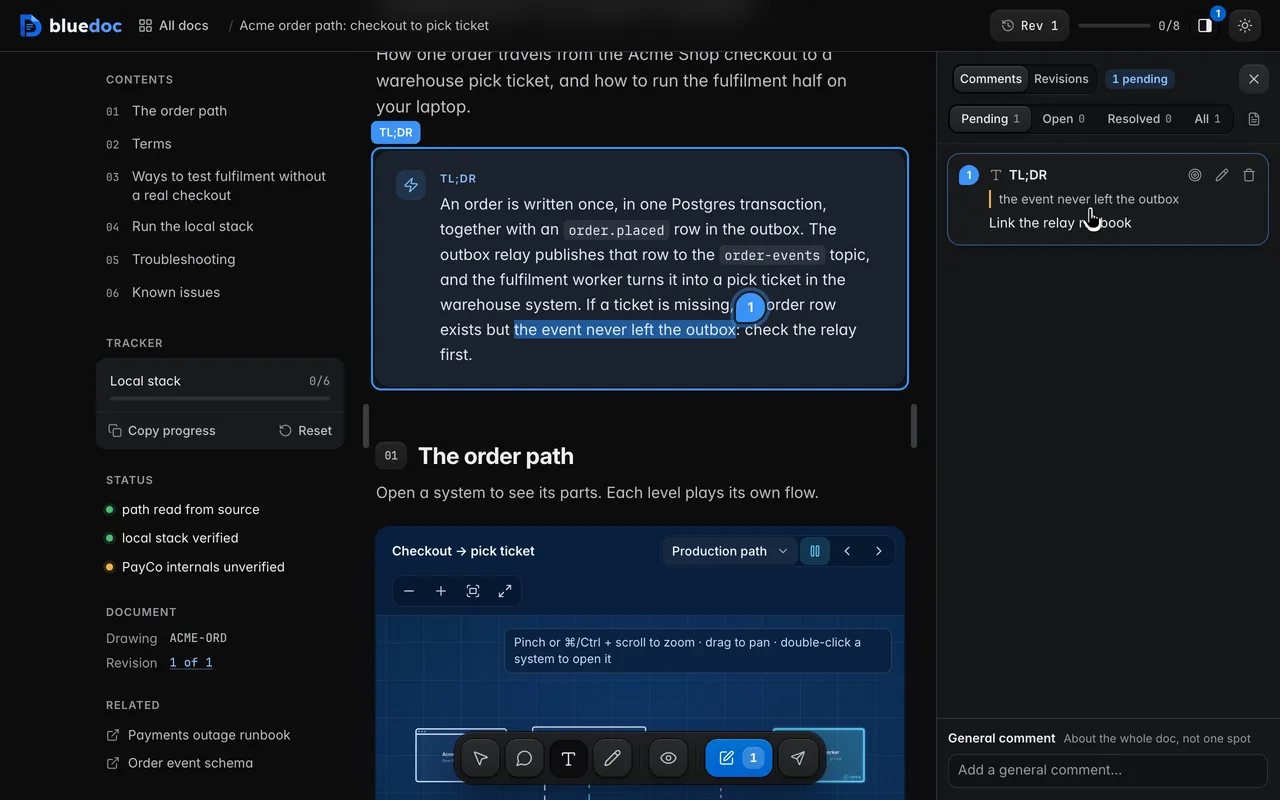
Comment on a passage
Select a sentence and say what should change.
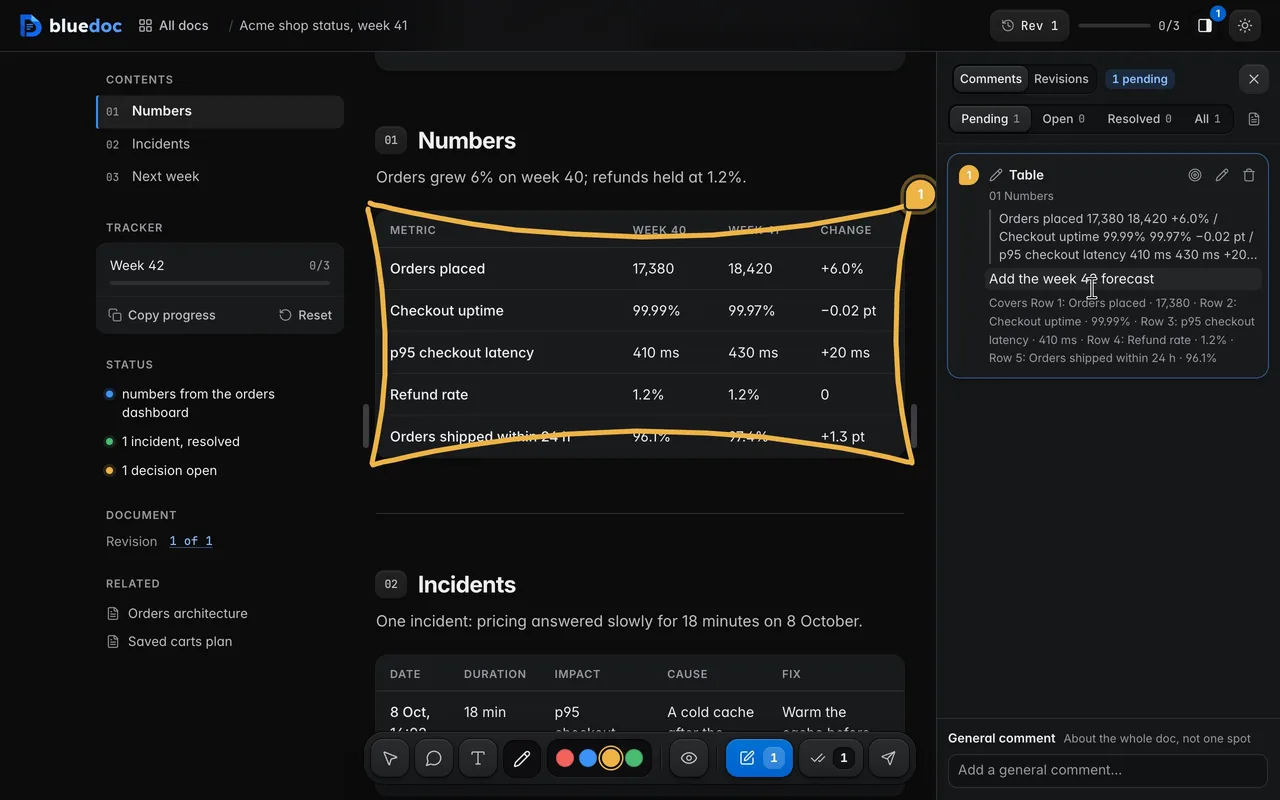
Draw around a part and comment on it
Draw mode takes a pen colour and a freehand stroke. Box a table or a group of rows, and the note covers each part inside.
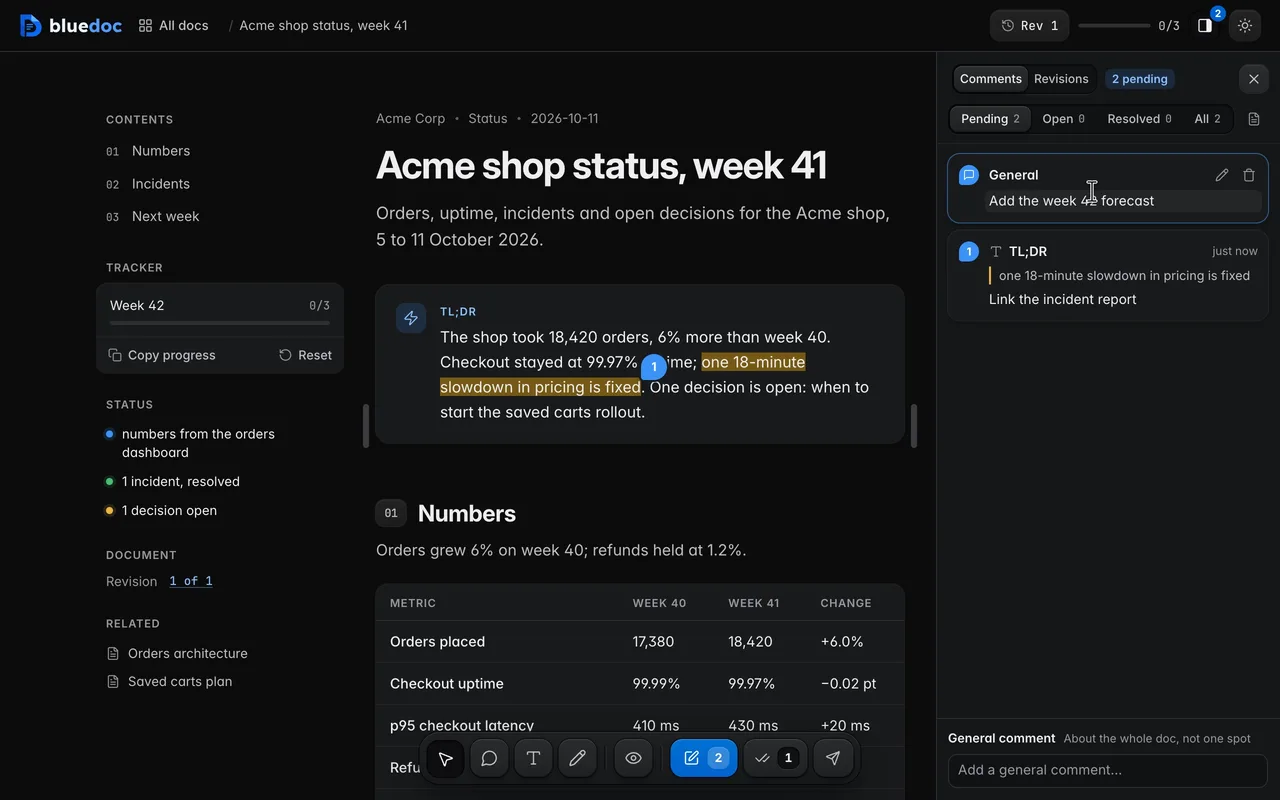
Write a general comment
A note about the whole doc rather than one spot goes in the field at the foot of the Comments panel. It lists first.
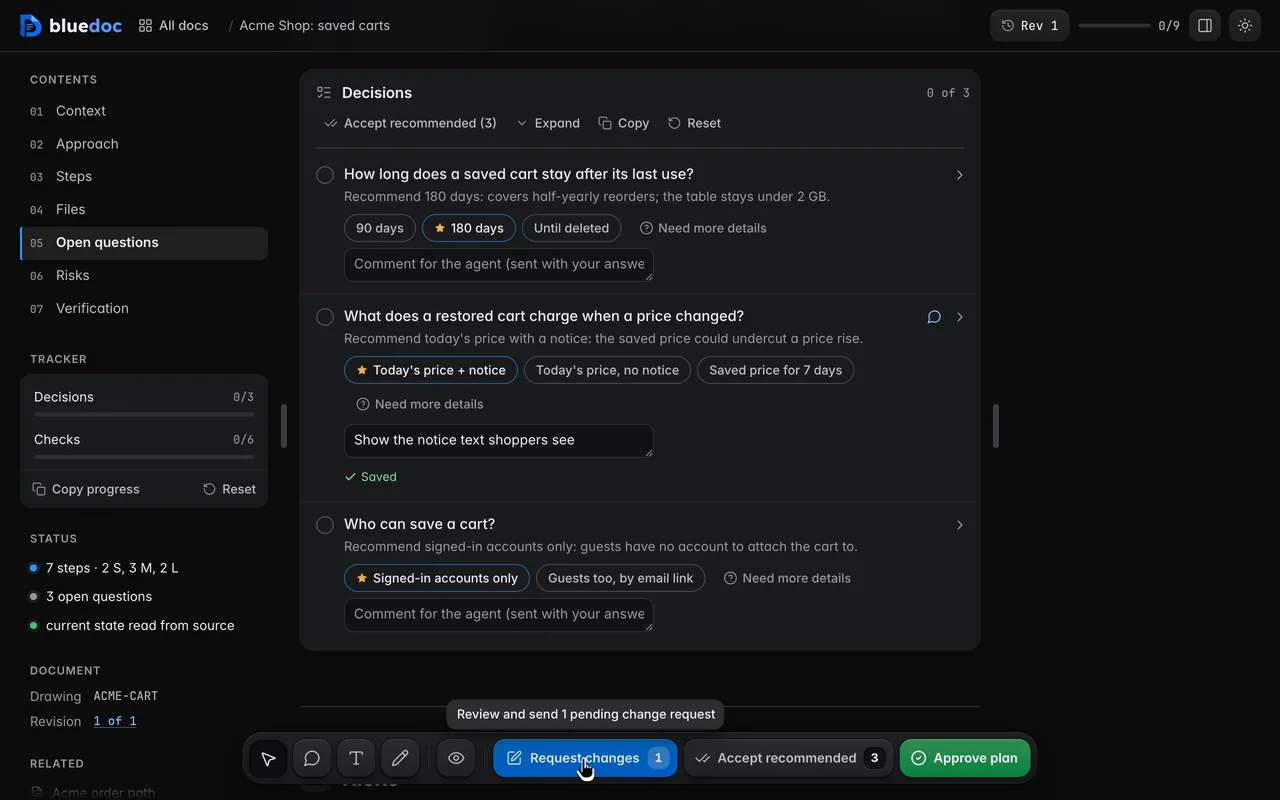
Comment on one item
Each step, question and finding has its own comment box. An item comment counts toward Request changes on its own.
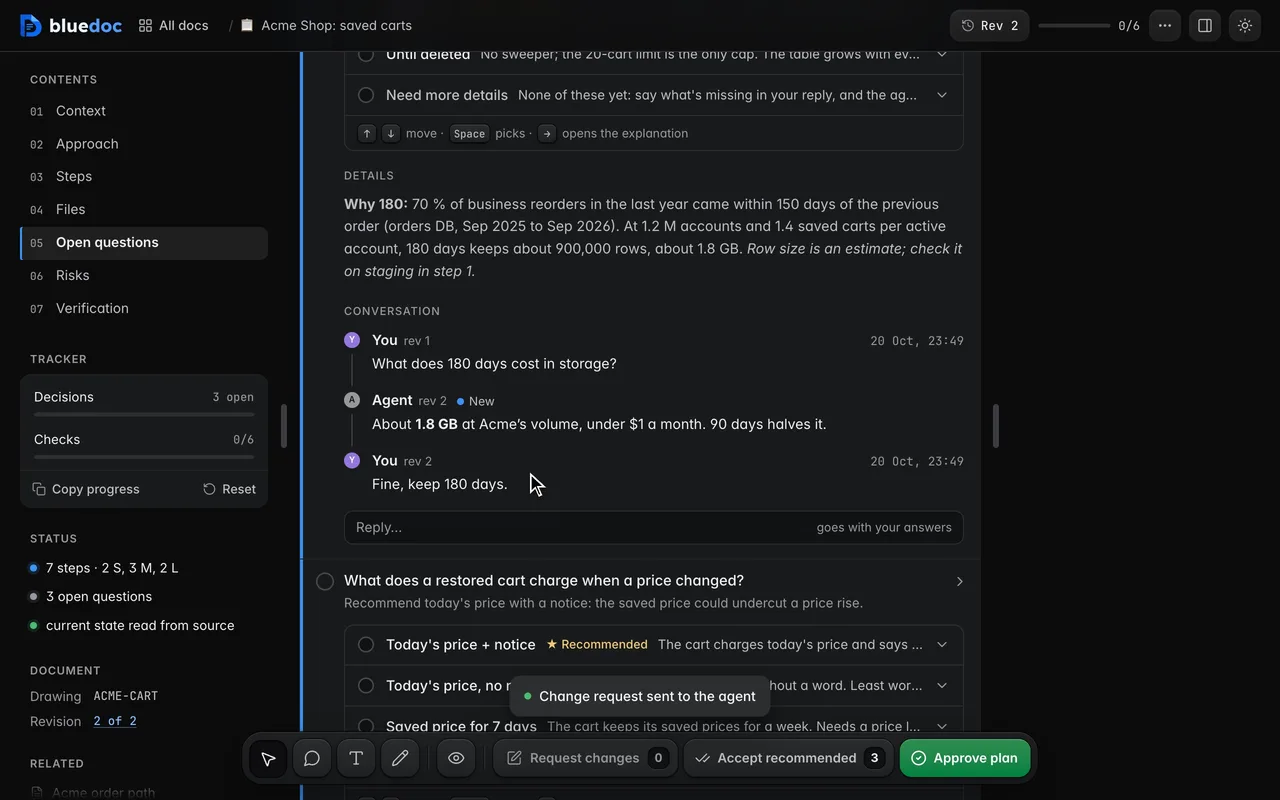
Talk it through with the agent
Each item, pin and general comment is a conversation. A sent comment becomes a message tagged with its rev; the agent’s replies sit between yours, marked New until you see them.
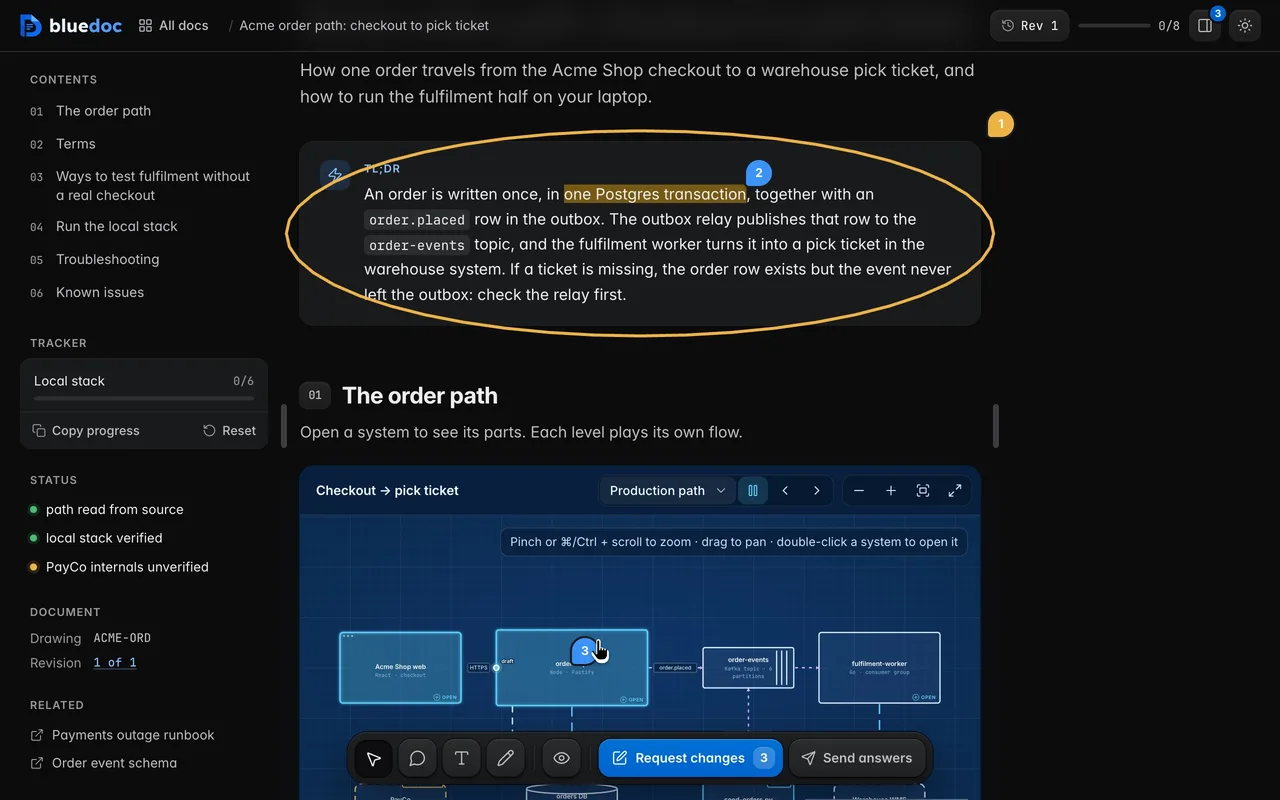
Hide and show comment marks
The eye key fades pins, marked passages and drawings out, so you can read the page clean, and brings them back.
Deciding
Pick an option, or ask for more.
Open questions and findings list their options as rows, with the agent’s recommendation starred.
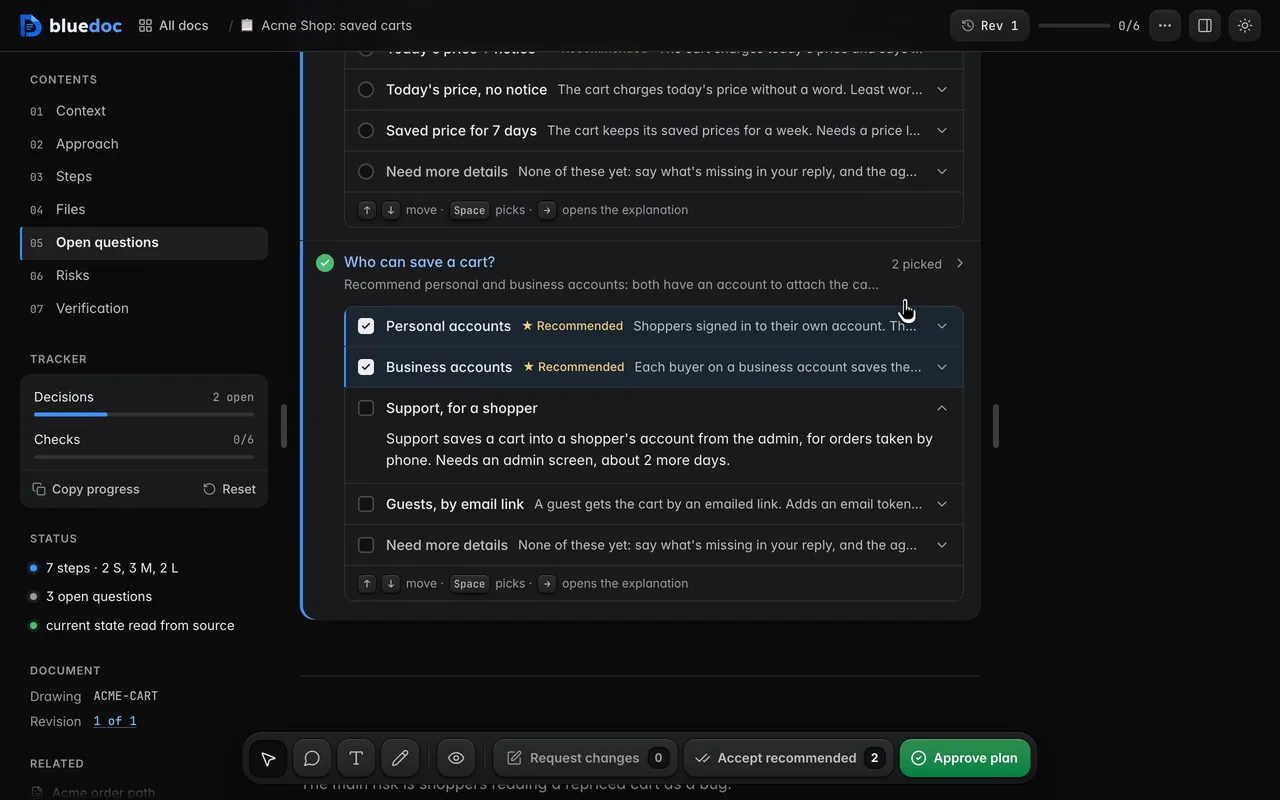
Pick from option rows, one or several
Each option is a row with a radio or checkbox, the label, ★ Recommended and one line that opens to the full explanation. A question can take several answers; Need more details is the last row.
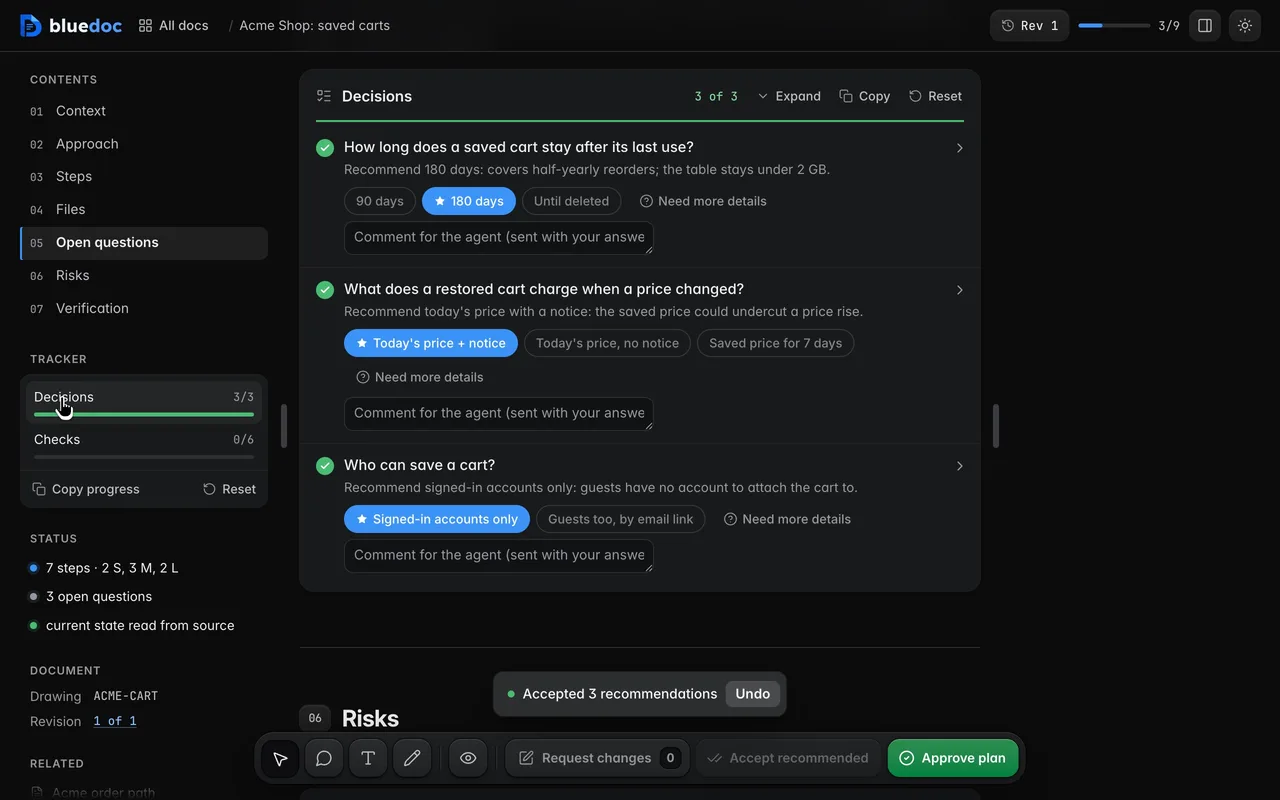
Accept every recommendation at once
Accept recommended picks every starred option in one go. Change the ones you disagree with afterwards.
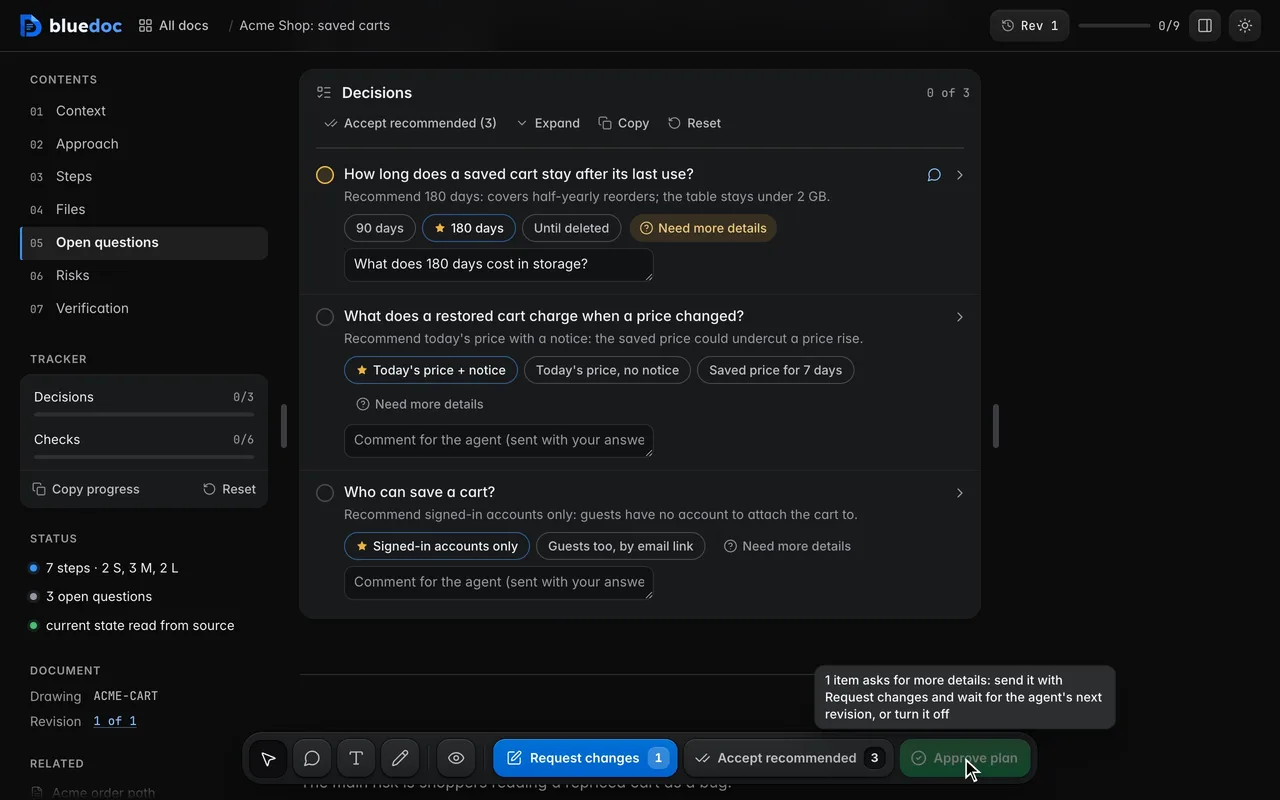
Ask for more details
Need more details marks a question and asks the agent what is missing before you pick.
Sending and approving
Send your notes, or approve.
Plans, designs, presentations, websites and store listings wait for approval of the current revision. Reviews and other pages send answers instead.
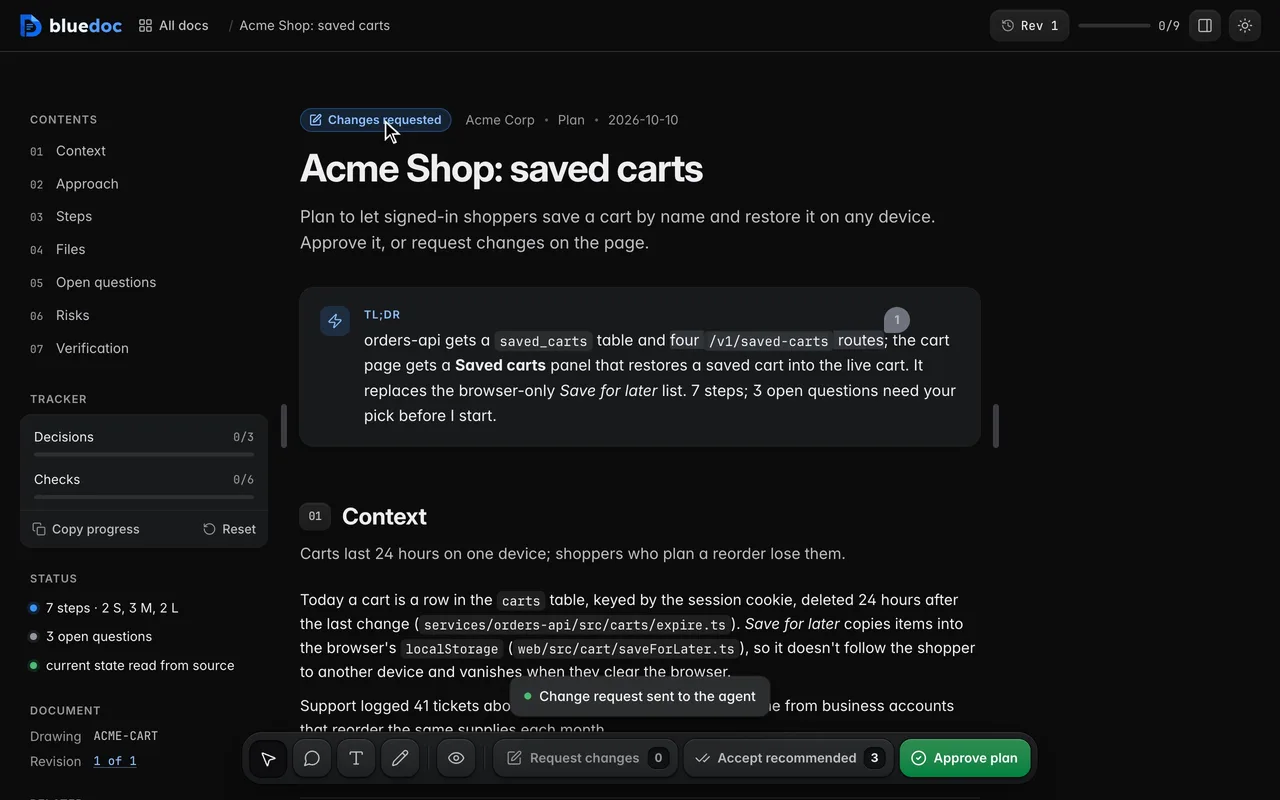
Send change requests to the agent
Request changes previews your notes as Markdown, then sends them in one go.
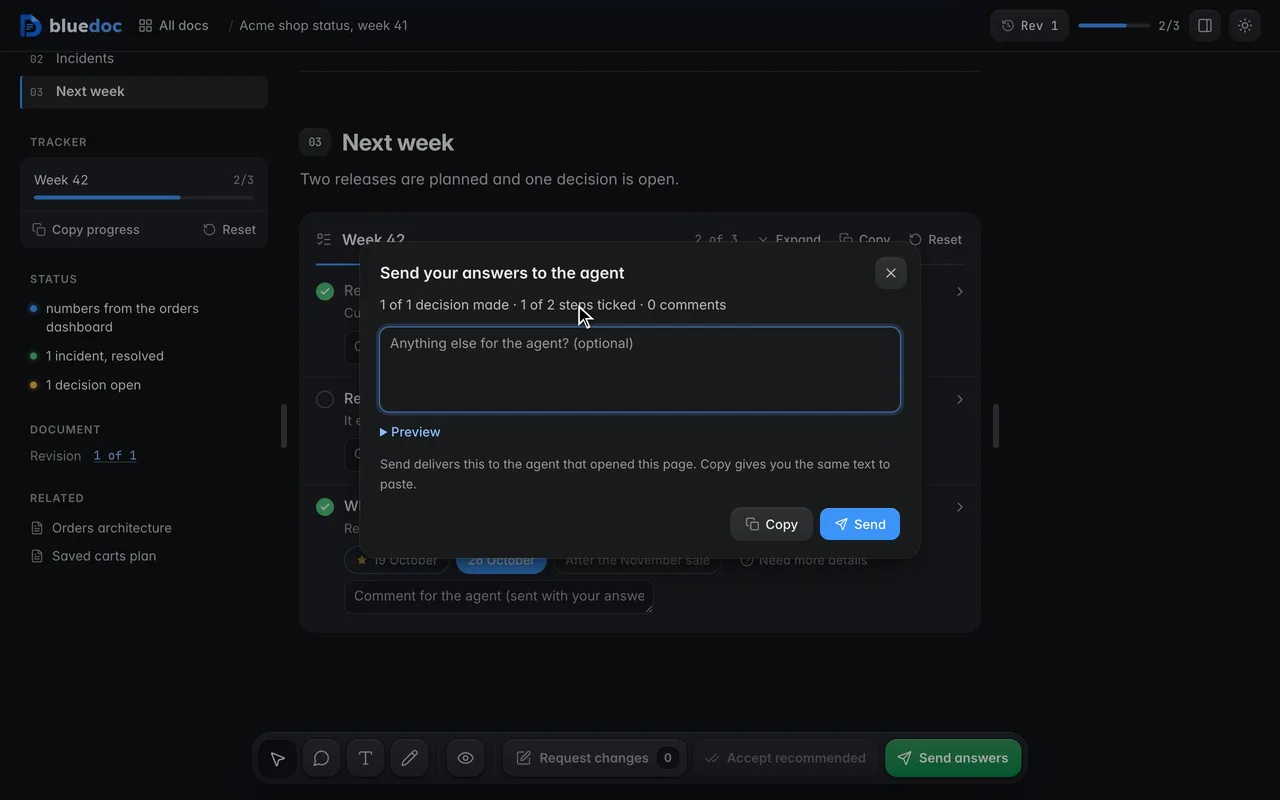
Send ticks and picks without approval
Pages with no approval step, such as a status report or a review, send your ticks, picks and comments with Send answers.
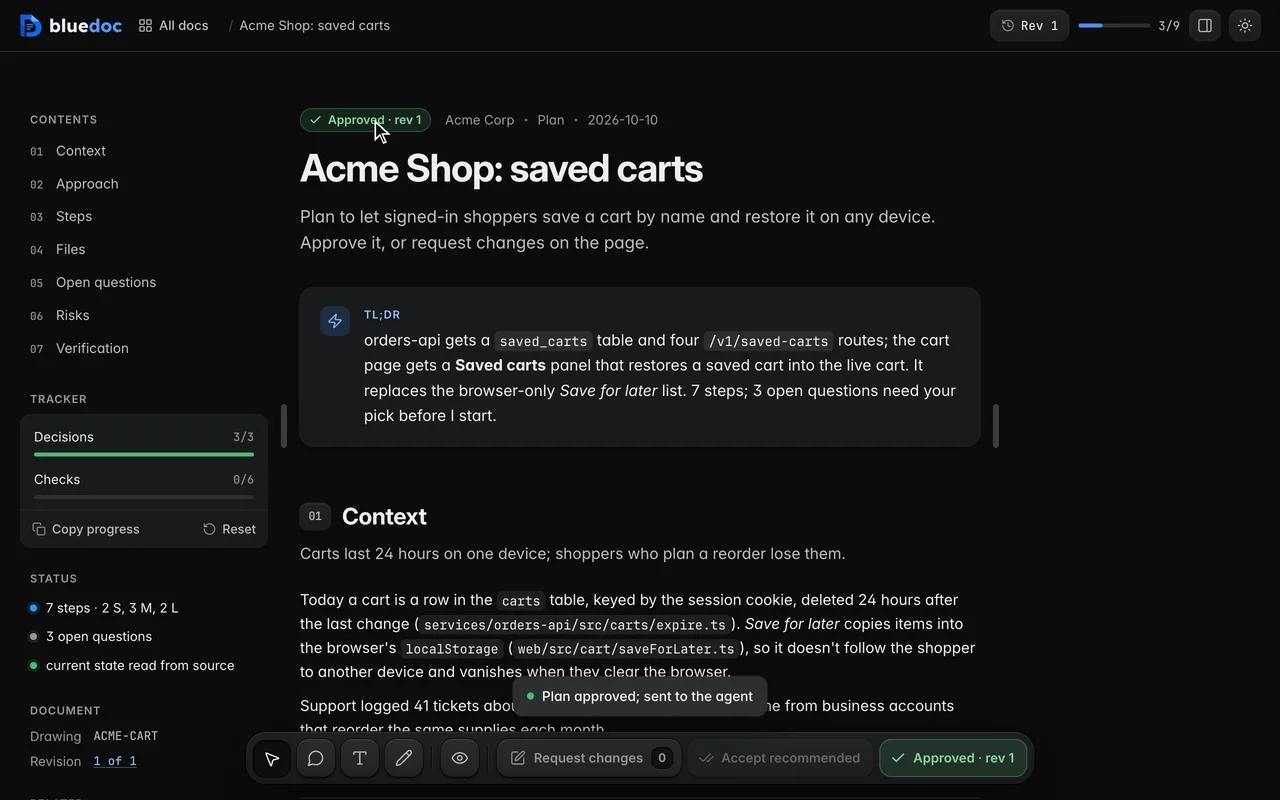
Approve the current revision
Approve lists your picks and records the approval against this revision. The agent waits for it.
Revisions
Every round is a revision you can compare.
Each build records a revision, with the agent’s note on what changed and which of your comments it resolved.
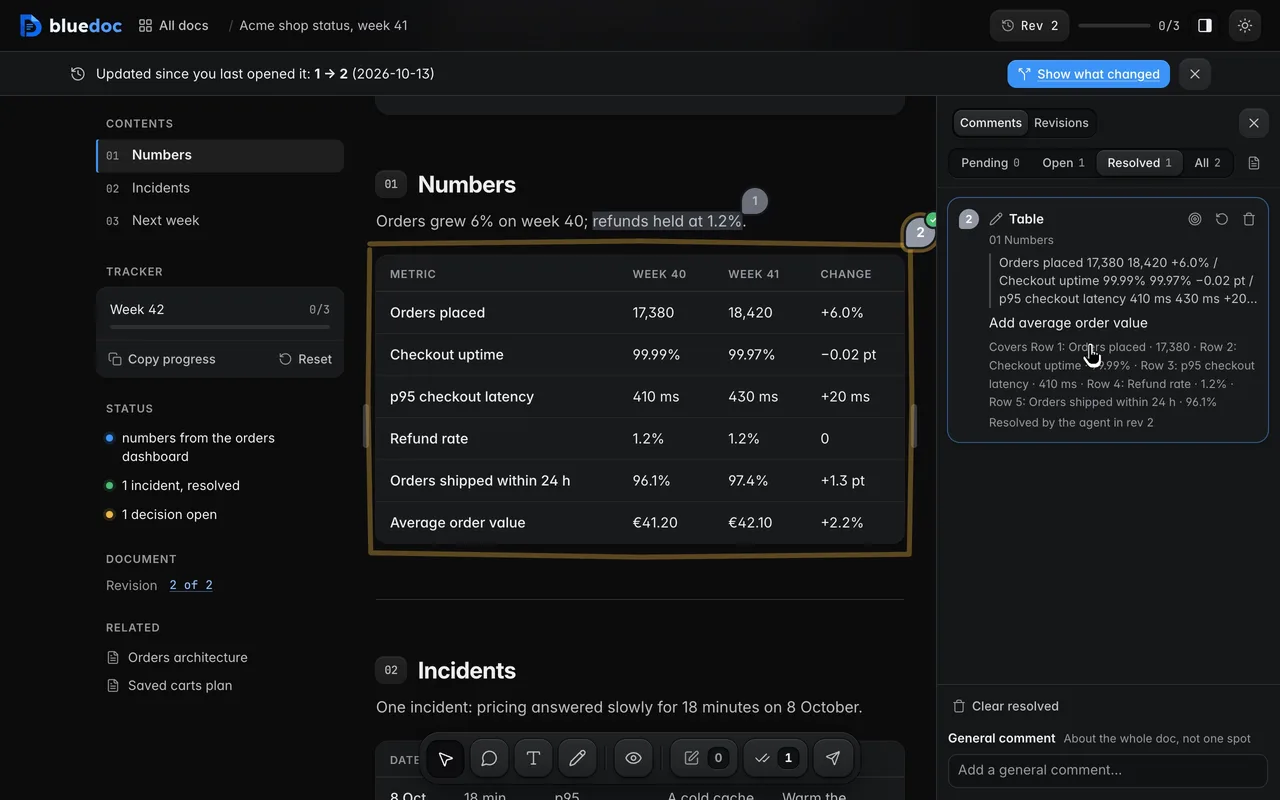
Follow a comment to Resolved
Notes go from Pending to Open when sent, and to Resolved when the agent’s revision says it dealt with them.
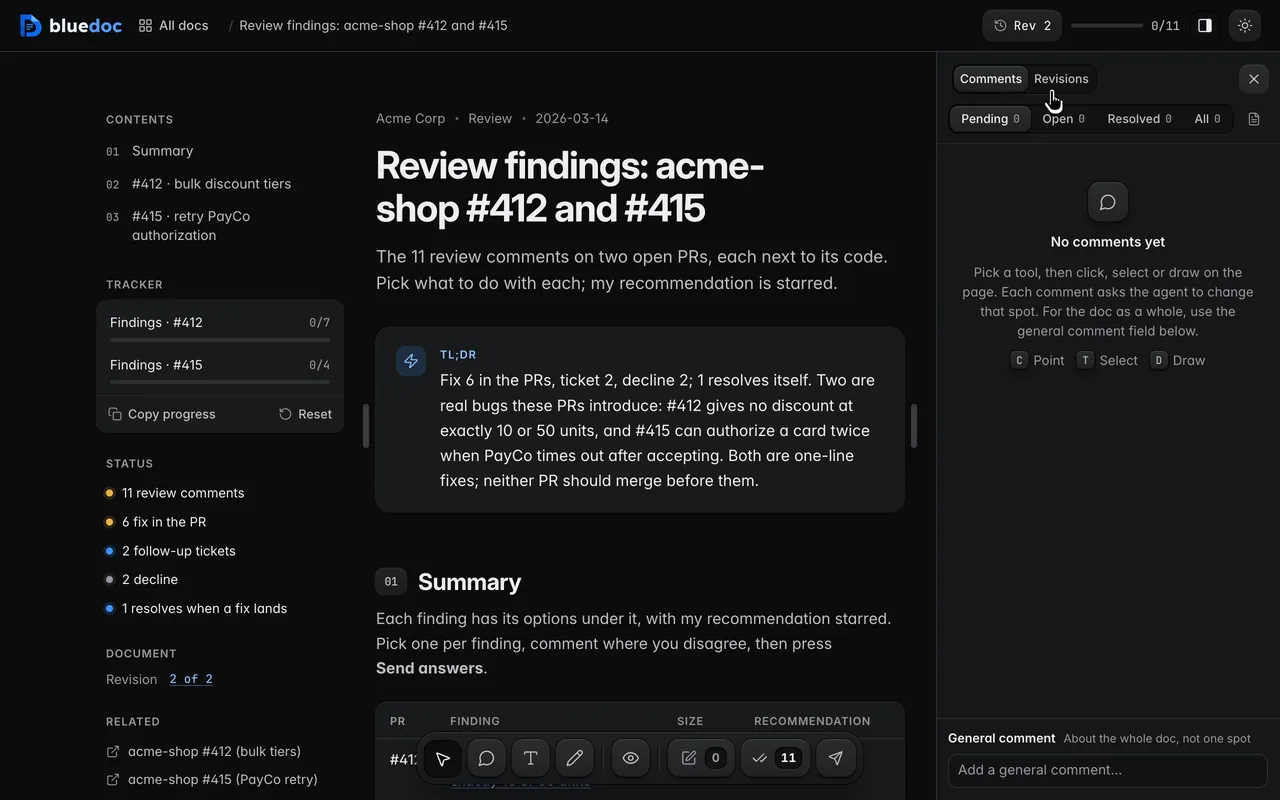
Open an earlier revision
The Revisions tab lists each revision with the agent’s note on what changed. An earlier one opens read-only.
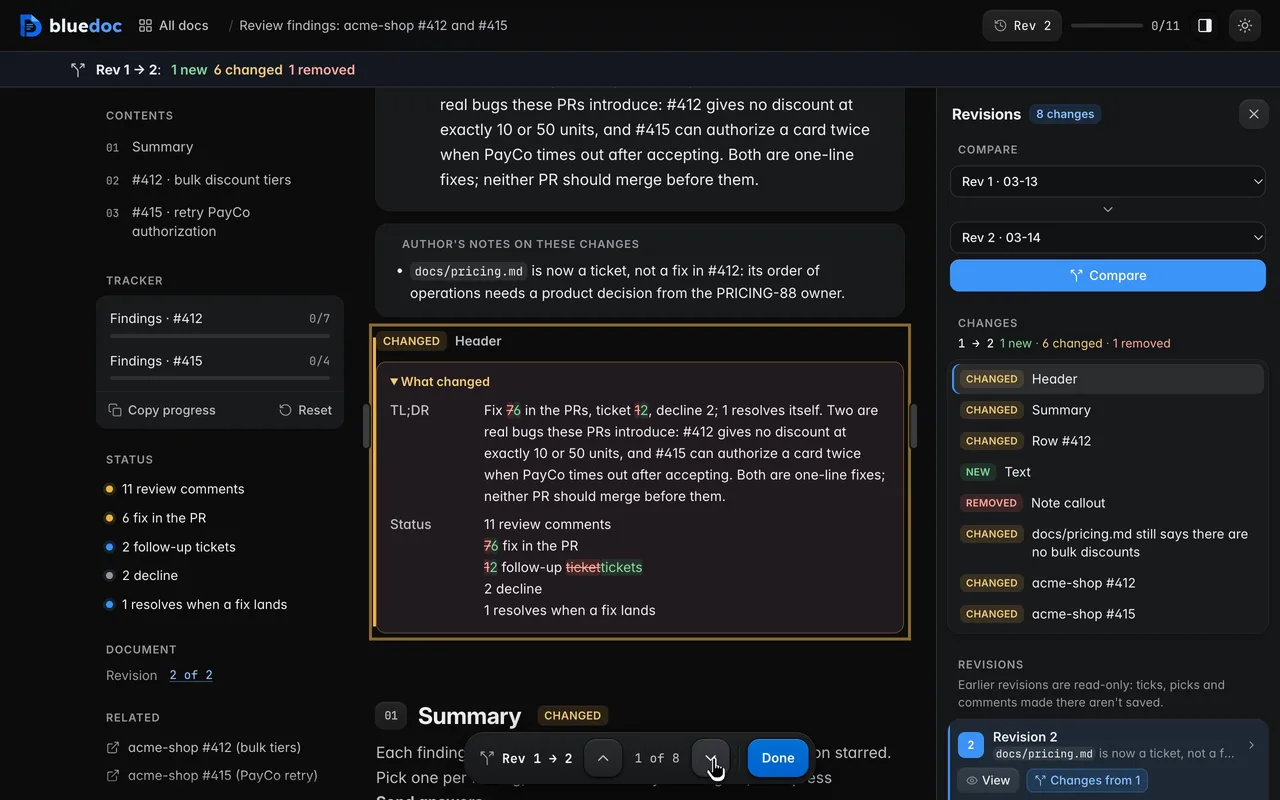
Compare two revisions word by word
New, changed and removed parts are marked in place, with words struck and added.
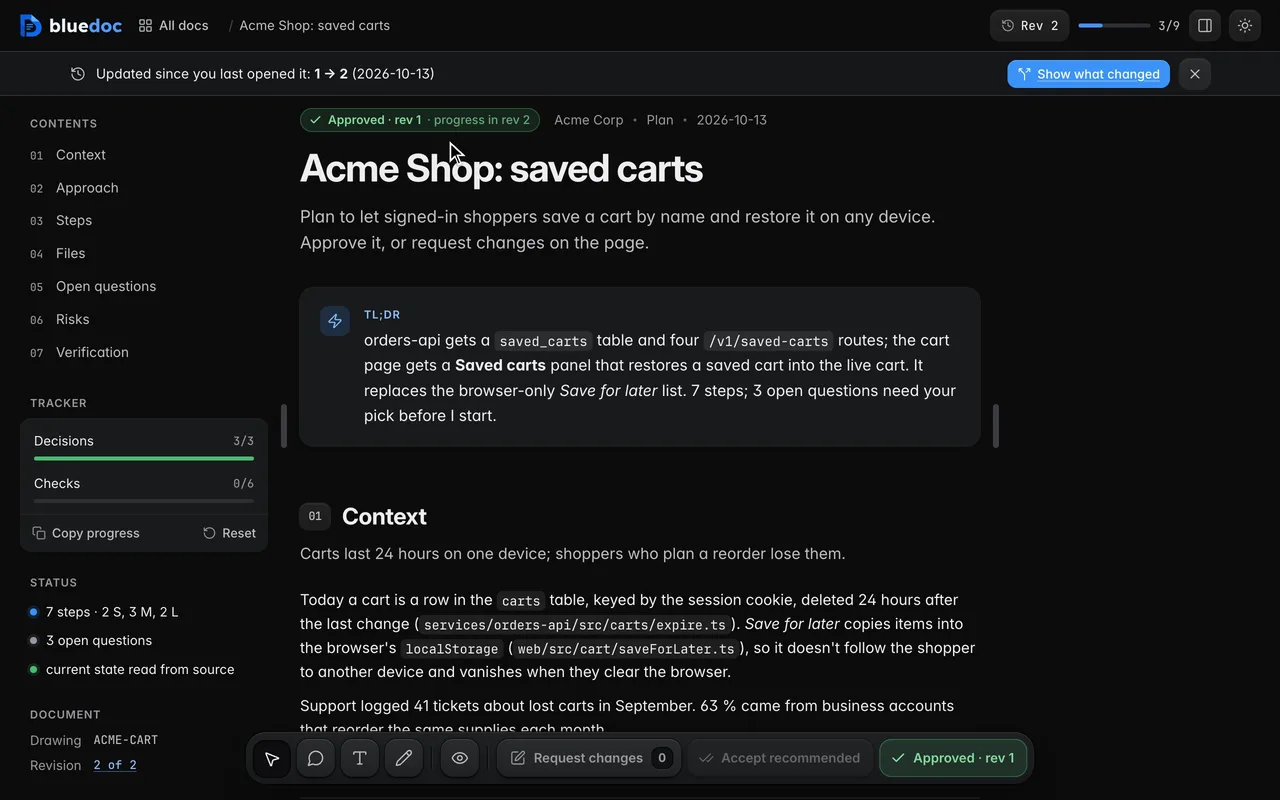
Keep an approval across progress
A revision that only marks steps done keeps the approval. Any other edit asks for approval again.
The home page
Every doc, on one dashboard.
The local server lists every doc with its type, status and revision, across your projects.
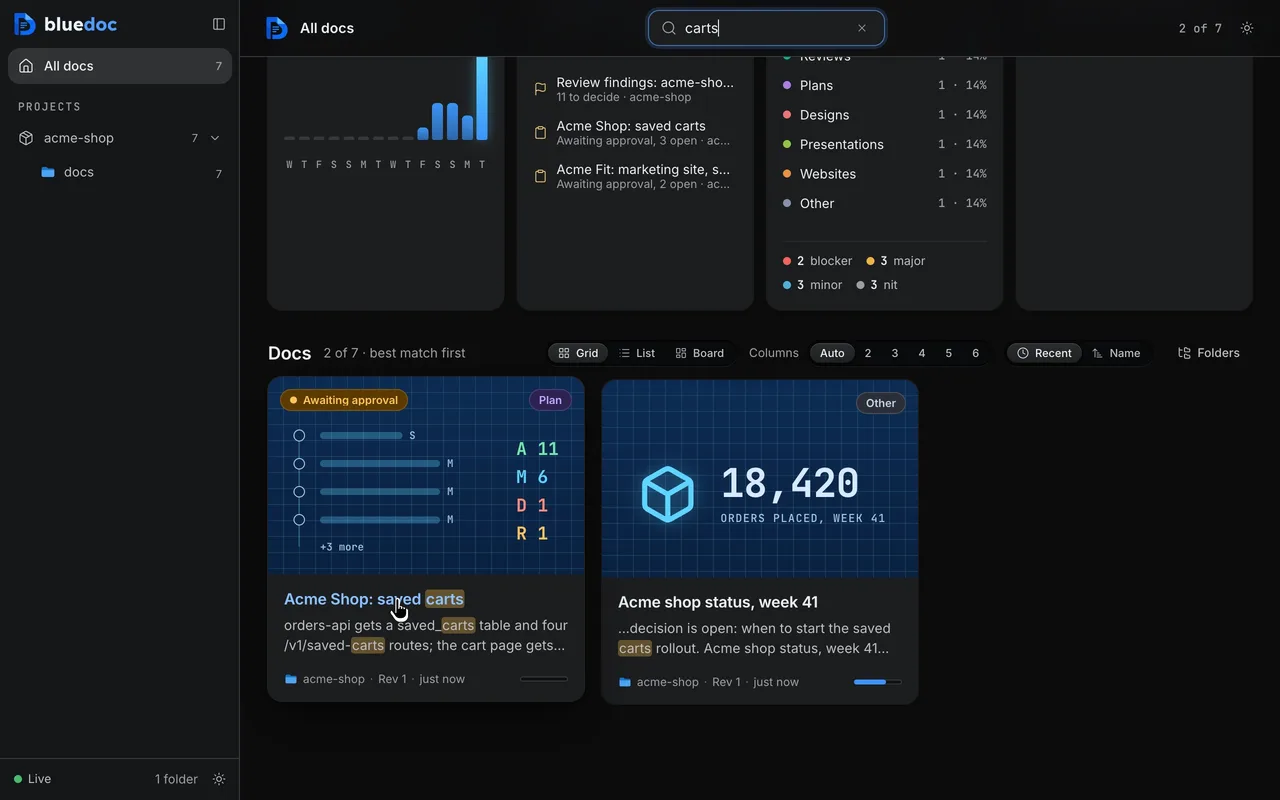
Search every doc from the home page
One search covers every doc’s titles, sections, findings and paths, best match first.
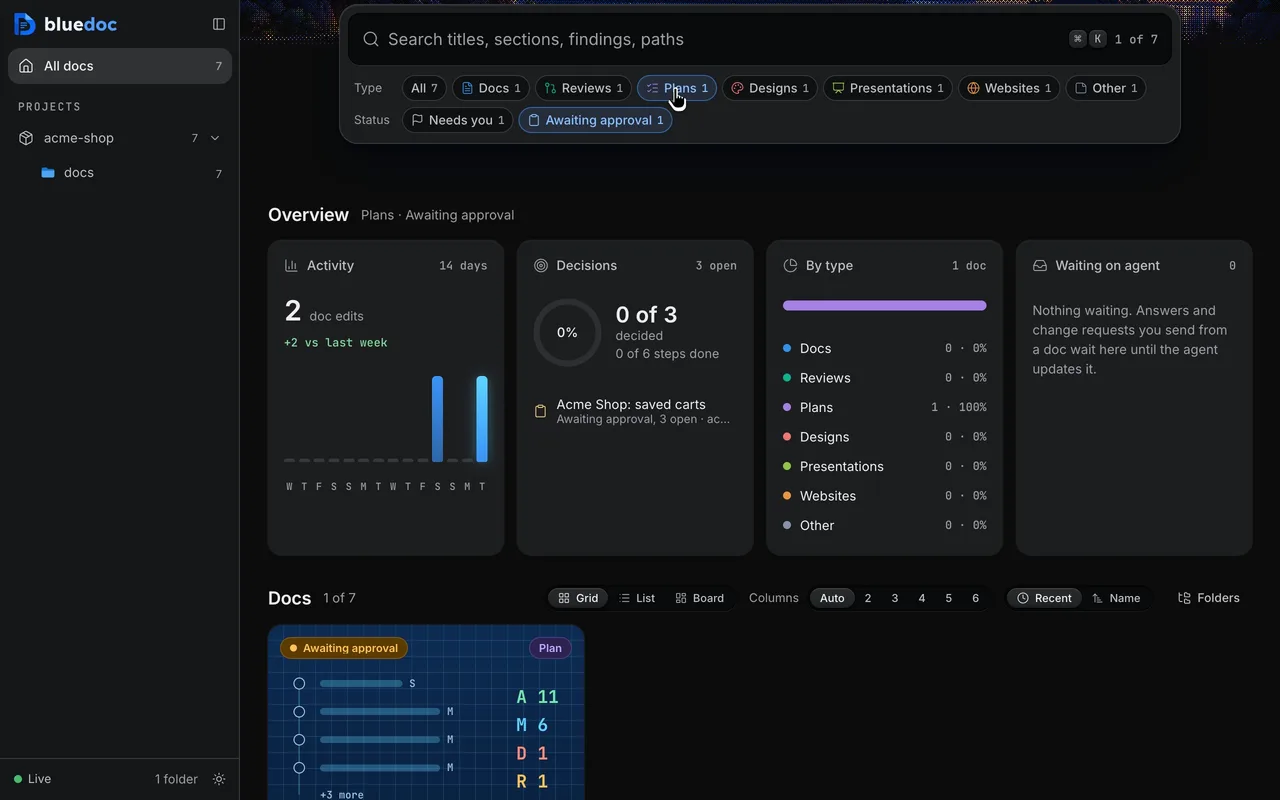
Filter by status and type
Chips for each status and each type show their counts. Pick one and the cards narrow to match.
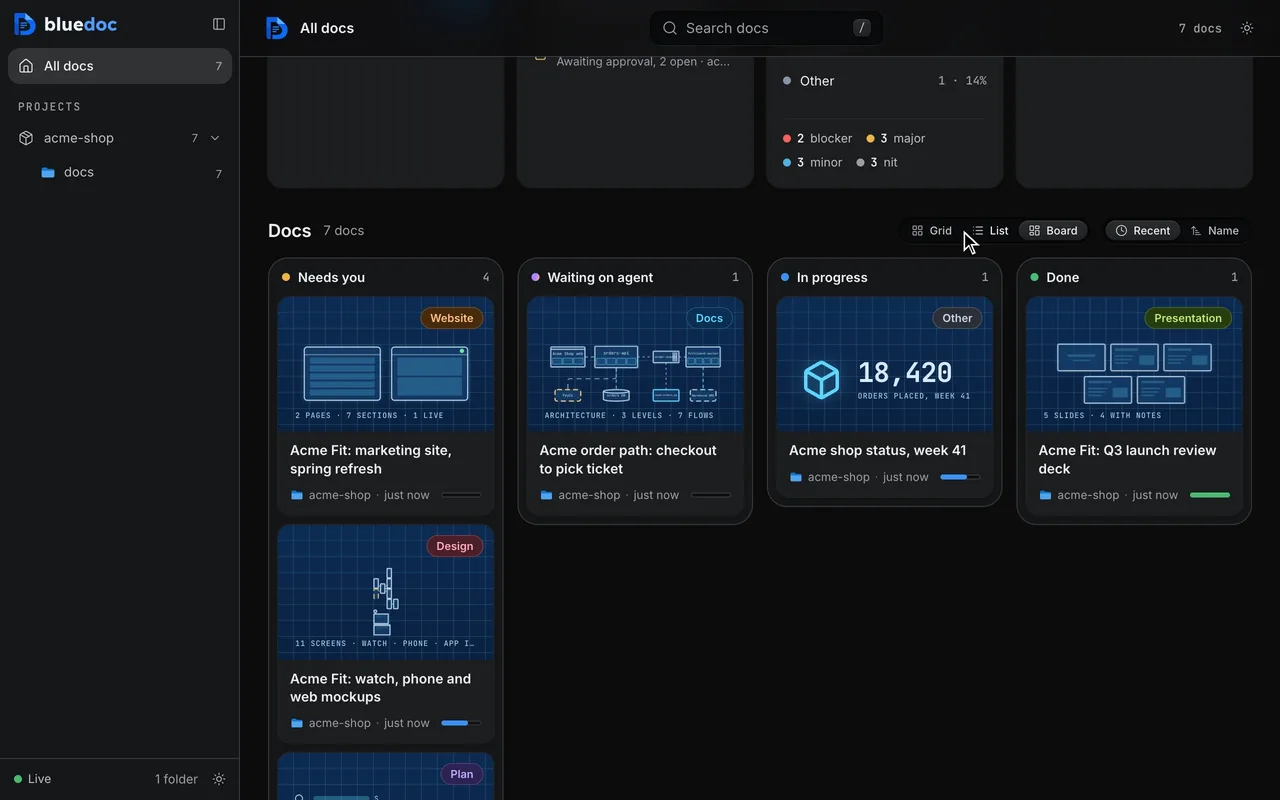
Browse docs as a grid, a list or a board
Each card draws its doc. Lay them out as a grid, a list, or a board with Needs you, Waiting on agent, In progress and Done.
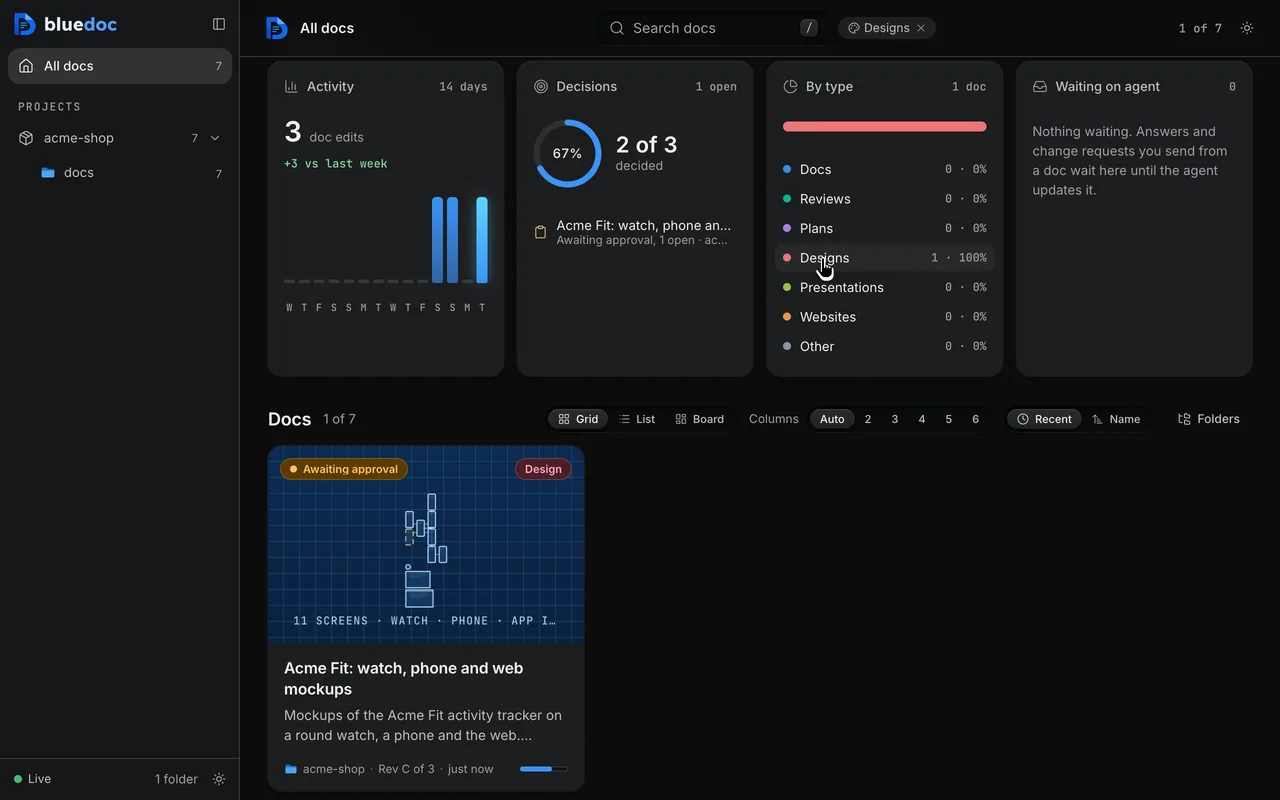
Read the overview
Decisions counts what is decided across the docs, Waiting on agent lists what you sent, and By type splits the docs and filters them.
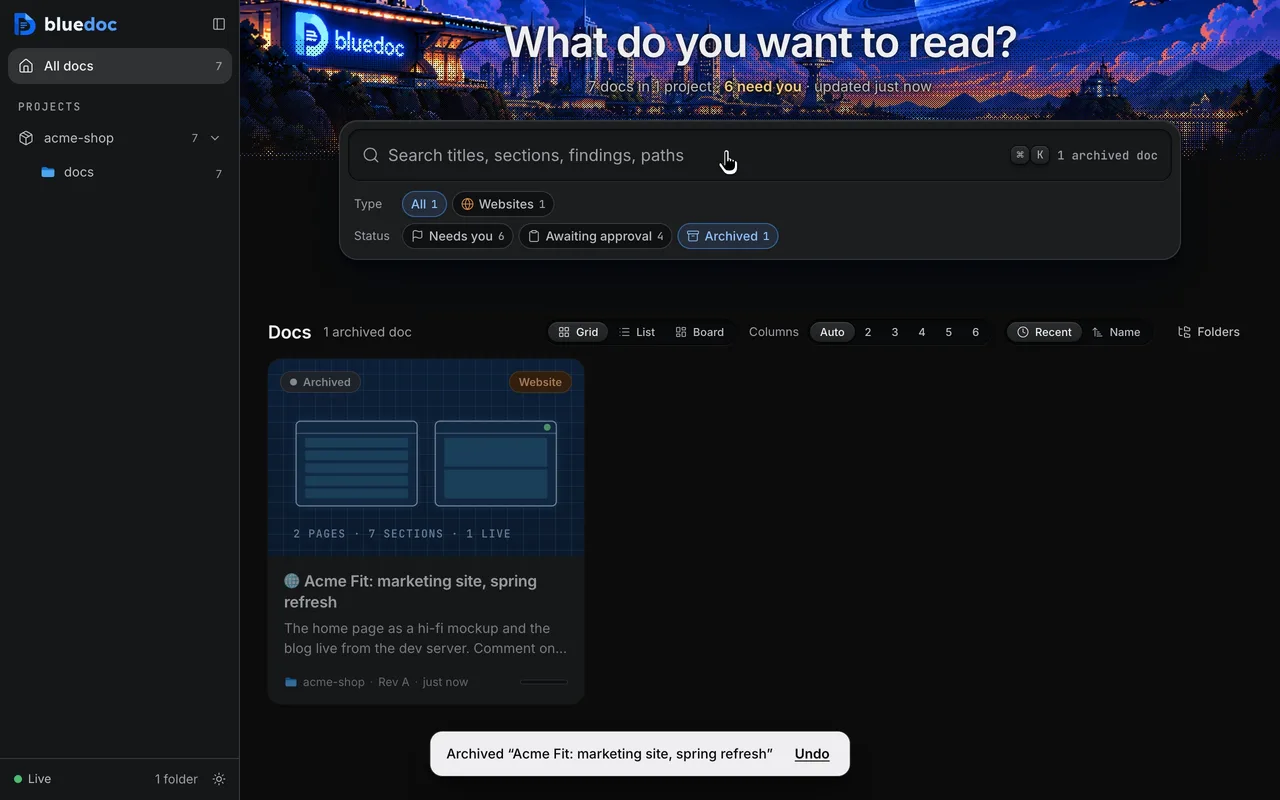
Archive a doc that’s done
Archive it from its card or page. It leaves the views and counts; a search that hides it says so.
Themes and width
Light or dark, wide or narrow.
Set the theme and the reading width to suit you.
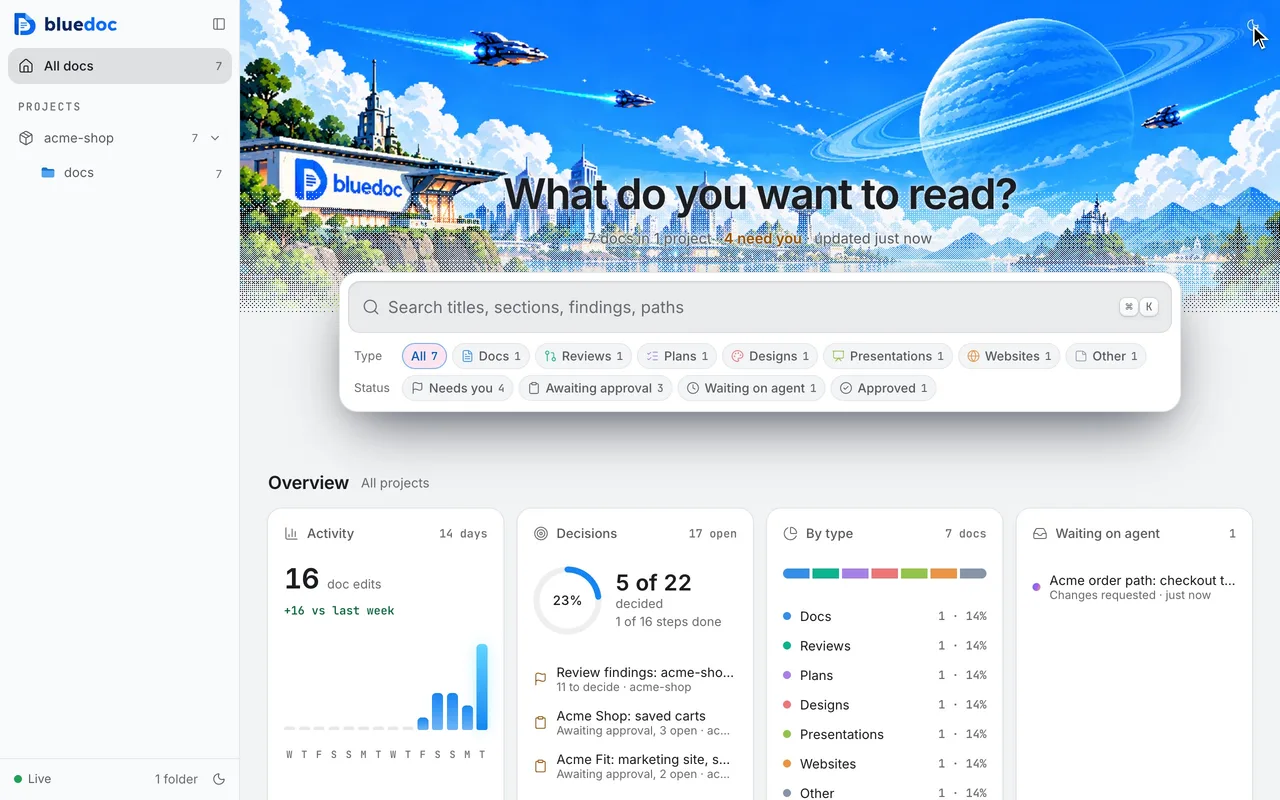
Switch between light and dark
The theme key flips the home page and every doc. The pick carries from one page to the next.
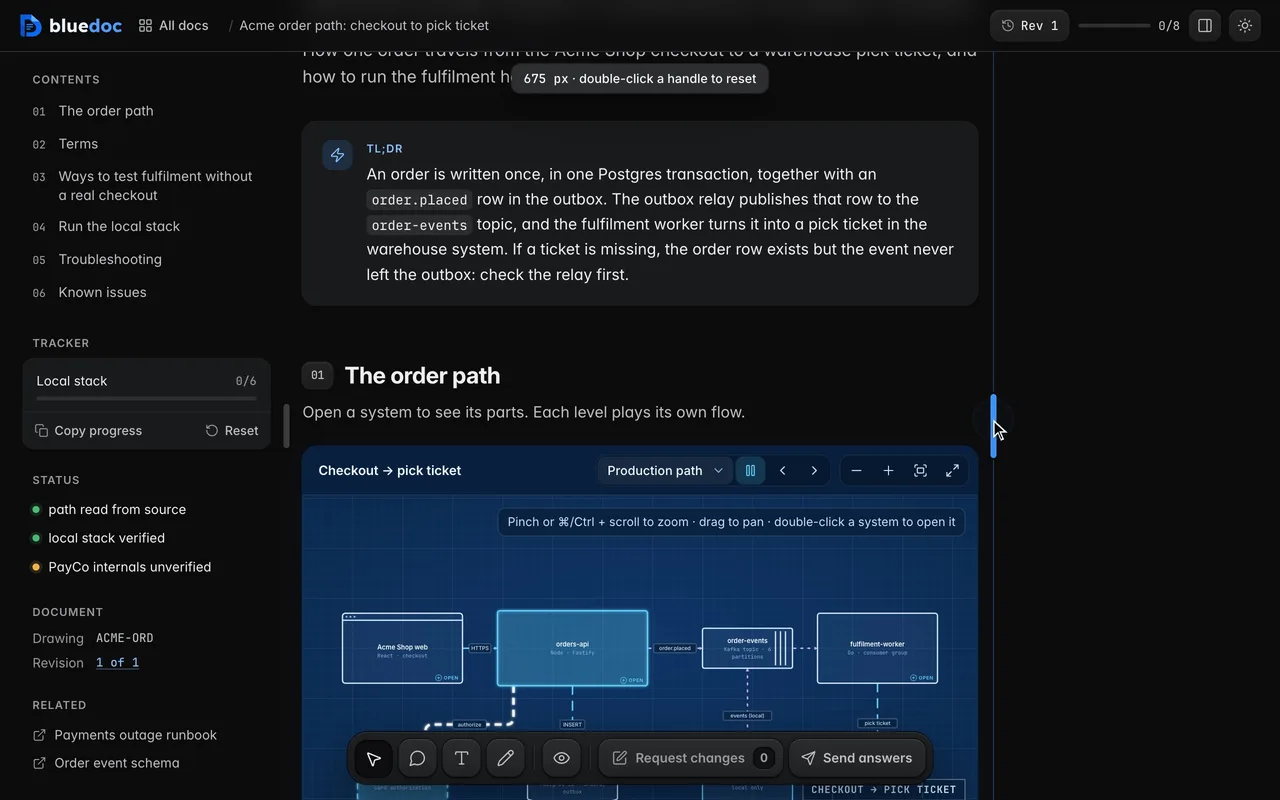
Drag the content width
Drag the column’s edge to make the text wider or narrower. It stays centred; a double-click resets it.
How the agent reads your notes
Your notes reach the agent as Markdown, keyed to the part.
Request changes sends each note with the key of the part it is about and the note’s id. The agent edits that part with build.py patch, lists the id in --resolves, and the note turns Resolved on the next revision.
python3 <skill>/scripts/serve.py wait docs/status/week-41.bluedoc.json --kind anypython3 <skill>/scripts/build.py patch docs/status/week-41.bluedoc.json block:numbers/0 --append '["Average order value", "€41.20", "€42.10", "+2.2%"]' --change "Added average order value." --resolves cmgo7k2d1x4f# Change requests: Acme shop status, week 41 (rev 1), 2026-10-12 1. **01 Numbers** (text) `section:numbers` (cmgo7jz4k2pa) > refunds held at 1.2% Change: Say why refunds held 2. **01 Numbers › Table › Row 4: Refund rate · 1.2%** (pin) `row:numbers/0/3` (cmgo7k2d1x4f) > Refund rate 1.2% 1.2% 0 Change: Add average order value below this rowPicks, ticks and approvals reach the agent the same way, through serve.py wait. build.py patch takes each key as it is written.
Install
Pick your agent.
Each one installs the same skill from the GitHub repository.
claude plugin marketplace add andreiverdes/bluedocclaude plugin install bluedoc@bluedocInside a session the same commands are /plugin marketplace add andreiverdes/bluedoc and /plugin install bluedoc@bluedoc. Start a new session to load the skill.
codex plugin marketplace add andreiverdes/bluedoccodex plugin add bluedoc@bluedocRestart Codex. Mention the skill with $bluedoc or let Codex pick it from your request. Plan mode (/plan) opens the plan as a page; the README has the sandbox lines that skip the approval prompts.
pi install git:github.com/andreiverdes/bluedocRestart pi. /bluedoc-plan-mode turns on plan mode, and the plan opens as a page for your approval.
omp plugin marketplace add andreiverdes/bluedocomp plugin install bluedoc@bluedocRun /reload-plugins in an open session, or start a new one. omp’s plan reviews open as pages: Approve runs the plan, Request changes refines it.
copilot plugin install andreiverdes/bluedocStart a new session. When Copilot leaves plan mode, its plan opens as a page and waits for your approval.
git clone https://github.com/andreiverdes/bluedoc.gitagy plugin install bluedoc/antigravityRestart agy. In plan mode (agy --mode plan or /plan), the implementation plan opens as a page for your approval.
npx skills add andreiverdes/bluedocFor any other agent that reads skills. Or clone the repository and link skills/bluedoc into your agent’s skills folder.
- Python 3.9 or later on PATH
- git, for code reviews
- gh, only to import GitHub review threads
Doc types
Eight kinds of page, one way to answer them.
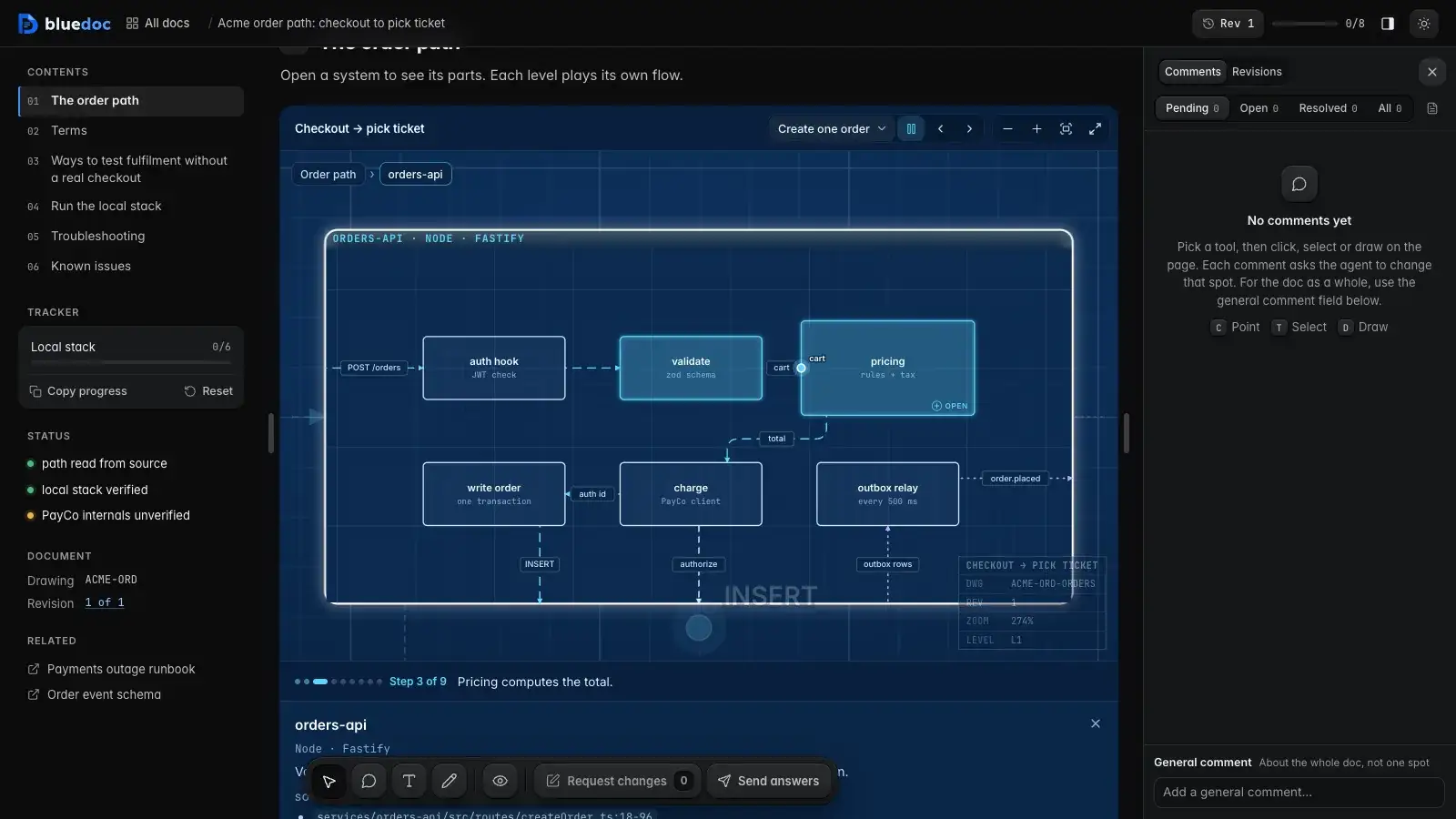 Docs
DocsArchitecture pages, walkthroughs, runbooks, setup guides and change proposals.
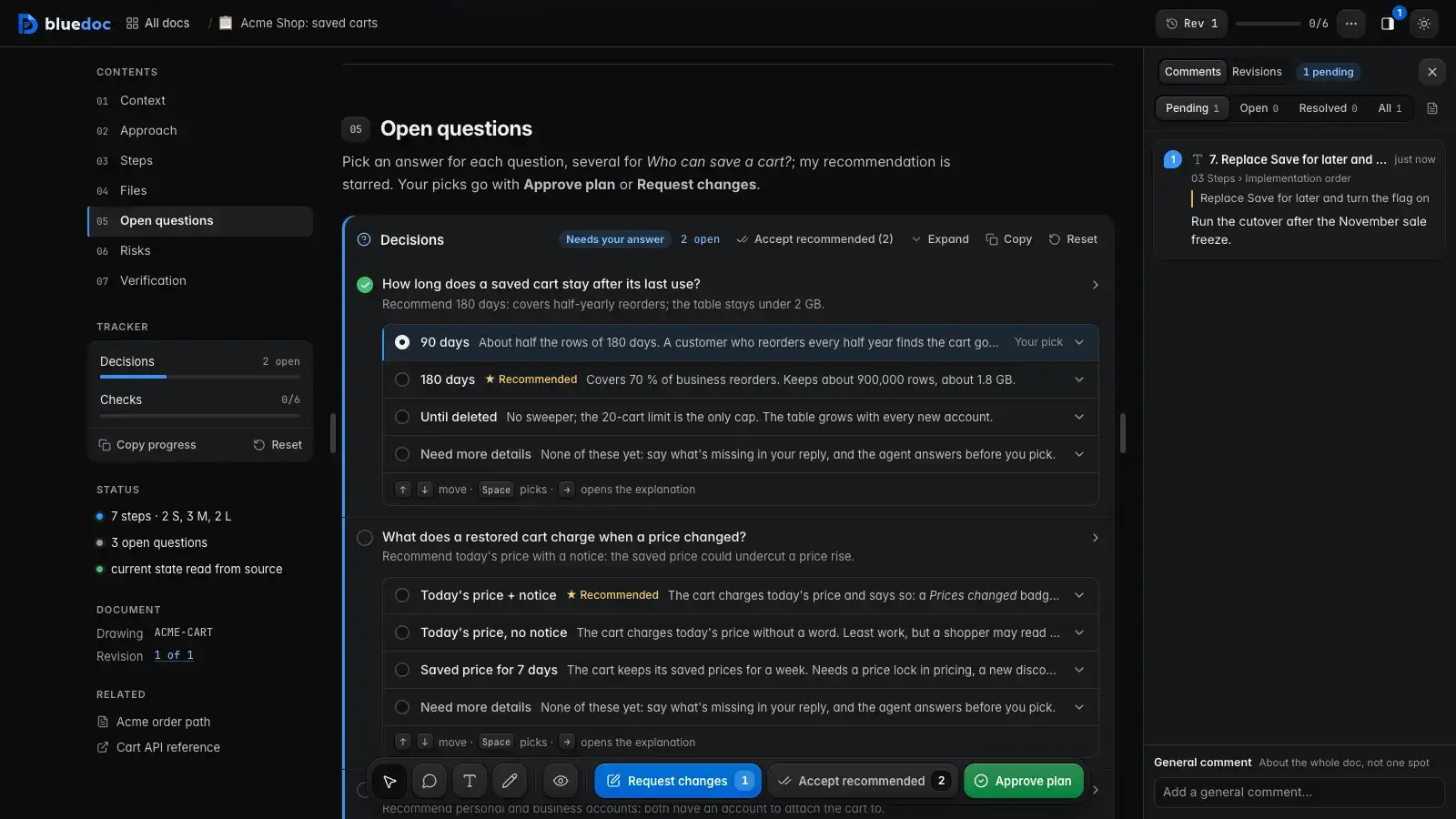 Plans
PlansA plan you approve or send back before the agent writes code.
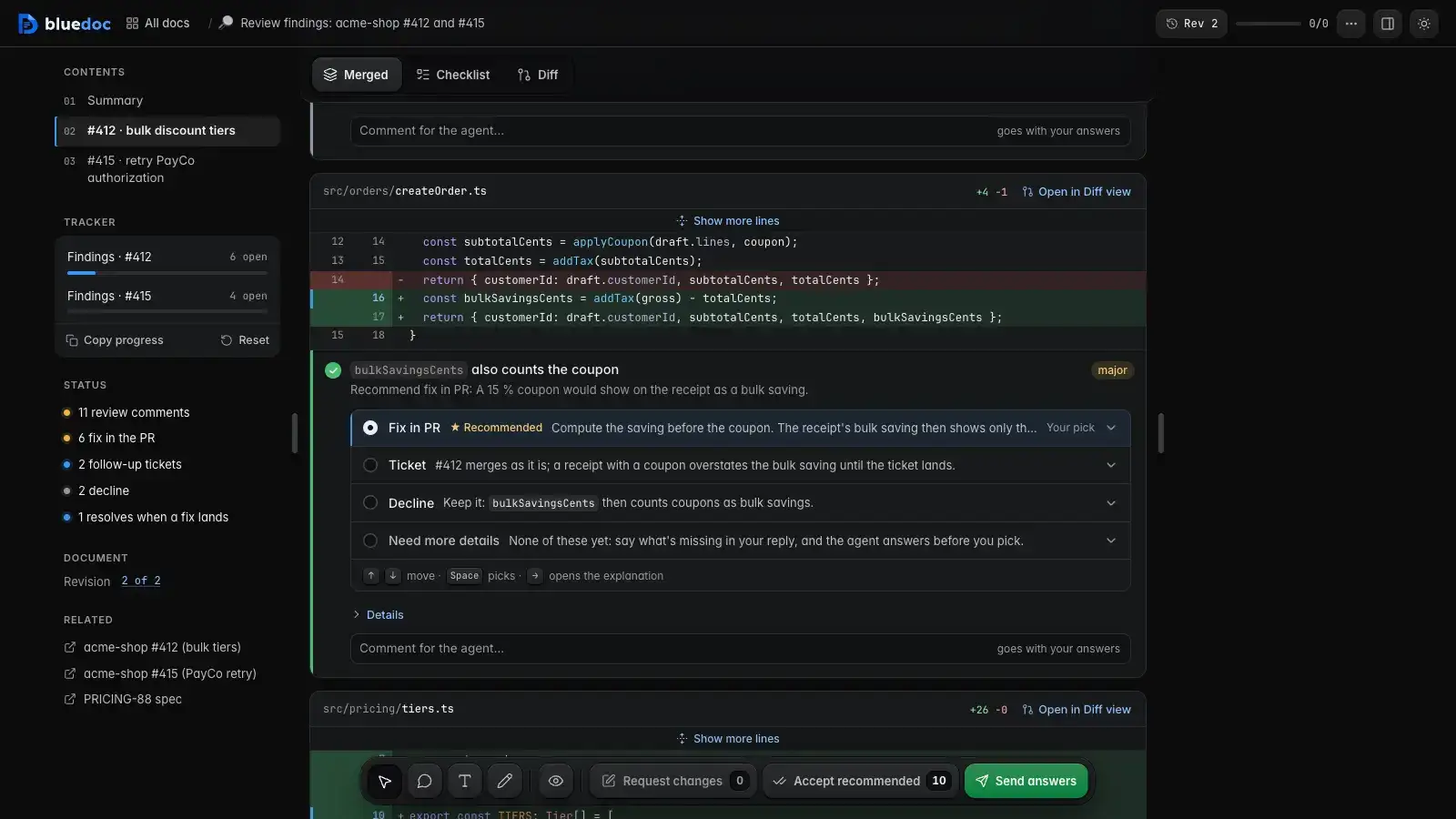 Reviews
Review findings pinned to their lines from git, one decision per finding.
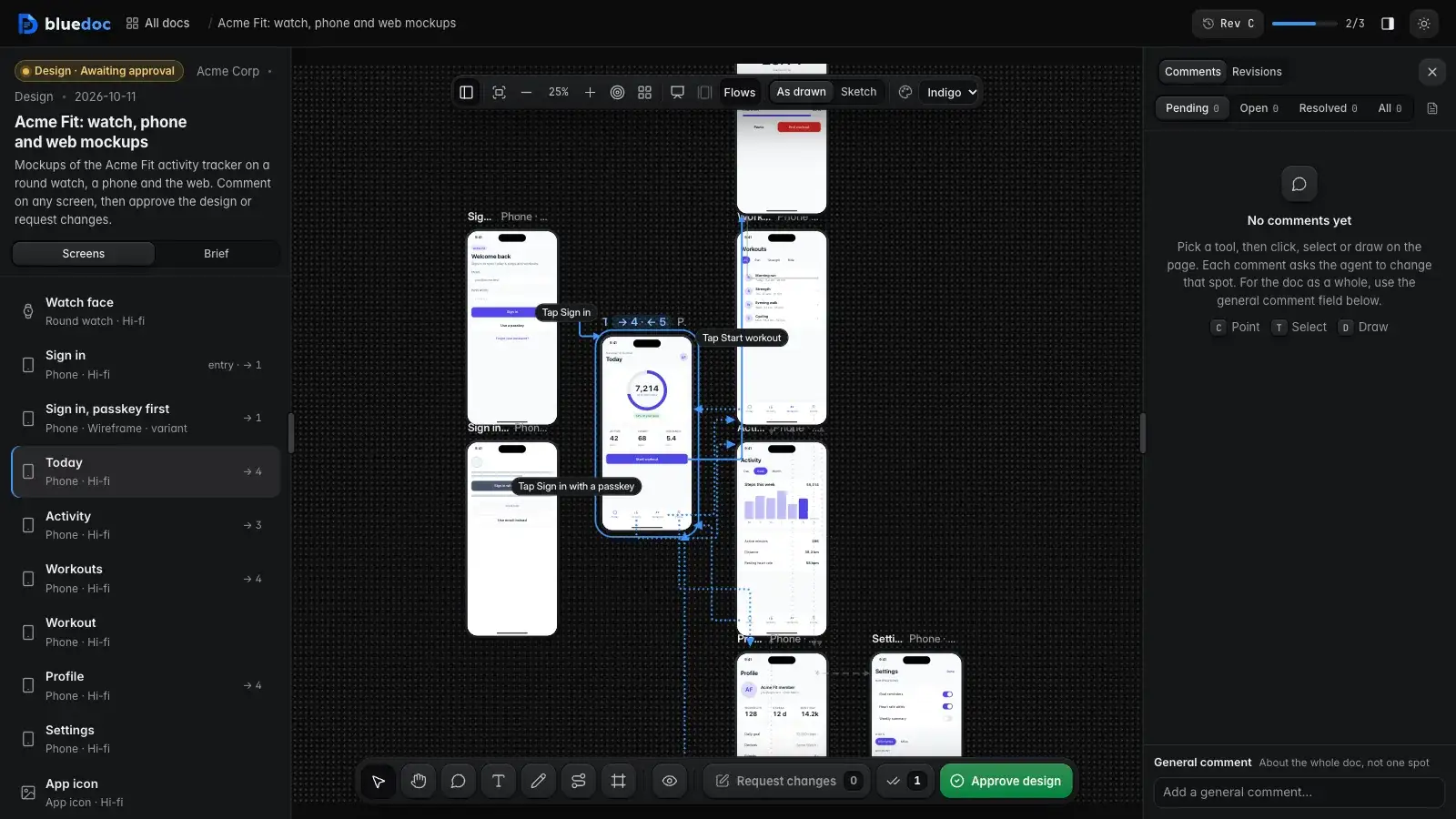 Designs
UI screens on a pan-and-zoom board, and app icons.
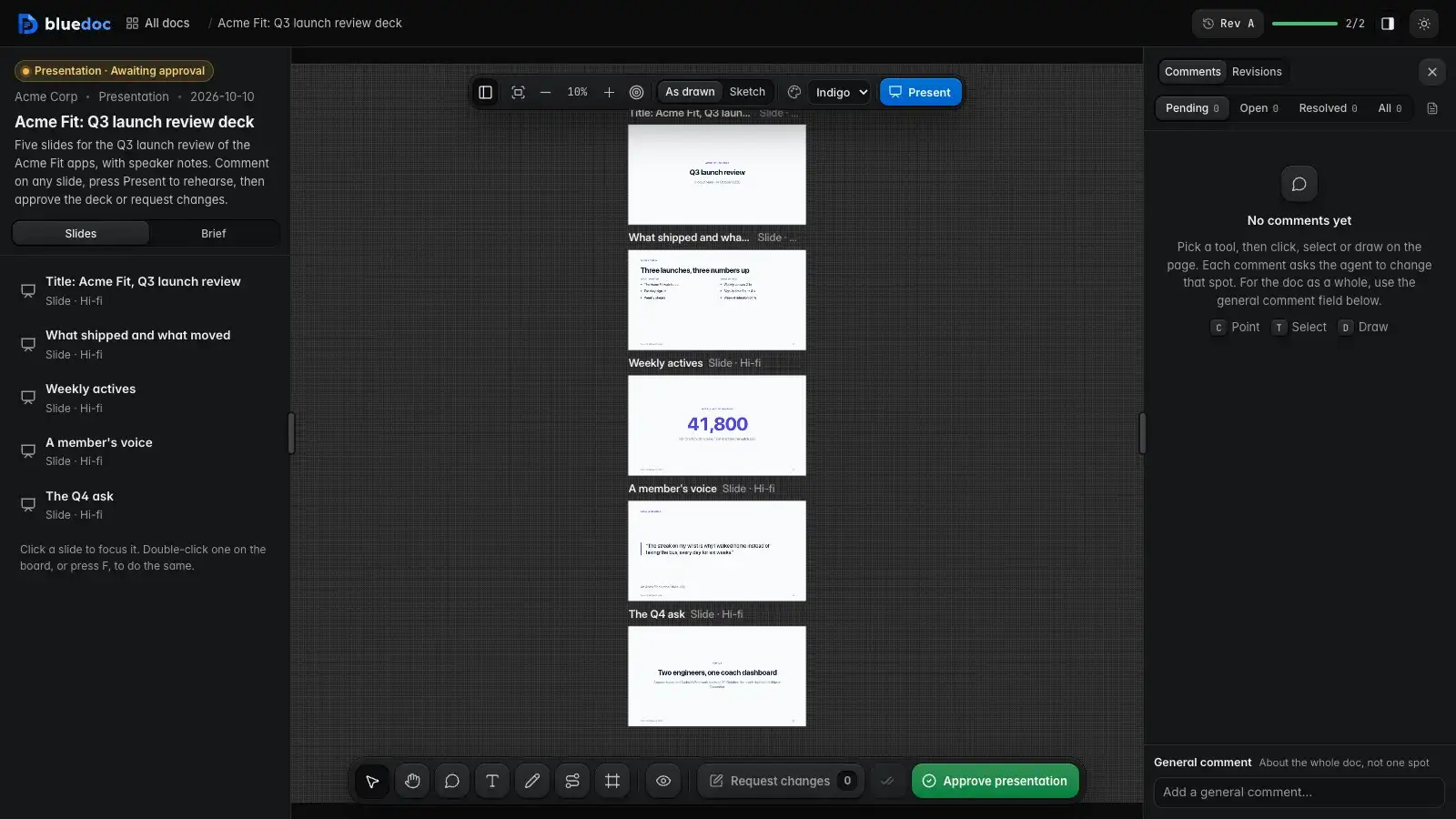 Presentations
Slide decks with speaker notes, played in Present.
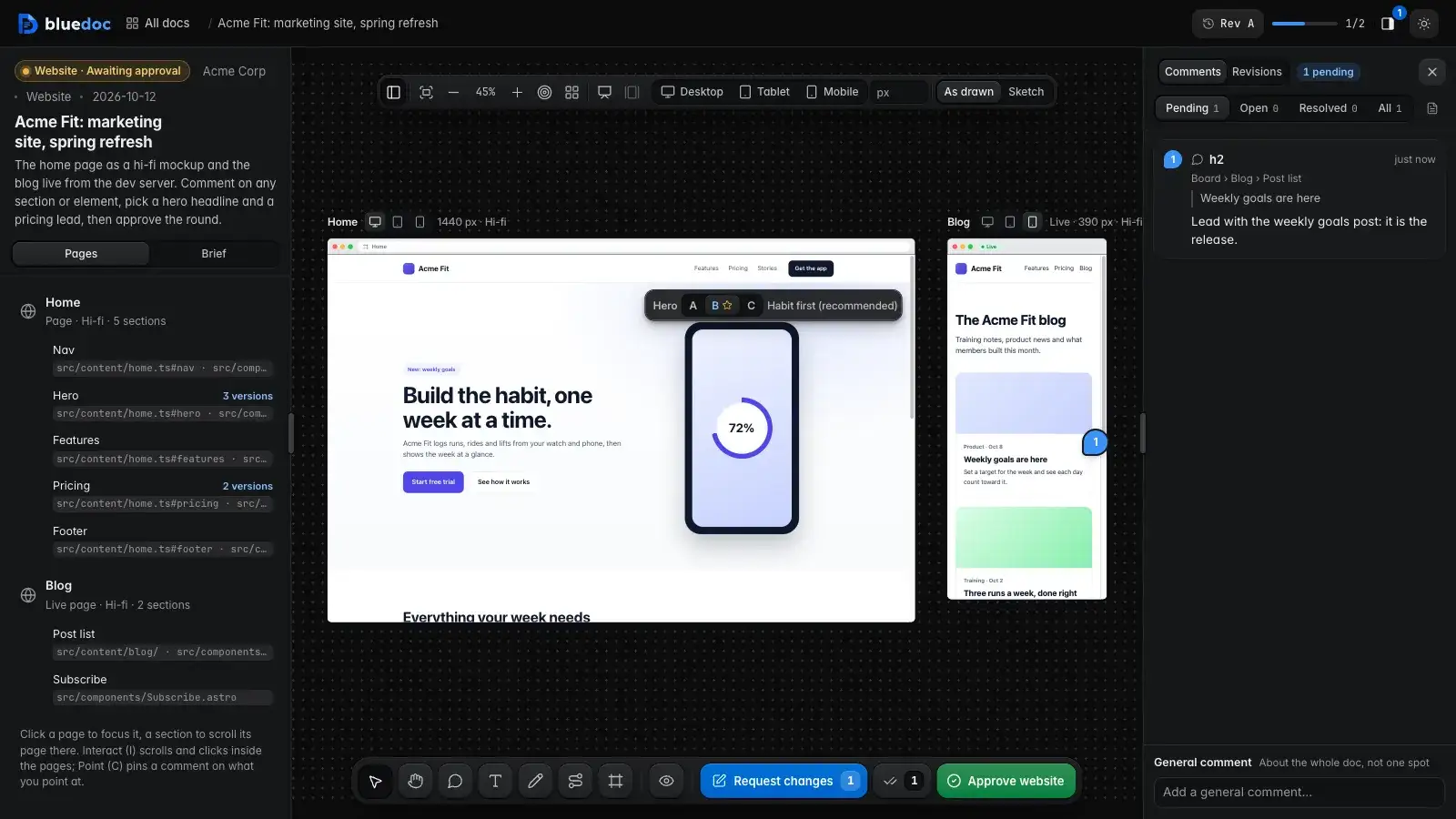 Websites
A site’s pages on a board, live from its dev server.
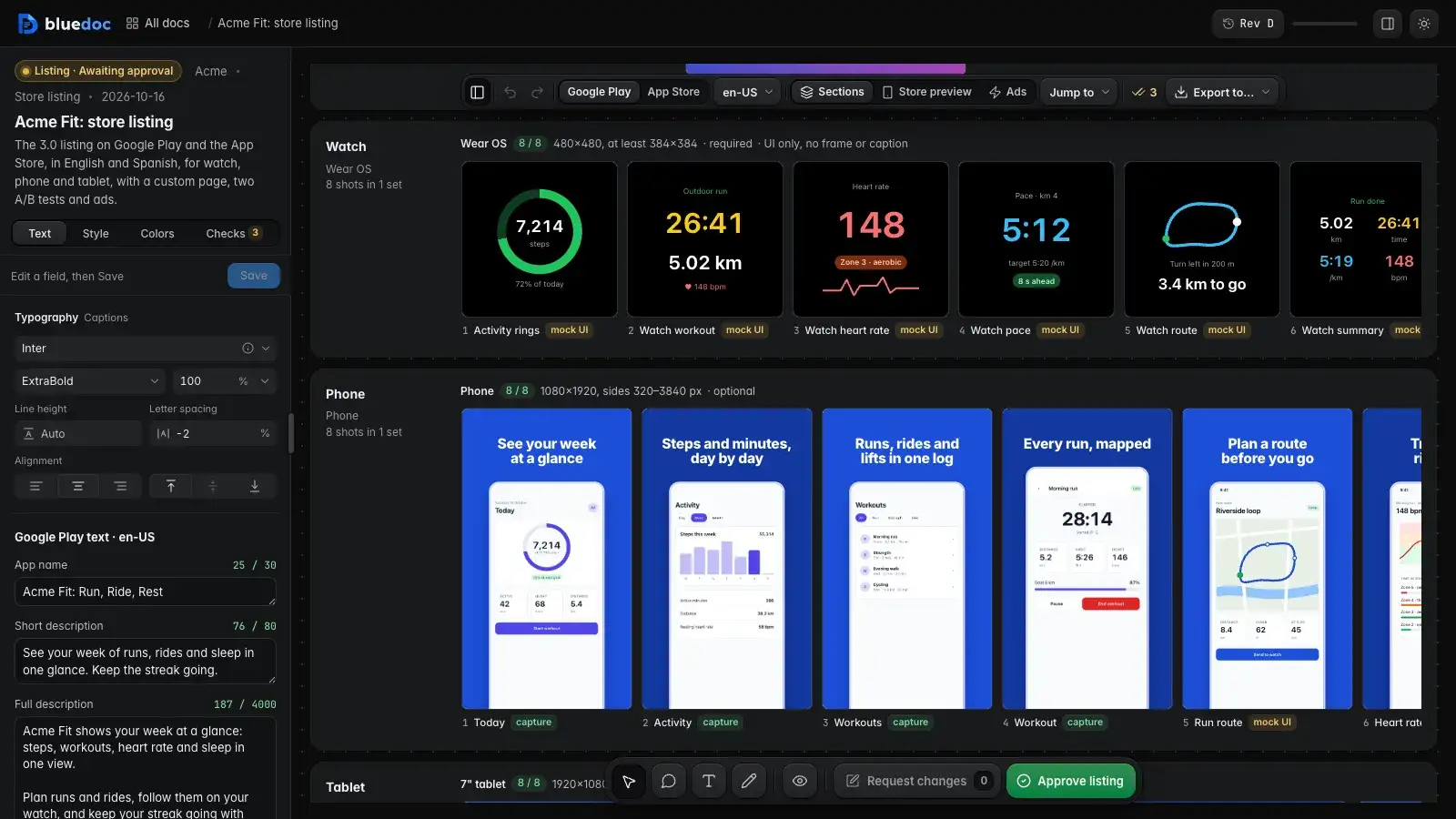 Store listings
An app’s Google Play and App Store listing, checked against the stores’ rules.
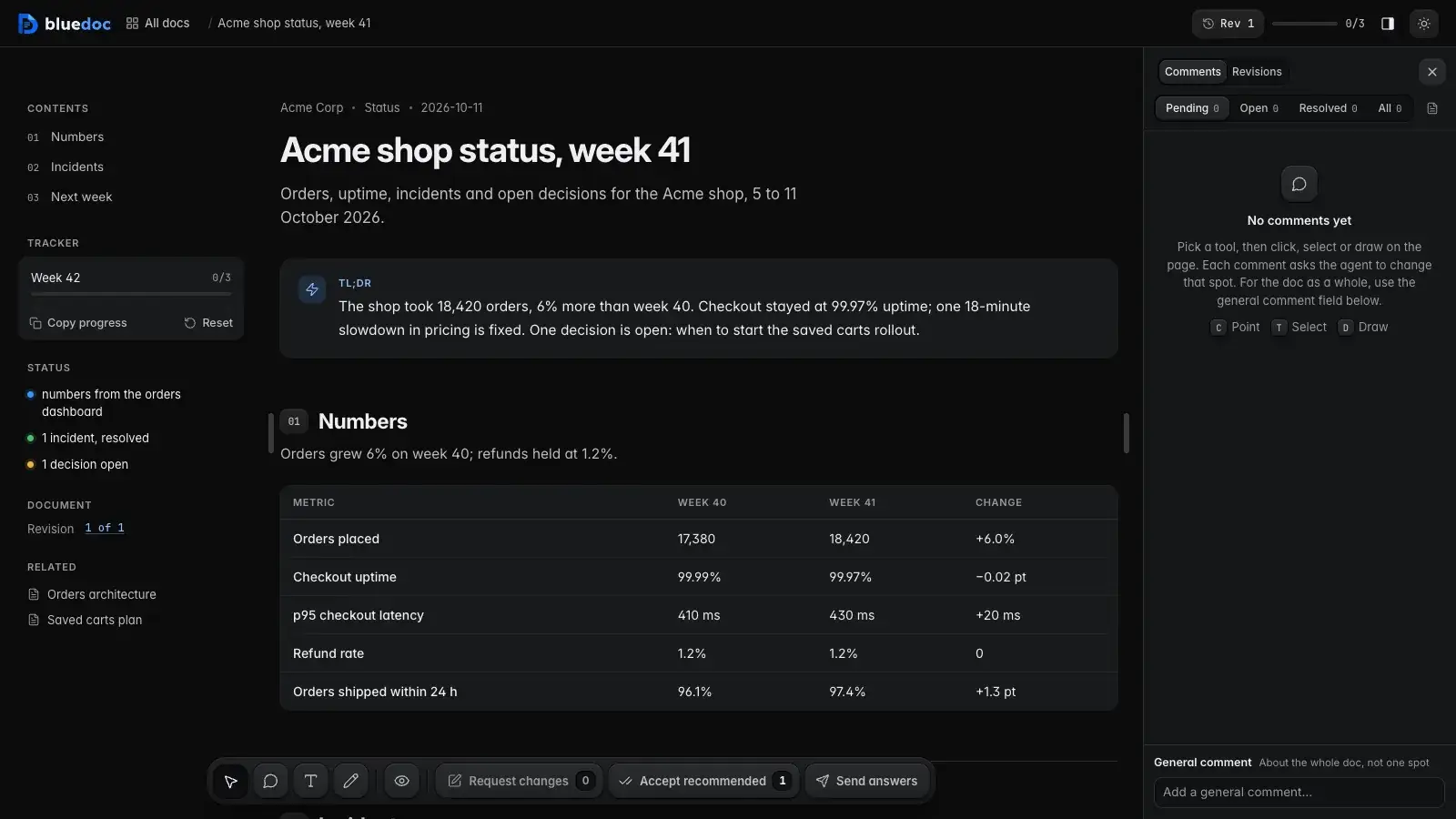 Other
OtherStatus pages, incident reports, inventories, meeting notes and comparisons.


