Feature · Revisions
Every revision, kept.
Compare any two.
Each build records a revision with the agent’s note on what changed. Open an earlier one, mark what changed word by word, or lay the new screen over the old one and fade between them.
How a revision works
The agent revises.
You see exactly what moved.
The agent records it
Every build records a revision in the doc’s history file, next to the doc, with one to four lines from the agent on what changed and why.
The page tells you
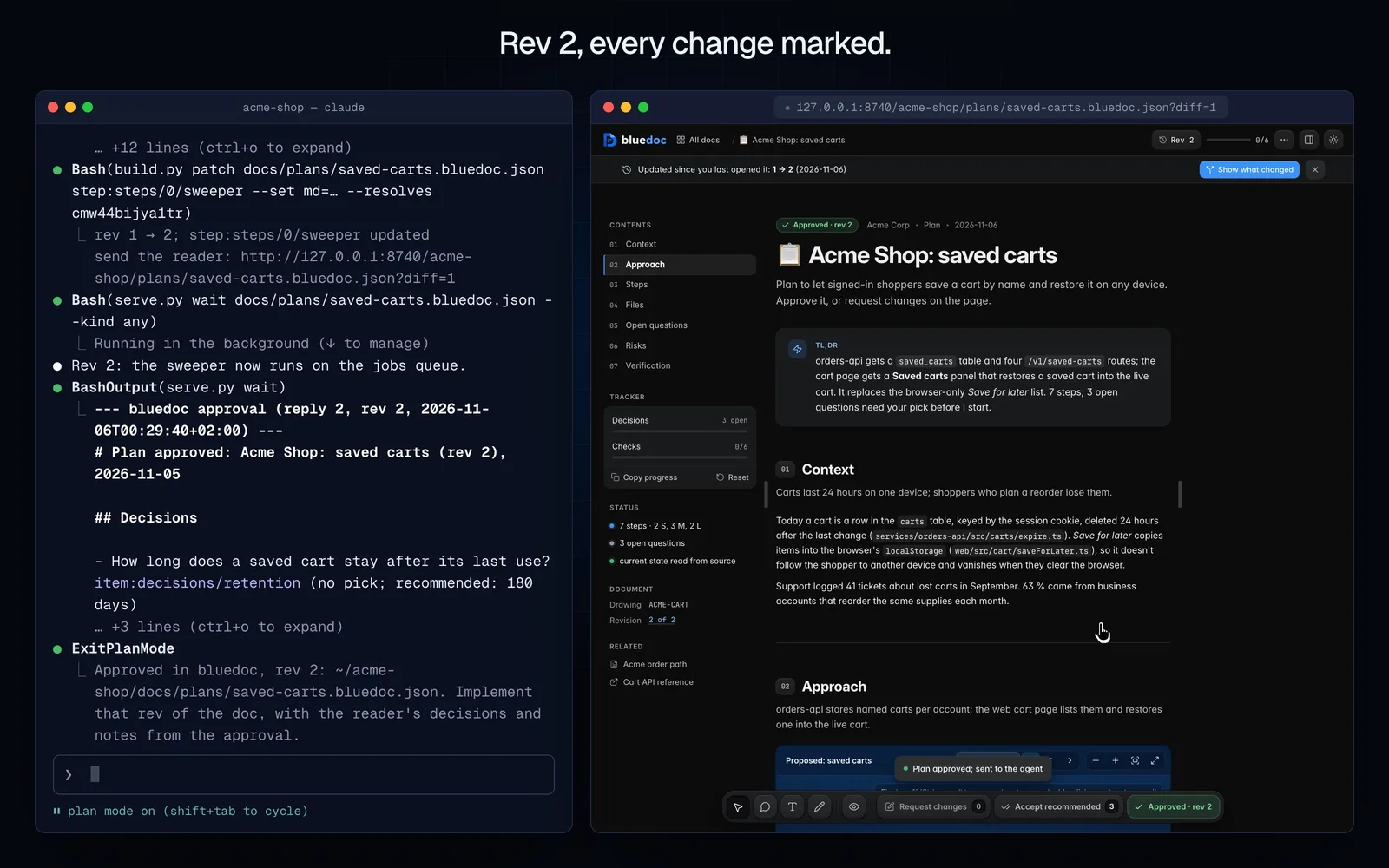
Open the doc after the agent revised it and a strip reads Updated since you last opened it: 1 → 2, with a Show what changed button.
Changes are marked in place
Changes from N, on any row of the Revisions panel, marks new, changed and removed parts where they are, words struck and added, beside the agent’s note. Any two revisions compare.
Your comments close
A comment the agent dealt with moves to Resolved, with Resolved by the agent in rev 2. An approval holds across progress, never across new content.
On every doc type
Compare the way the doc reads.
Prose is marked word by word, a drawing lights up the parts that are new or changed, a review shows where a recommendation moved, and screens and slides go side by side or as an onion skin.
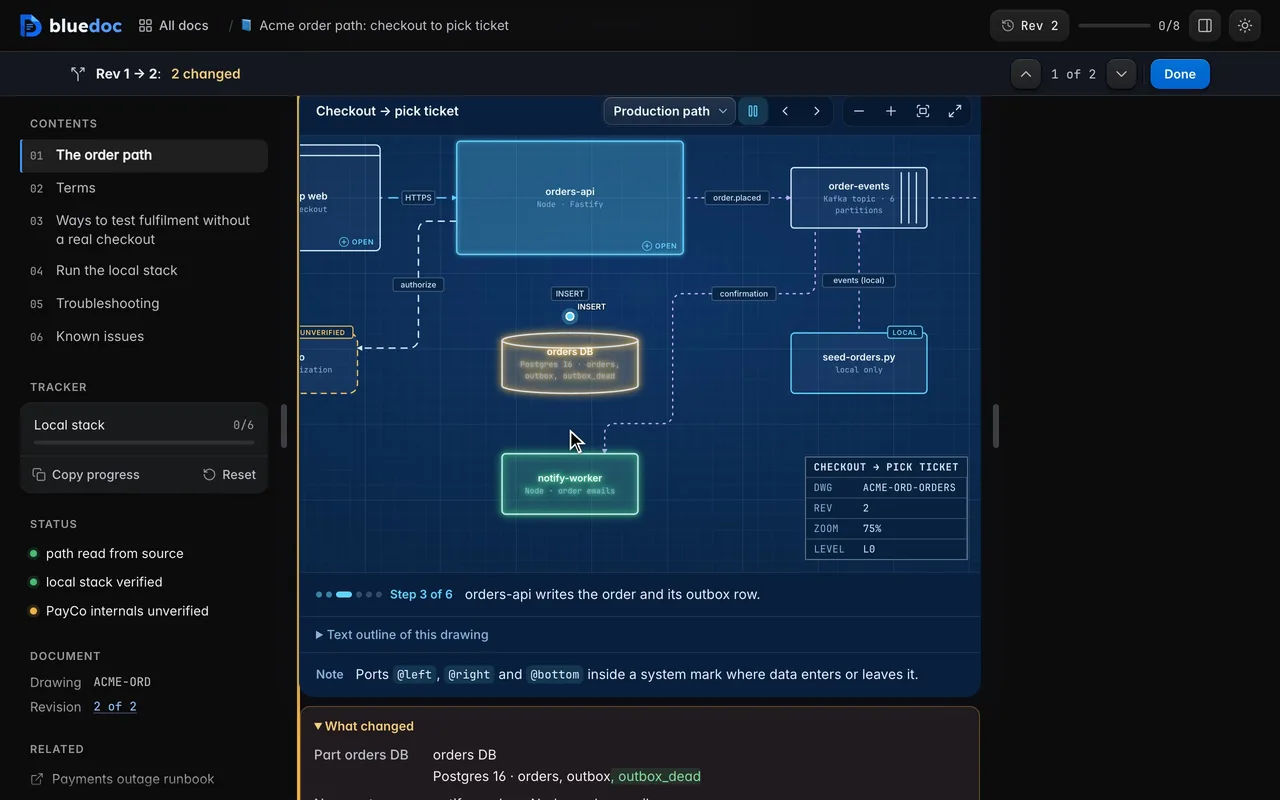
See what changed since you last read. Updated since you last opened it offers Show what changed. The drawing marks the new part green and the changed one amber, and the text shows struck and added words.
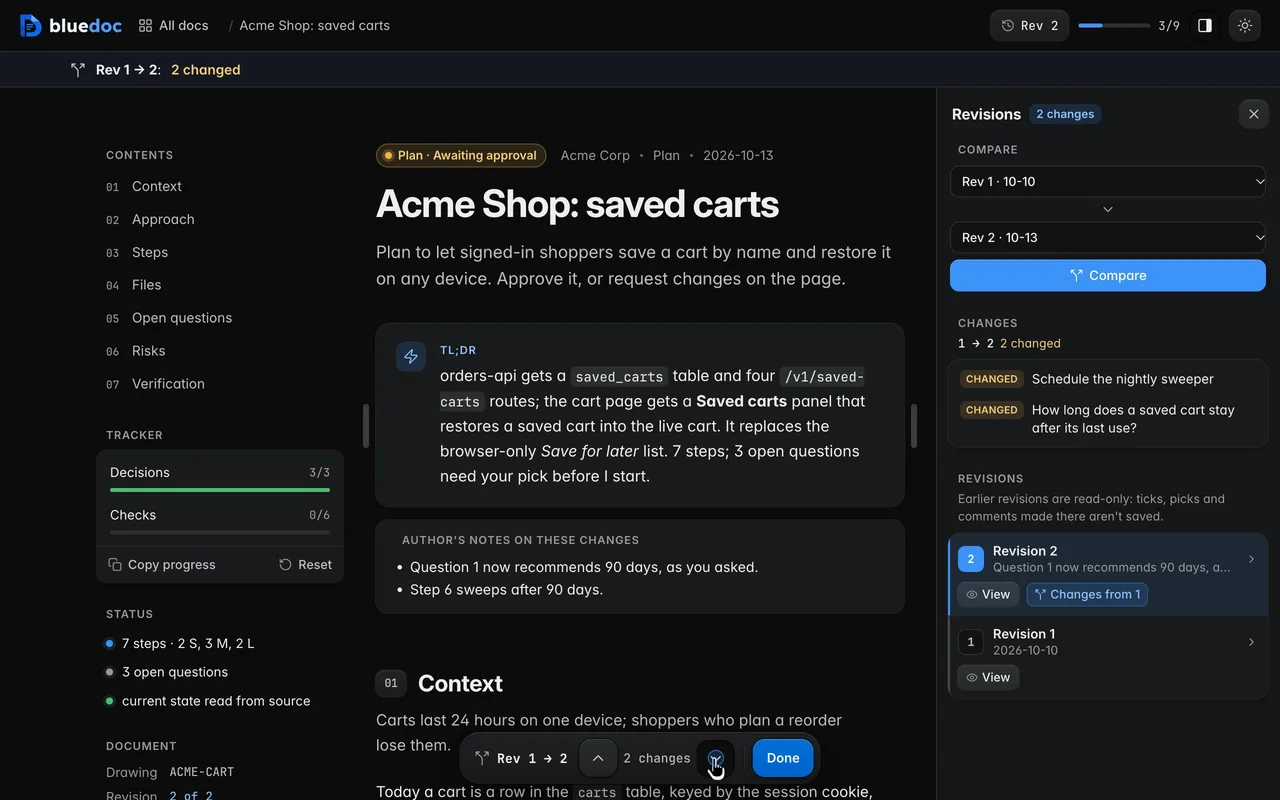
Read what the agent changed after a request. When the agent’s next revision lands, Show what changed marks it against the one you saw: its notes on the changes, the question it reworked, the step it rewrote.
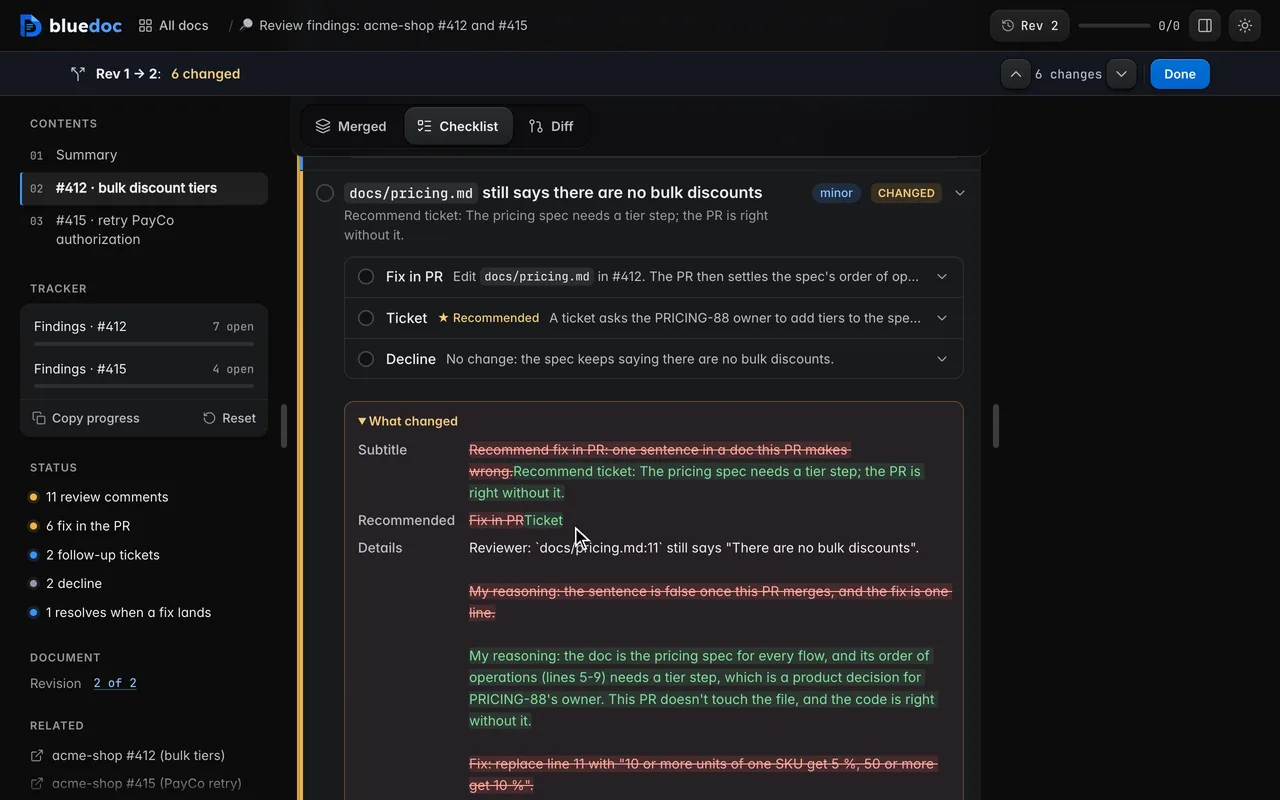
A finding’s recommendation, before and after. Changes from 1 marks the finding the agent moved to a ticket: the star now sits on Ticket, and its More details opens on What changed, with Fix in PR struck and Ticket added.
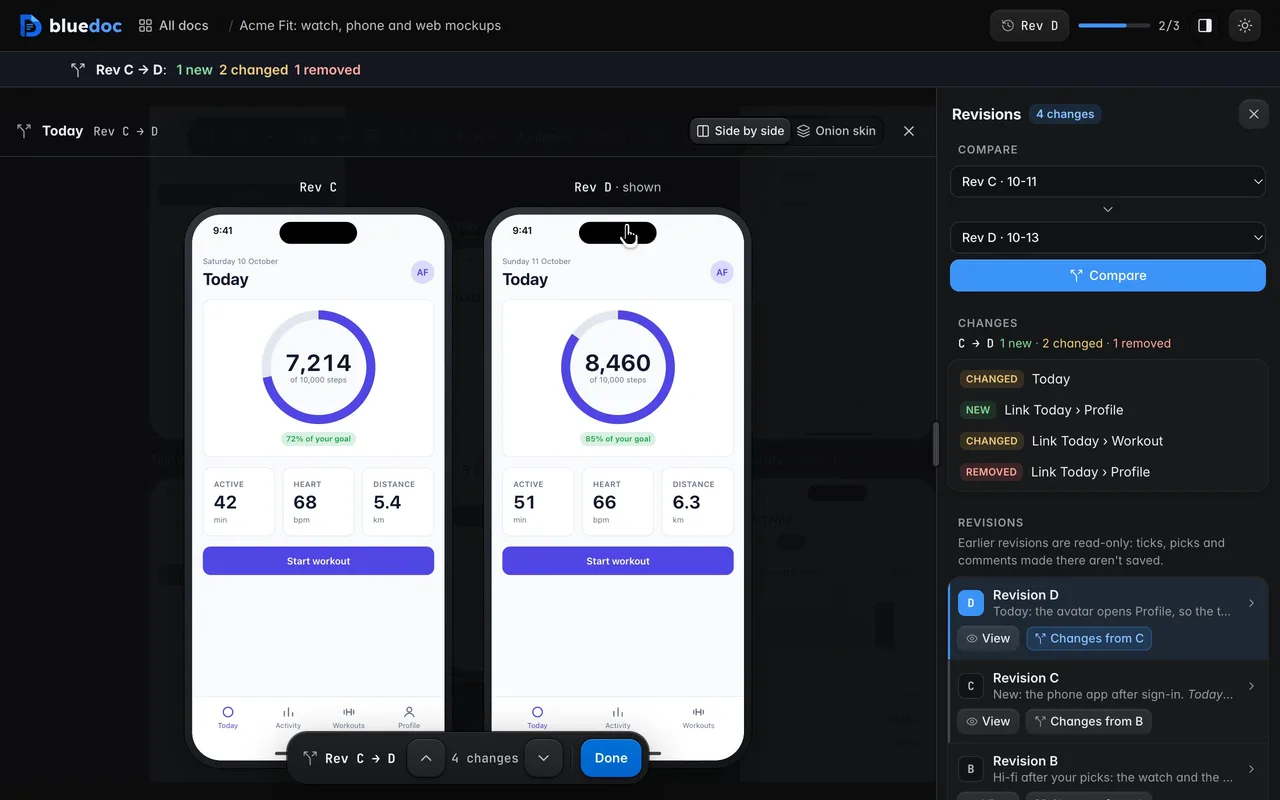
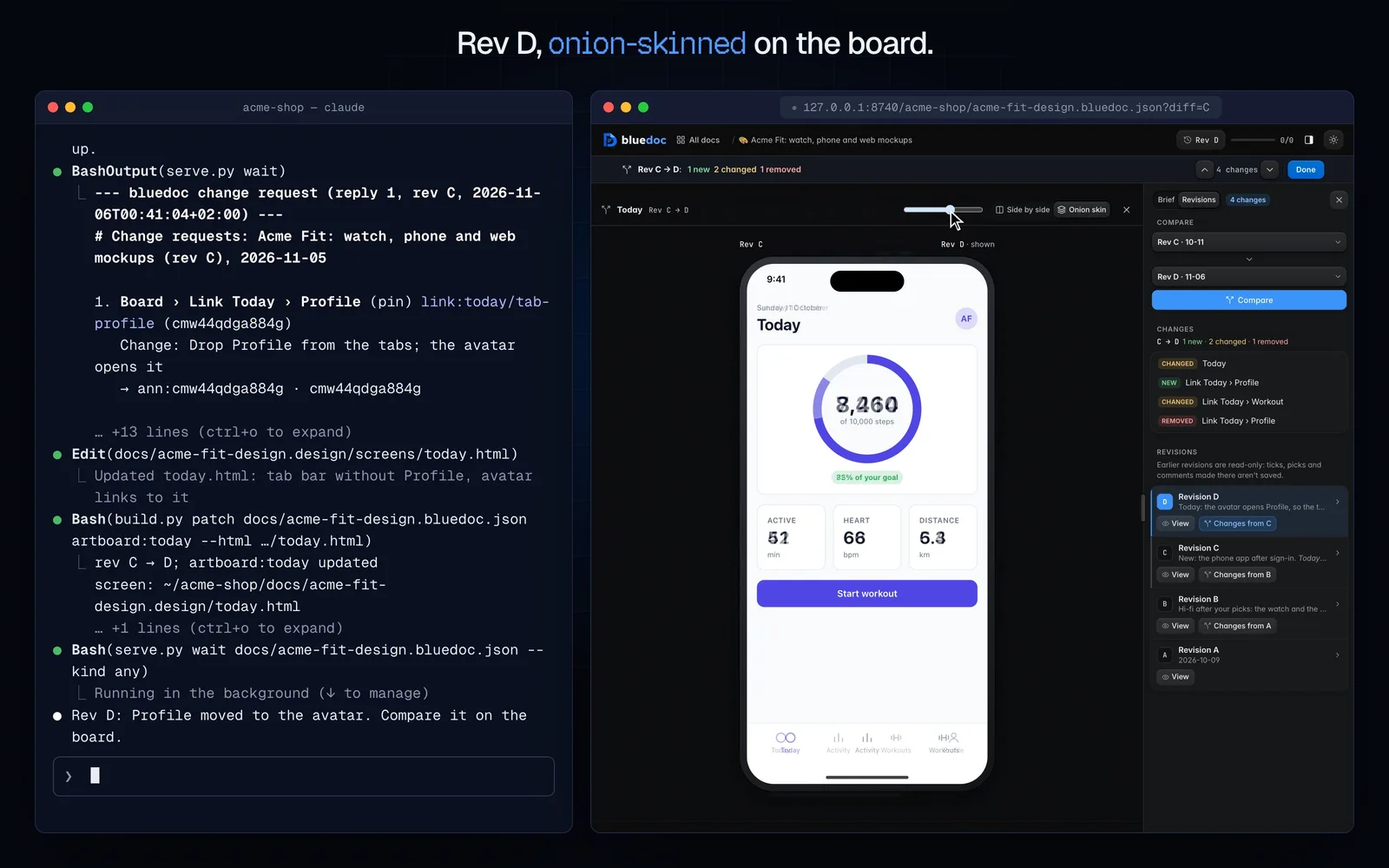
Compare a screen with an earlier revision. Changes from an earlier revision marks a changed screen and its links New, Changed or Removed; the screen’s Compare key puts the two revisions side by side.
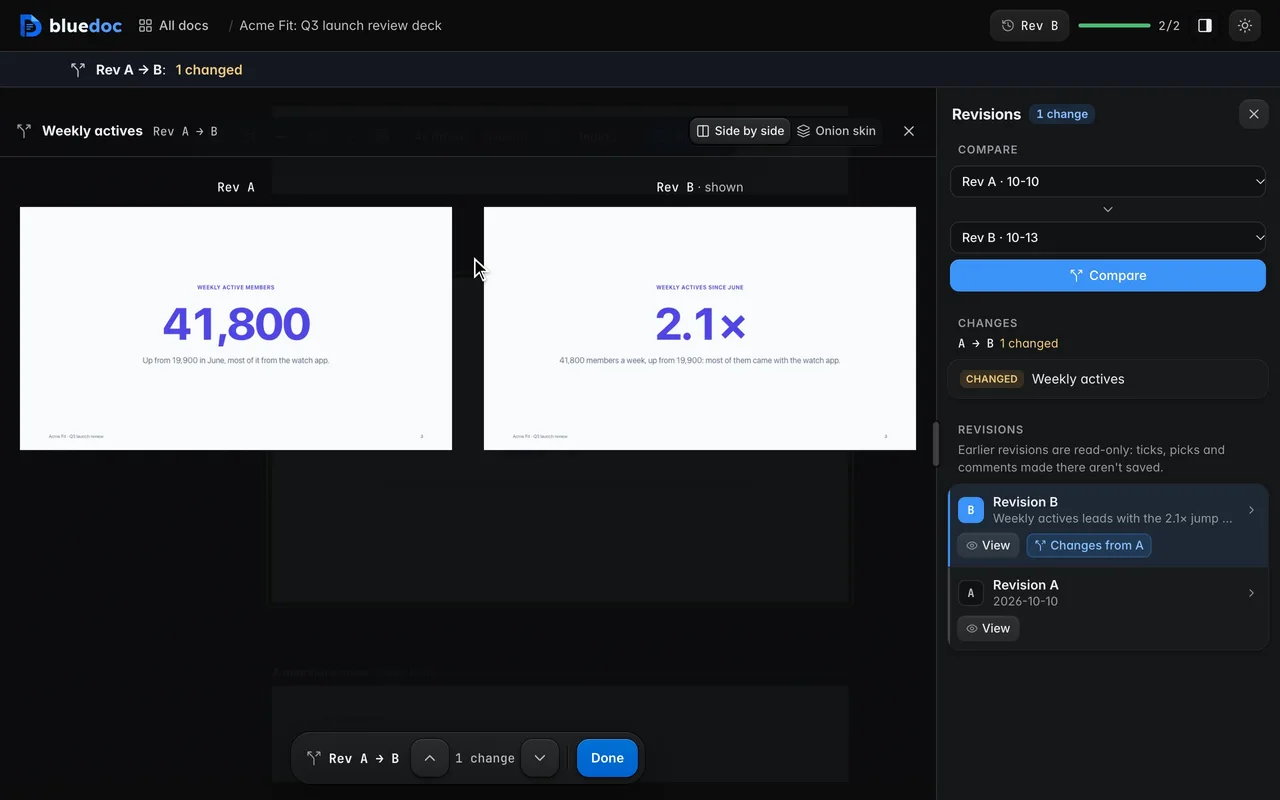
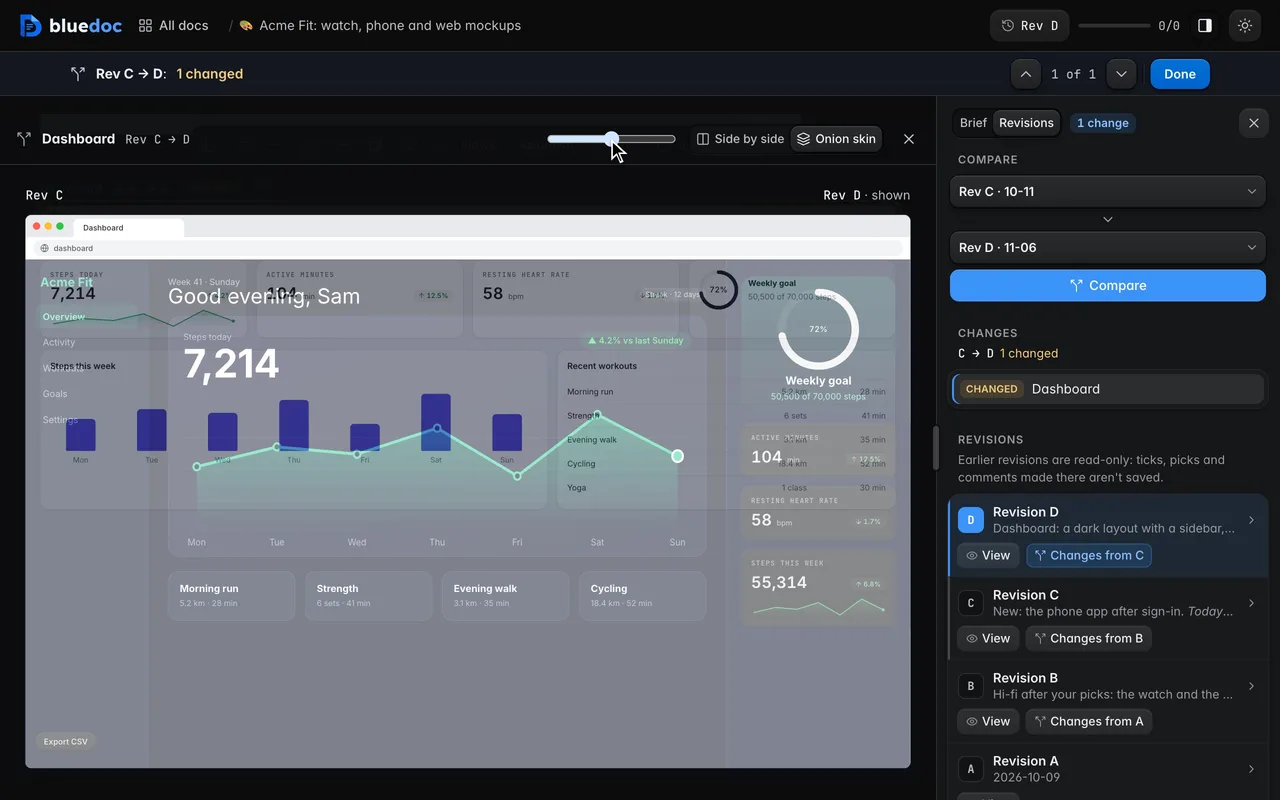
Compare a slide with the last revision. Compare puts a slide at two revisions side by side, or lays one over the other as an onion skin.
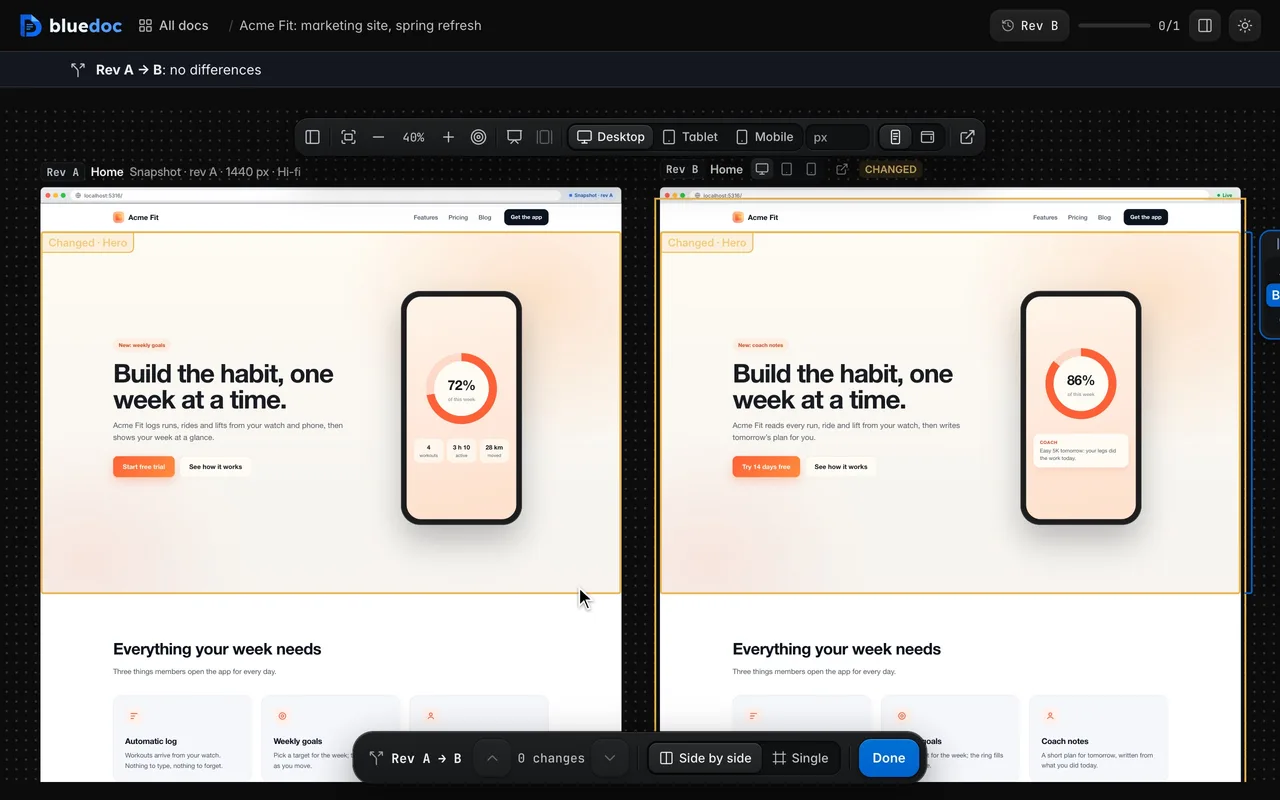
Compare a page with an earlier revision. Compare puts the older revision left of the newer one at the same size; zoom and pan move both. A section whose content changed is outlined on both.
Onion skin
One screen over the other.
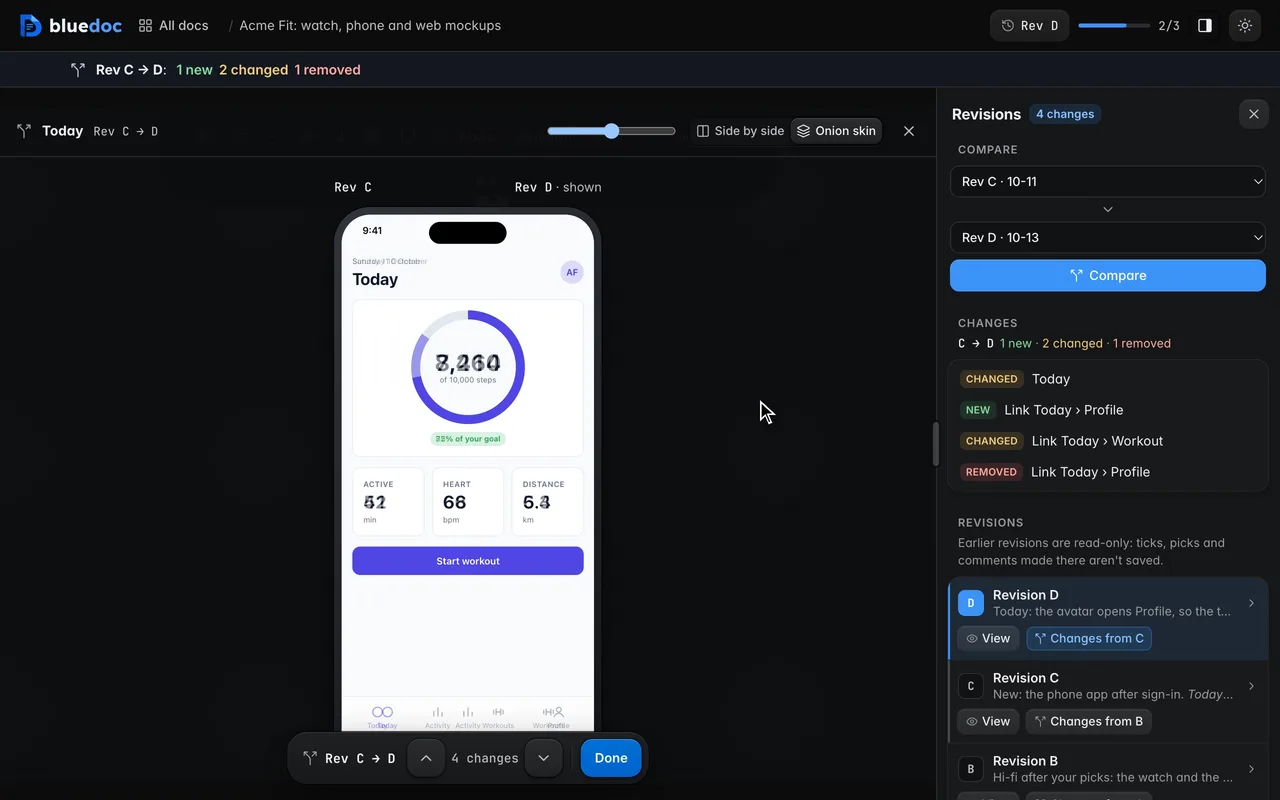
On a design or a presentation, compare puts a screen at two revisions side by side. Onion skin stacks them instead: the newer one over the older, with an opacity slider between them. Slide it and a nudged number, a dropped tab or a new layout shows where it moved, not in a list.
- Side by side or Onion skin, remembered per browser
- Links marked New, Removed or Changed
- Any two revisions, not just the last two
A revision, start to finish
Ask for a change.
Watch it land.
And the rest of it
Nothing is lost between revisions.
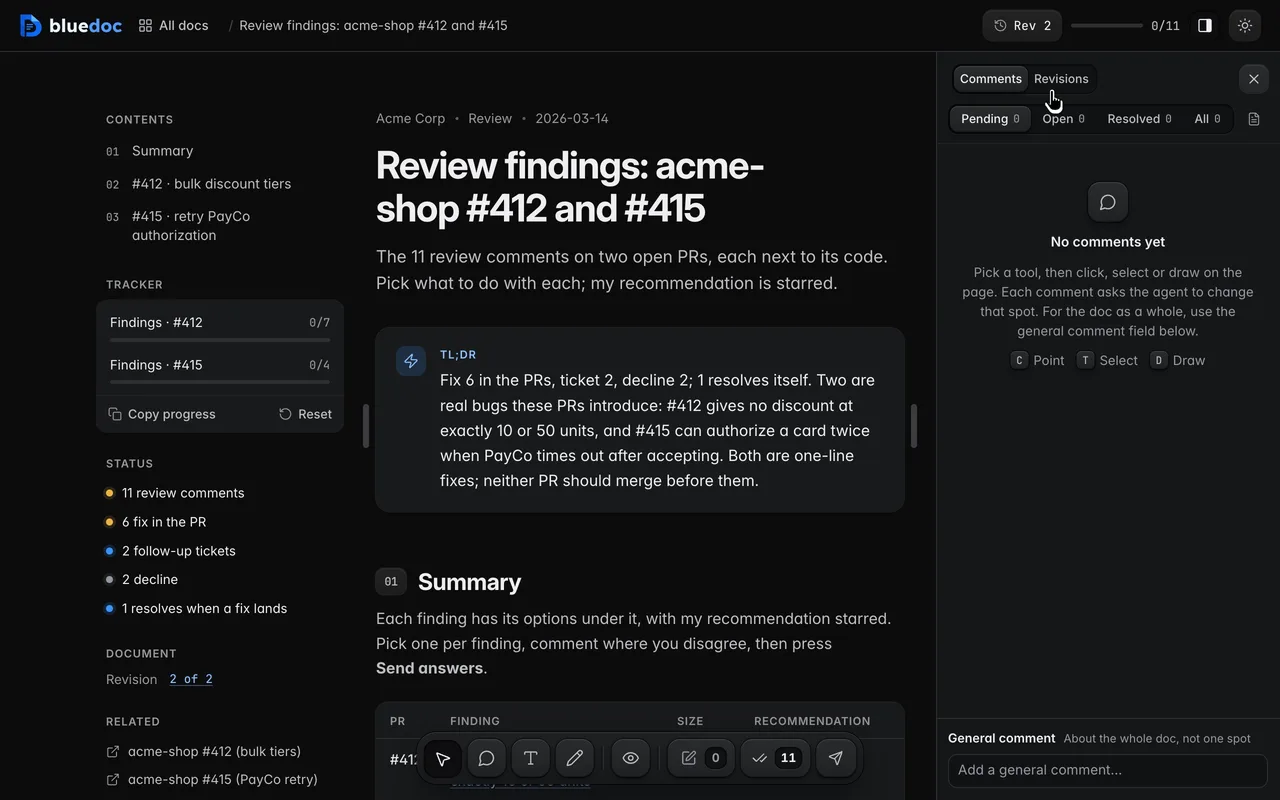
Open an earlier revision
The Revisions panel lists each revision on one timeline with the agent’s note on what changed. View opens an earlier one read-only.
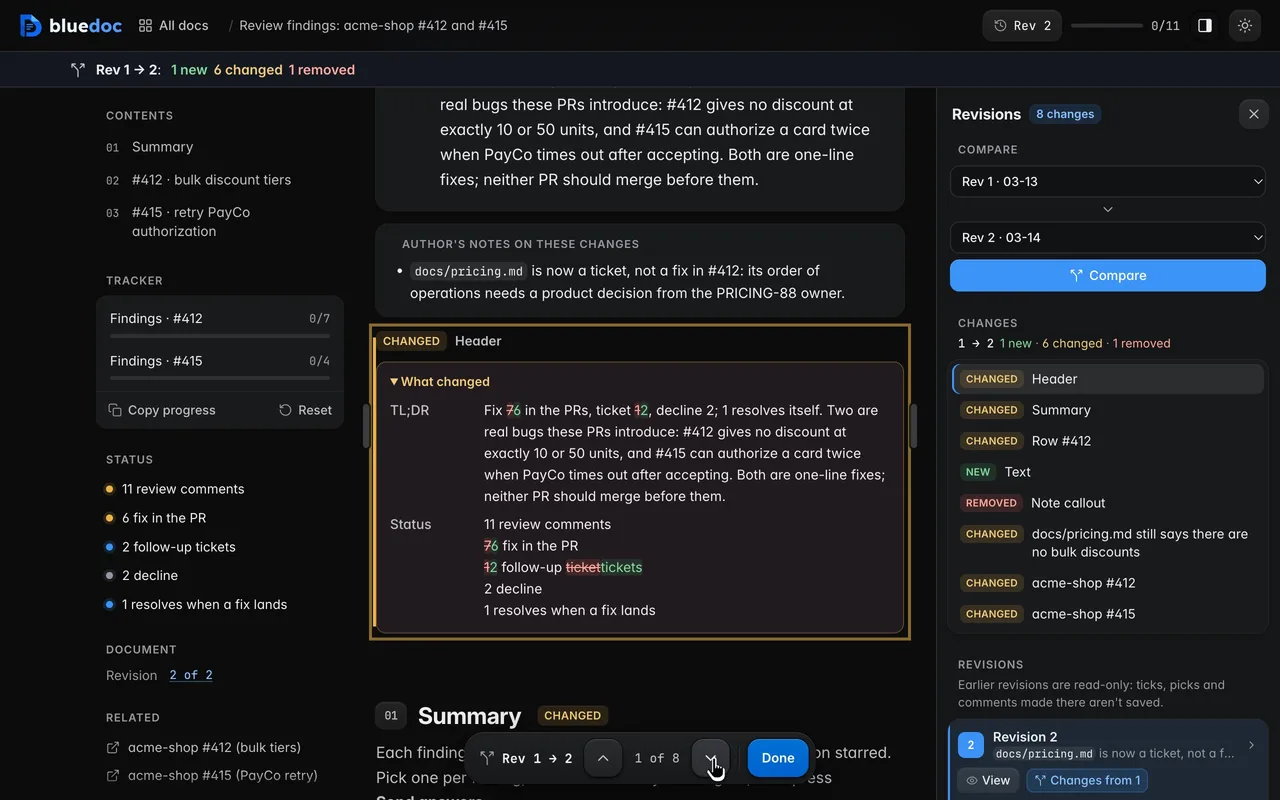
Compare two revisions word by word
New, changed and removed parts are marked in place, with words struck and added.
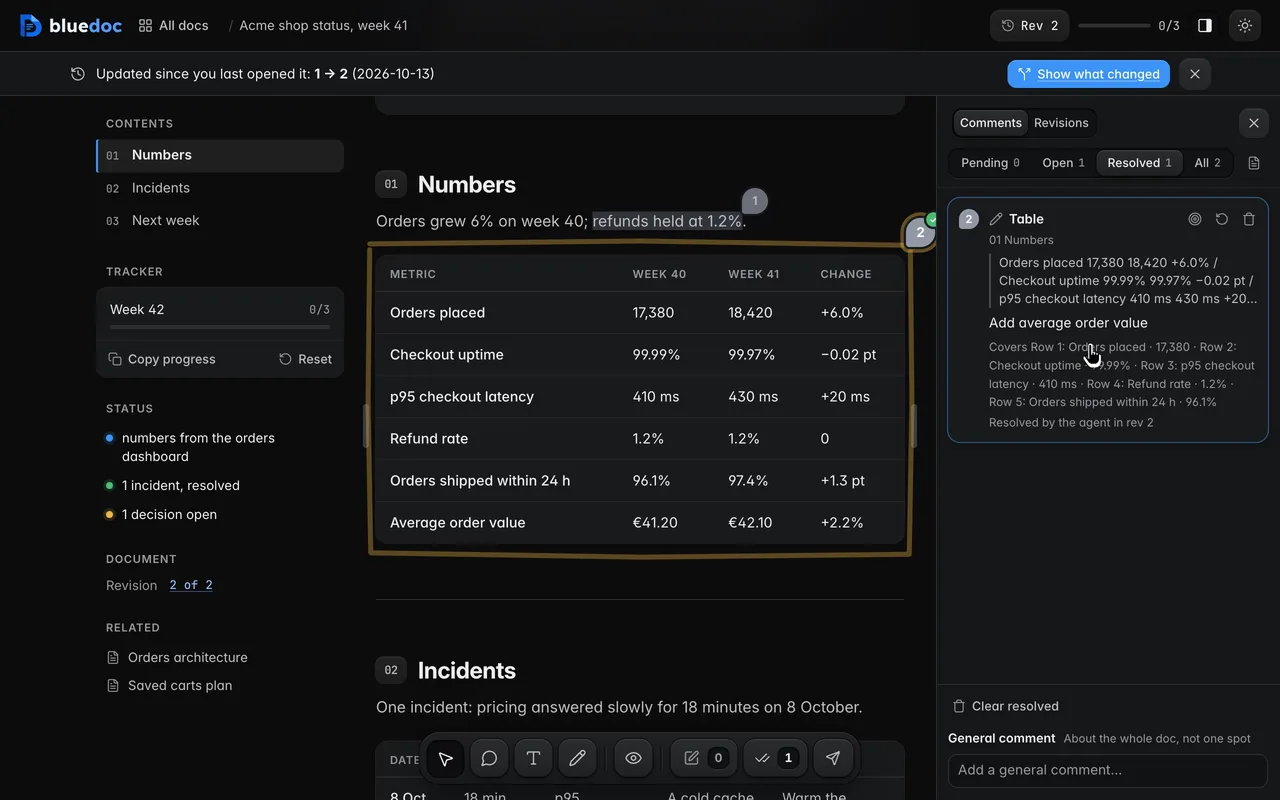
Follow a comment to Resolved
Notes go from Pending to Open when sent, and to Resolved when the agent’s revision says it dealt with them.
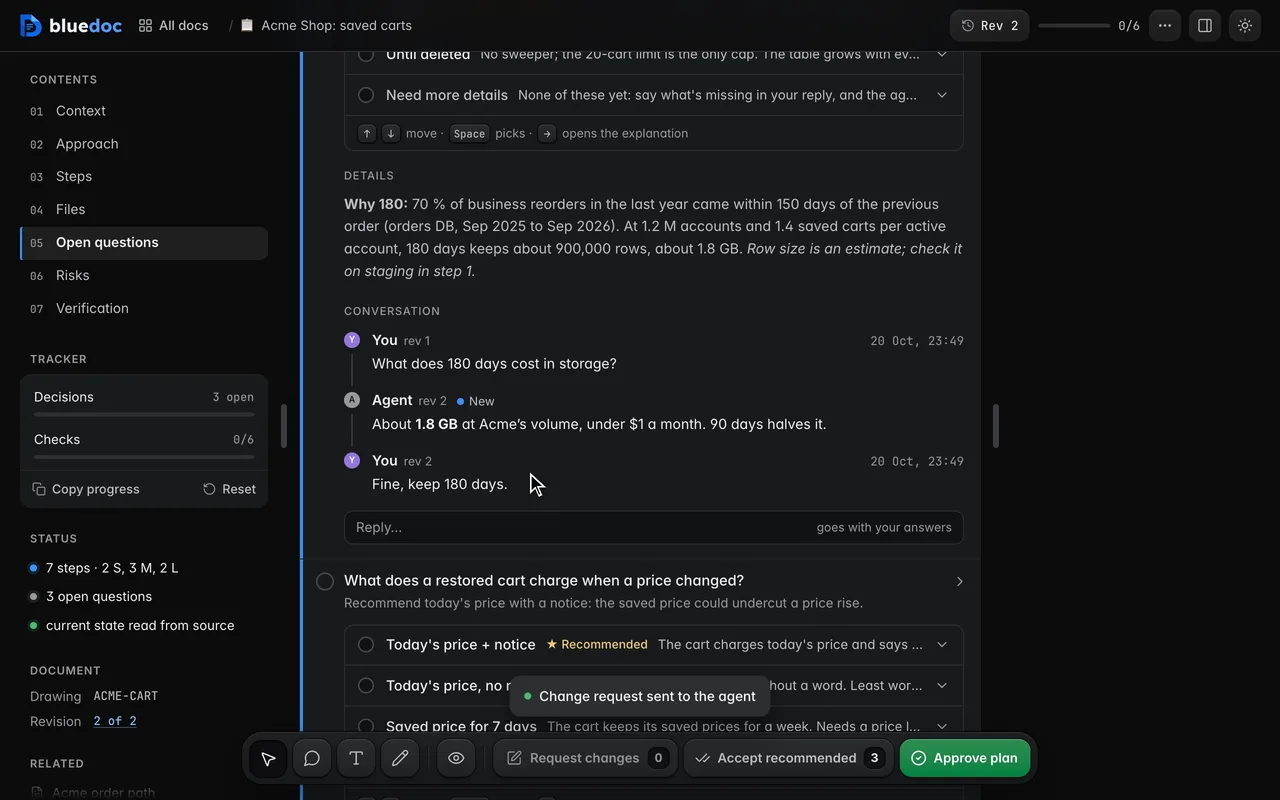
Talk it through with the agent
Each question, pin and general comment is a conversation. A sent comment becomes a message tagged with its rev; the agent’s replies, signed with its model’s name, sit between yours, marked New until you see them.
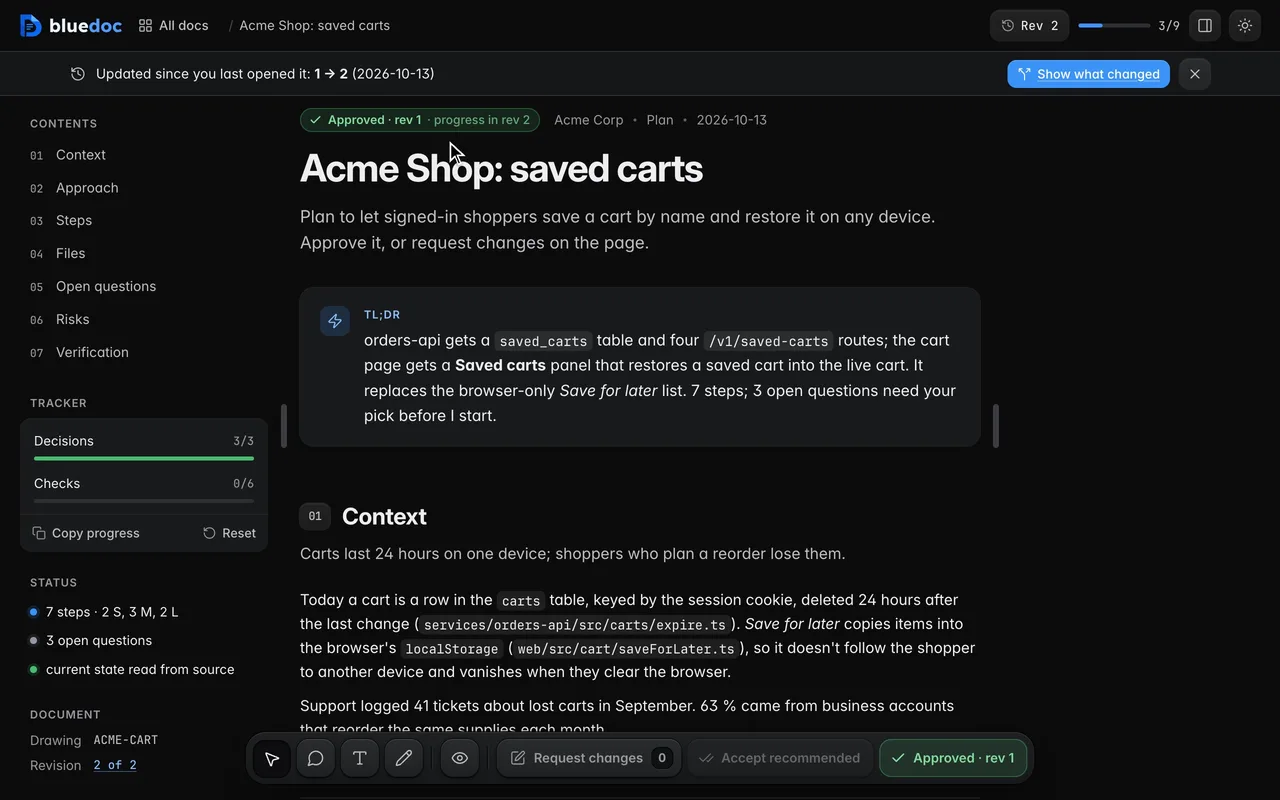
Keep an approval across progress
A revision that only marks steps done keeps the approval. Any other edit asks for approval again.
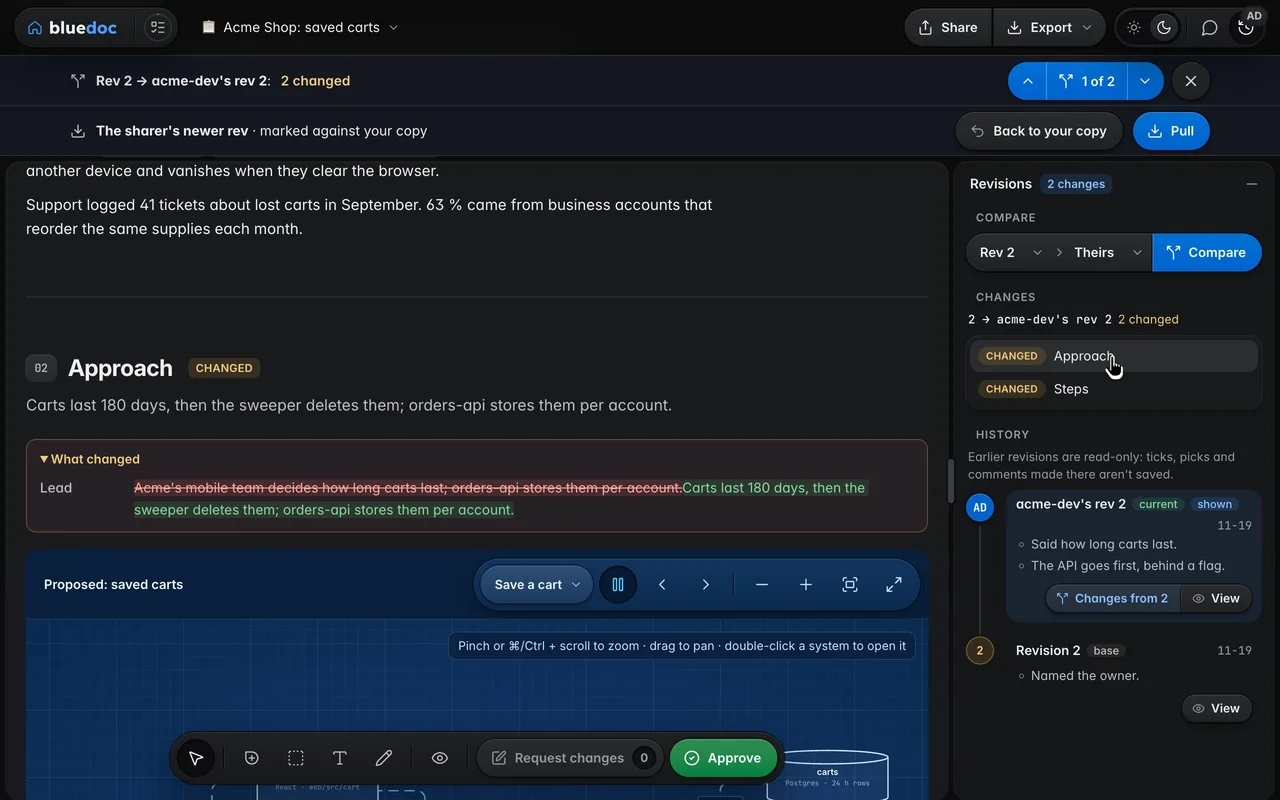
Take the sharer’s updates
Your copy says when the sharer shares a newer revision. Compare shows theirs over yours, Pull merges it into a new revision, and Take theirs settles a part you both changed.
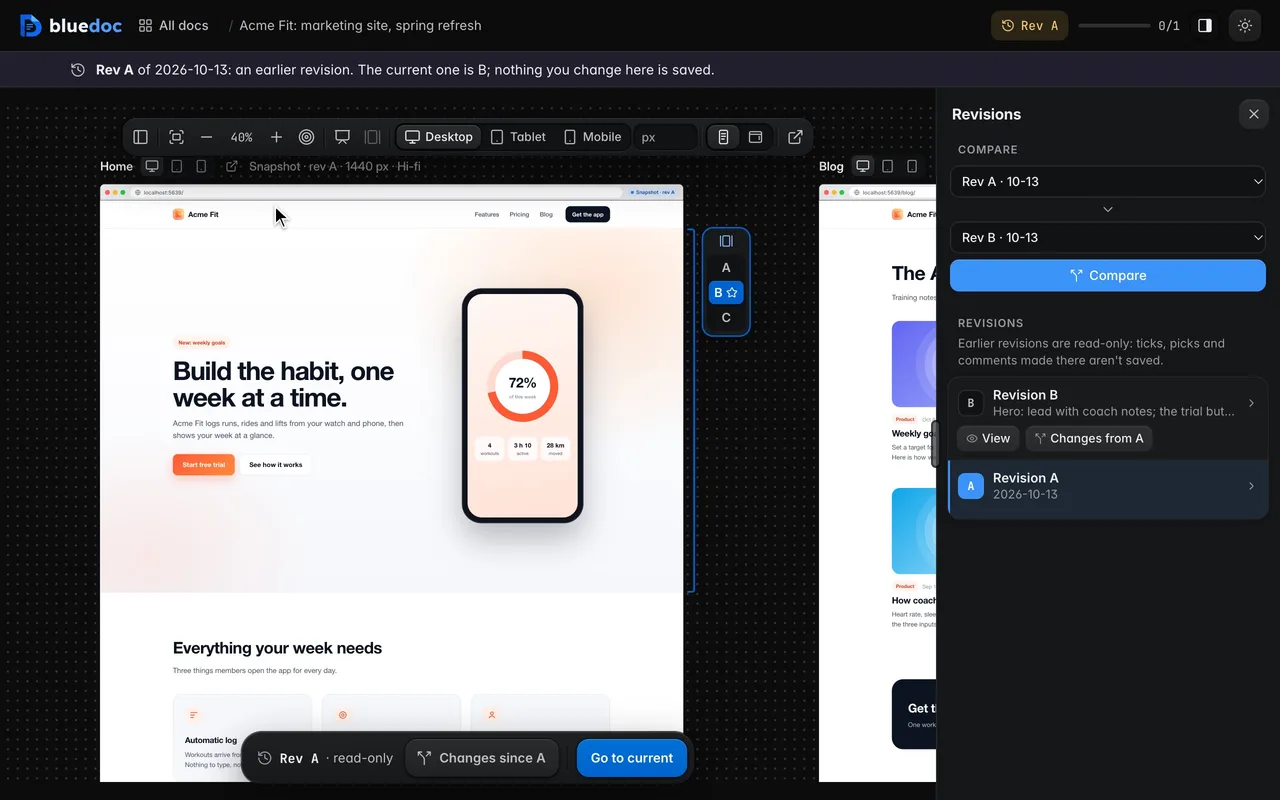
Open an old revision as its snapshot
bluedoc keeps a static copy of each live page per revision and width. An earlier revision shows that snapshot, labelled as one, never the live site posing as old.
Other features
Six more features, a page each.
- CommentsPin, box, select or draw a comment on any part of the page.
- QuestionsPick the starred answer, write your own, or ask for more.
- Send and approveApprove a revision, or send it back with your notes.
- Share and exportA view-only bluedoc.ai link, or an HTML, PDF or Markdown file.
- ChartsStat cards, lines, bars and a donut, drawn in the page.
- Home and SettingsEvery doc on one page: search, filters, statistics and Settings.
Answer your agent
on a page.
Pick your agent. Each one installs the same skill from the GitHub repository.
claude plugin marketplace add andreiverdes/bluedocclaude plugin install bluedoc@bluedocInside a session the same commands are /plugin marketplace add andreiverdes/bluedoc and /plugin install bluedoc@bluedoc. Start a new session to load the skill.
codex plugin marketplace add andreiverdes/bluedoccodex plugin add bluedoc@bluedocRestart Codex. Mention the skill with $bluedoc or let Codex pick it from your request. Plan mode (/plan) opens the plan as a page; the README has the sandbox lines that skip the approval prompts.
pi install git:github.com/andreiverdes/bluedocRestart pi. /bluedoc-plan-mode turns on plan mode, and the plan opens as a page for your approval.
omp plugin marketplace add andreiverdes/bluedocomp plugin install bluedoc@bluedocRun /reload-plugins in an open session, or start a new one. omp’s plan reviews open as pages: Approve runs the plan, Request changes refines it.
copilot plugin install andreiverdes/bluedocStart a new session. When Copilot leaves plan mode, its plan opens as a page and waits for your approval.
git clone https://github.com/andreiverdes/bluedoc.gitagy plugin install bluedoc/antigravityRestart agy. In plan mode (agy --mode plan or /plan), the implementation plan opens as a page for your approval.
npx skills add andreiverdes/bluedocFor any other agent that reads skills. Or clone the repository and link skills/bluedoc into your agent’s skills folder.
- Python 3.9 or later on PATH
- git, for code reviews
- gh, only for GitHub review threads and Share